SQLite logo SQLite 3.x · any .db / .sqlite file · WAL-safe
SQLite Backup Tool

Point the SQLite Backup Tool at the folder your application keeps its .db or .sqlite files in, and it takes a consistent snapshot of every database on a schedule — even while your app is still writing to it.

Each snapshot is integrity-checked, compressed and encrypted with AES-256, then stored on your PC, NAS, Amazon S3, S3-compatible cloud or SFTP server.

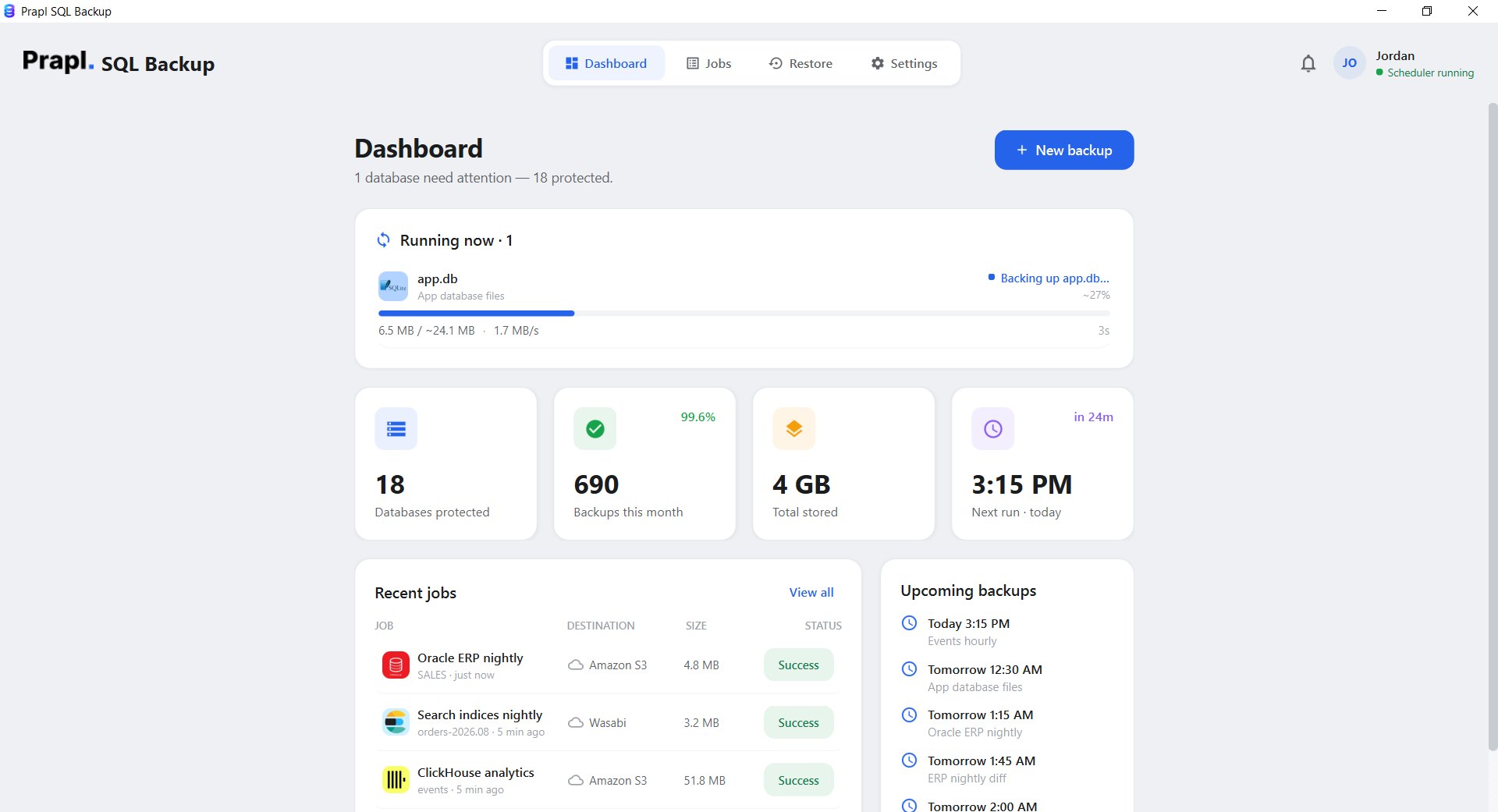
sqlite backup tool running a scheduled backup of database files
app.db · backed up 2 min ago
online backup API/ WAL-safe snapshot/ integrity_check/ .db / .sqlite / .sqlite3/ streaming gzip/ AES-256-GCM/ Amazon S3/ SFTP/

Everything You Need for Reliable SQLite Backup

No server
Just a folder of files
WAL-safe
Snapshots of live databases
AES-256
Encryption Security
Automated
Scheduled Backup
Video tutorial

Watch How to Backup SQLite Database Automatically

Why It Matters

Why Use a SQLite Backup Tool

SQLite sits inside desktop apps, point-of-sale systems, websites, mobile back-ends and IoT devices — usually as a single file nobody thinks about until it is gone. A file copy taken while the app is writing can look fine and be corrupt, and it silently misses the -wal file that holds the newest transactions. A proper snapshot on a schedule is the only safe answer.

📄

Copying a Live File Is Not a Backup

Copy app.db while the application is writing and you can catch a page mid-write — the copy opens, then fails later. In WAL mode the newest committed rows live in app.db-wal, which a plain copy leaves behind. The online backup API takes a consistent snapshot instead.

🗑️

Accidental Deletion & Reinstalls

Uninstalling an app, cleaning a profile folder or a well-meant “reset” wipes the database with it. A dated snapshot stored somewhere else brings back the customer list, the settings or the order history in minutes.

💽

Laptop, Disk & SD-Card Failure

SQLite databases live on the same disk as the application — laptops, kiosks and embedded devices with cheap flash storage. When that storage dies, the only copy dies with it unless a backup was sent to a NAS or the cloud.

🛡️

Ransomware in User Folders

Ransomware encrypts documents and application data alike, and a .db file in AppData is just another file to it. Encrypted backups kept off the machine are the clean copy you restore from.

🧰

App Updates & Schema Migrations

A new version migrates the schema on first launch; if the migration fails halfway, the file may be unusable with both the old and the new build. A snapshot taken before the update is the rollback.

📋

Retention & Compliance

Invoices, tickets and audit trails in a small SQLite database still have to be reproducible for years. Retention tiers keep daily, weekly, monthly and yearly copies automatically, so history is a restore away.

Key Features

SQLite Backup Software - Key Features

The safe way to back up SQLite databases automatically, without stopping the application that uses them.

Consistent Snapshots While the App Runs

Backups use SQLite’s own online backup API rather than copying files. The snapshot is transactionally consistent even while other processes write, and it includes committed transactions still sitting in the -wal file — so nothing recent is lost.

Whole Folder, Pick the Files

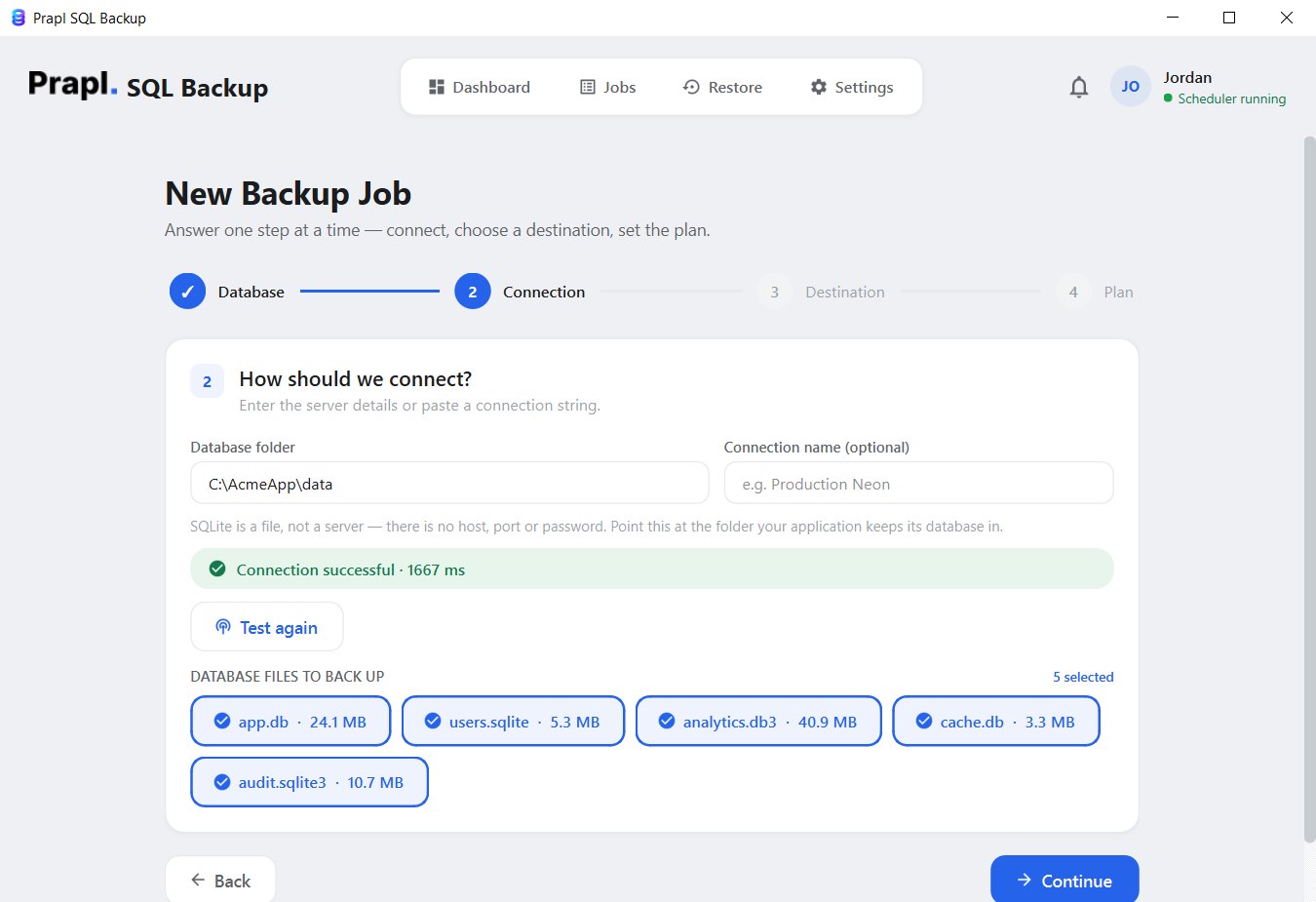
The connection is a folder. The tool lists every database file in it (.db, .sqlite, .sqlite3, .db3, .s3db), checks each one really is SQLite, and lets you tick the ones to protect. New files that appear later are one click away.

Integrity Checked Before Storing

Every snapshot runs PRAGMA integrity_check before it is compressed and stored. A database that is already damaged is reported instead of being silently archived, so the backup you keep is one that opens.

No Server, No Credentials

There is no host, port, username or password to manage. SQLite is a file, and the tool treats it as one — point it at the folder and the backup job is ready. Nothing is installed alongside your application.

Automatic Scheduled Backup

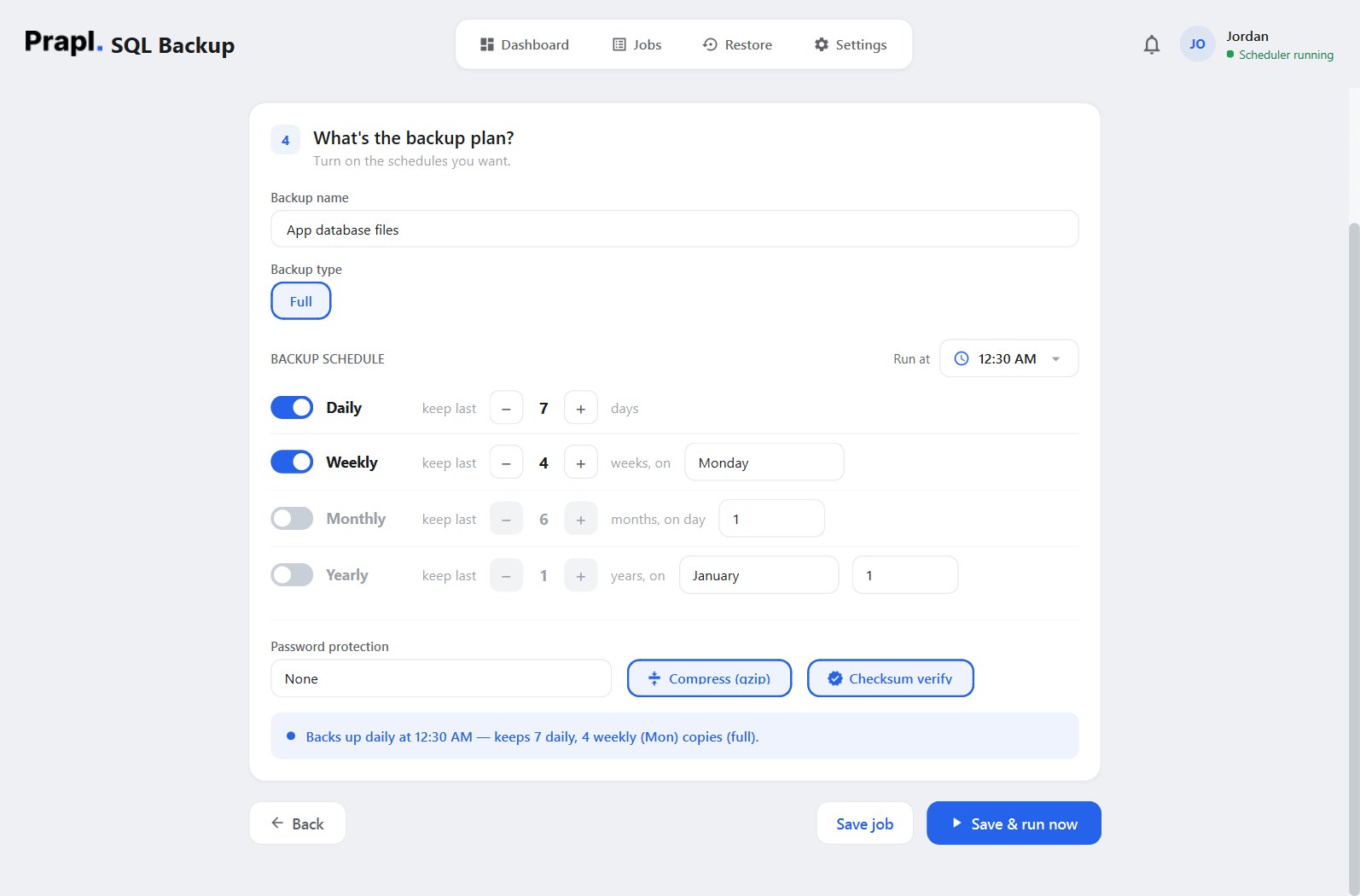
Set a run time and switch on the daily, weekly, monthly or yearly tiers you want. Each tier is also its retention: keep the last 7 daily and 4 weekly copies and older ones are pruned for you. The job runs on its own from the system tray.

Flexible Storage Options

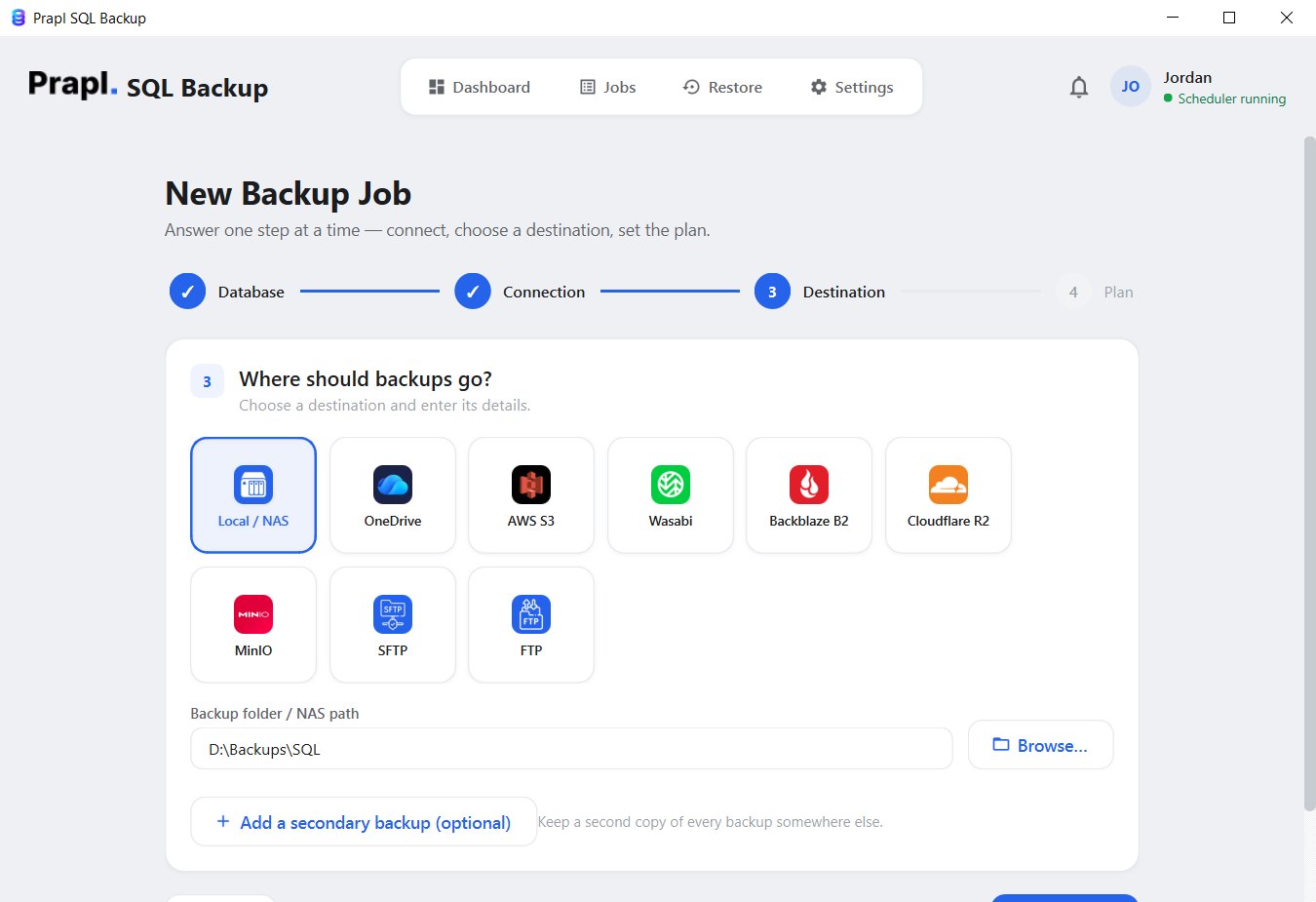
Store SQLite backups on an external drive, a NAS share, OneDrive, Amazon S3, Wasabi, Backblaze B2, Cloudflare R2, MinIO, SFTP or FTP — and add a secondary destination so every run is copied to two places.

Backup Compression

Snapshots are gzipped as they stream, typically shrinking 60–80%, which keeps months of history cheap to store and quick to upload from a laptop or a shop PC.

Strong AES-256 Encryption

After compression each file is encrypted with AES-256-GCM using a key derived from your password. A backup on a lost USB stick or in a shared bucket is unreadable without it.

15-Day Free Trial

Try every feature of the SQLite backup software free for 15 days — no credit card, no hidden charges. If it fits, continue for just $9 per month, billed annually, with a 14-day money-back guarantee.

How It Works

How to Backup SQLite Database Automatically?

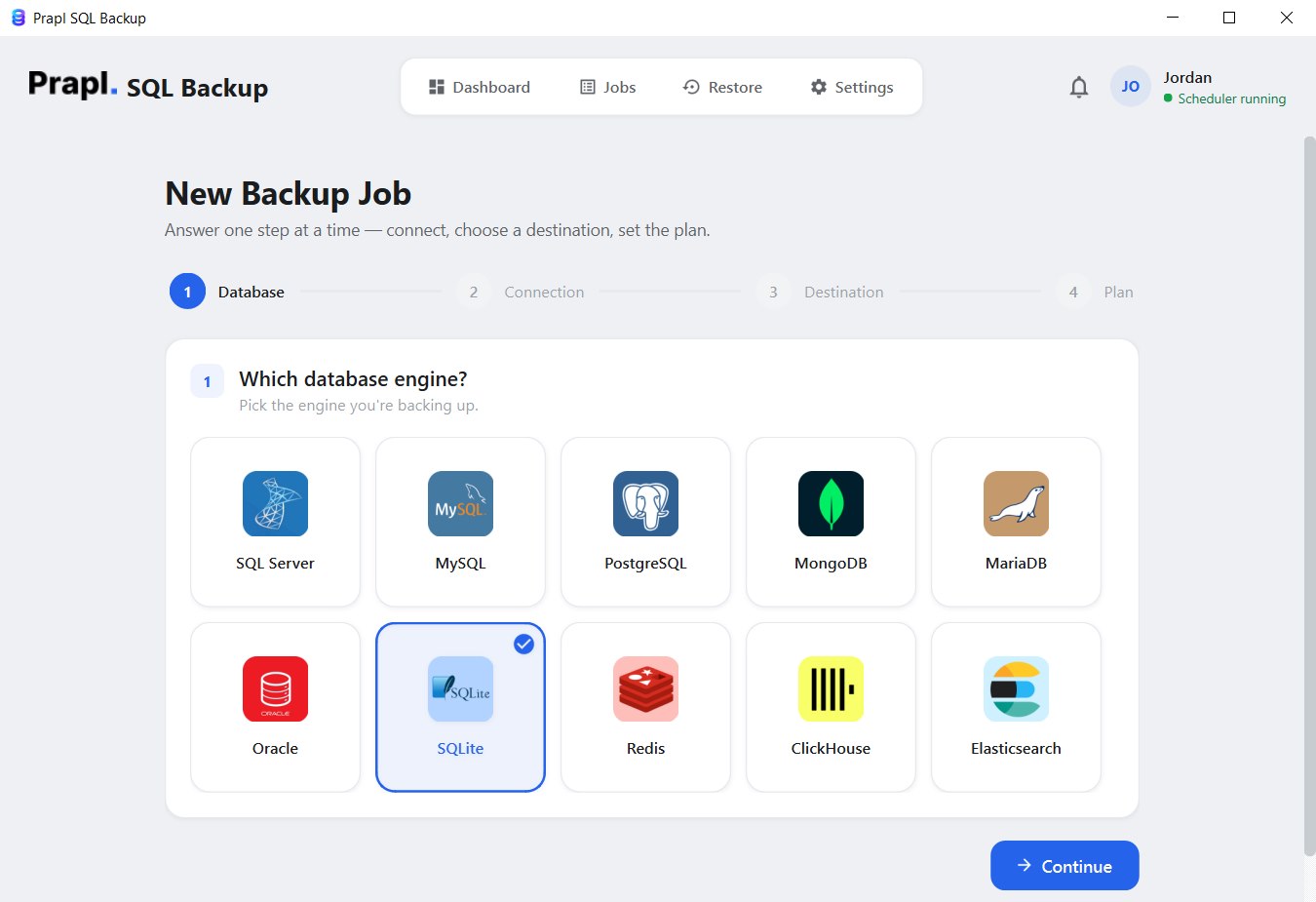
The SQLite Backup Tool turns a fragile file copy into a four-step wizard: choose the folder, choose where the snapshots go, set the plan, and the software handles every run from then on.

select sqlite in the backup wizard choose the sqlite database folder and list database files select the destination to store sqlite backup set sqlite backup schedule, retention and encryption

The software snapshots each selected database file, verifies, compresses and encrypts it, and stores it at the chosen location on every scheduled run.

Full step-by-step guide

Works Wherever SQLite Lives

Choose where your SQLite databases live

SQLite has no server, so the only question is which folder holds the files. Desktop apps, web apps, kiosks, shared drives and developer projects all work the same way:

Desktop application Website / web app Point-of-sale & kiosks Folder on a NAS share Portable & USB apps Developer projects

Desktop Application

Most Windows applications keep their SQLite database under AppData or ProgramData. Point the tool at that folder and every database the app uses is snapshotted on schedule, without closing the app.

Step 2 Connection
Database folderC:\Users\Jordan\AppData\Local\AcmeApp
Files foundapp.db · users.sqlite · cache.db
Test & list files Connected

Website / Web App

Flask, Django, Rails or PHP sites on a Windows host often ship with a single SQLite file. Back up the instance folder before each deploy and nightly in between.

Step 2 Connection
Database folderC:\inetpub\acme-site\instance
Files founddb.sqlite3
Test & list files Connected

The -wal and -shm sidecars are handled by the snapshot automatically.

Point-of-Sale & Kiosks

Tills, ticketing kiosks and lab instruments store transactions in SQLite on a PC that is rarely backed up. A job that runs after closing time and copies to the office NAS keeps a day of sales from being the only copy.

Step 2 Connection
Database folderC:\ProgramData\RetailPOS\data
Files foundsales.db · inventory.db
Test & list files Connected

Folder on a NAS Share

Databases kept on a mapped drive or UNC share are backed up the same way — the snapshot is taken over the network and stored somewhere else entirely.

Step 2 Connection
Database folder\\nas01\apps\timesheets
Files foundtimesheets.sqlite3
Test & list files Connected

Store the backup on a different device than the share it protects.

Portable & USB Apps

Portable tools that carry their database on a USB stick can be protected too: when the drive is plugged in and the job runs, the files are snapshotted and copied off the stick.

Step 2 Connection
Database folderE:\PortableApps\Notes\data
Files foundnotes.db
Test & list files Connected

Developer Projects

Local development databases hold hours of test data you would rather not recreate. Snapshot the project’s data folder before migrations and keep a week of history.

Step 2 Connection
Database folderC:\src\acme-api\var
Files founddev.db · test.db
Test & list files Connected

Encrypted SQLCipher databases cannot be opened and are reported, not skipped silently.

Inside SQLite Backup Utility

SQLite Database Backup Workflow

Every backup follows the same simple, secure workflow. From snapshotting the live file to storing the encrypted copy, each step is designed to keep your data safe and restorable.

1 · Snapshot
online backup API
2 · Compress
60-80% smaller
3 · Encrypt
AES-256
4 · Store
retention & logs

Snapshot with the online backup API

The tool opens each file with SQLite’s own library and uses the online backup API — the mechanism SQLite recommends instead of copying files. It captures a consistent snapshot of the live database, including committed transactions still sitting in the -wal file, without stopping your application. The snapshot is then checkpointed and passes PRAGMA integrity_check before it goes any further.

# what the app does — SQLite’s own backup API, not a file copy C:\AcmeApp\data\app.db → backup() app_full_00-30-00.db PRAGMA wal_checkpoint(TRUNCATE) · PRAGMA integrity_check ok

Compress Backup

Before saving, the snapshot is compressed in a stream, typically by 60–80%. It is never loaded into memory as a whole, so a large database is handled with the same small footprint as a tiny one.

# streamed in chunks — never loaded into RAM app_full_00-30-00.db app_full_00-30-00.db.gz 38 MB 9 MB (76% smaller)

AES-256 Encryption

After compression the backup is encrypted with AES-256-GCM, using a key derived from your password with scrypt. Every 64 KB chunk gets its own nonce and authentication tag, so tampering is detected and the file is unreadable without the key.

key = scrypt(password, salt) # AES-256-GCM · 64 KB chunks · unique nonce each

Store and Retention

The encrypted file is written to your chosen destination (and to the secondary one, if set), verified by checksum, and logged. Retention tiers delete outdated copies automatically so storage never fills up with files nobody needs.

copy \\nas01\backups\App_database_files\app.db\… prune: keep 7 daily · 4 weekly · write log

The app runs this for you — there is nothing to type.

The part that matters

A backup you can't restore is just wasted disk

Recovering a SQLite database takes four steps in the app: choose the job, choose the point in time, choose what to do with it, review. The tool downloads the snapshot, decrypts it, decompresses it, verifies it and writes it back into the folder through the same backup API — refusing to overwrite a file another program currently has open, so a running application can never be corrupted. Press play to watch every step.

Close the application before restoring over its database — or restore to a new file name, check it, and swap it in.

Restore: app.db from Office NAS
Locate backupfind the file in the destination
Downloadpull the encrypted file · 9 MB
Decrypt & verifyAES-256-GCM integrity check
Decompressrestore the original snapshot · 38 MB
Write app.dbback into C:\AcmeApp\data via backup()
sqlbackup · encrypt · sqlite
Plaintextapp_full_20260825.db.gz
scrypt(password, salt) → 256-bit key · fresh nonce
Ciphertext
FormatMAGIC(9) · SALT(16) · [ LEN · NONCE(12) · CT+TAG ] × N
256-bitAES key
96-bitnonce / chunk
64 KBchunk size
Security

Watch How SQLite Backup Tool Protects Your Database Backups

Your SQLite backups contain the data your business runs on, so protecting them through the whole backup journey matters. Here, every file is compressed, checksummed and encrypted on your PC before it leaves, and stays protected while it is transferred and stored.

Secure Credential Storage

Your SQLite credentials and connection details are kept in the Windows Credential Manager, never in a plain-text configuration file. The settings file only stores a reference to the entry, which keeps passwords out of reach of anyone browsing the disk.

Backup Integrity Verification

When a SQLite backup is created and sent to a storage location (local, NAS, cloud, SFTP), things can still go wrong on the way:

  • Part of the backup file may be damaged in transit.
  • The file may be stored incompletely because of a network problem.
  • Someone may have modified the backup file without permission.

Checksum verification compares the stored file against the one that was written. If it is corrupted, incomplete or altered, the job is flagged as failed instead of quietly succeeding — so the SQLite backup you rely on is one that will actually restore.

Direct Backup Flow — No Third-Party Servers

The SQLite backup never passes through any of our servers. Everything happens between your machine and the storage location you chose, and the file is encrypted before it leaves. You keep full control over where your backups live and who can open them.

Your data, your storage

Your data. Your choice.
Your storage.

The SQLite backup tool is a desktop application, not a hosted service — it runs on your machine and writes each backup straight to the storage you picked. Nobody charges you per gigabyte, and no copy of your SQLite data ever sits on somebody else’s server.

Choose any destination — or several at once
This PCany folder
External driveUSB or disk
NASnetwork share
OneDriveyour account
Amazon S3your own bucket
S3-compatibleWasabi · B2 · R2 · MinIO
FTPyour own server
SFTPyour own server
No per-GB fee from us Encrypted before it leaves Send to several at once

No storage bill from us

You pay us once for the software — never for gigabytes. Point a job at a folder on your own PC or NAS and the storage costs nothing at all. Prefer the cloud? Use your own Amazon S3, Wasabi, Backblaze B2, Cloudflare R2, MinIO or OneDrive account and pay their rate directly, with no markup in between. Back up 10 GB or 10 TB — the price of the software does not move.

Your SQLite data never passes through us

This is a desktop application. It runs on your machine, connects straight to your SQLite server and writes the backup straight to the destination you chose. Nothing is uploaded to our servers on the way, so we never hold a copy of your data — and it is encrypted with AES-256 before it leaves, so even the storage provider only ever sees ciphertext.

Your passwords stay on your machine

Database passwords are never written into a configuration file and never sent anywhere. They are kept in the Windows Credential Manager, and the settings file only stores a reference to the entry. If you switch on the optional online monitoring, it reports job status only — name, success or failure, size and duration. Never your data, never your credentials.

How It Compares

SQLite Backup Tool vs File Copy & Other Tools

CapabilityPrapl SQL Backup ToolOther Tools
Backup Automation Automatically ScheduledRequire manual setup
Deployment Support Any folder — desktop apps, web apps, kiosks, NAS shares, USB drivesLimited
Storage Destination Local/NAS, OneDrive, S3, Wasabi, Backblaze, R2, MinIO, SFTP & FTPLimited storage options
Data security AES-256 before the file leaves your PCGood
Backup Compression YesSupported but limited
Backup Monitoring Dashboard, email & cloud alerts No
Setup Process Simple wizard, four stepsComplex
You hold the keys Always No
Storage cost Your own storage · no per-GB feeOften rented per GB
Why Trust This SQLite Backup Tool with Your Critical Data

Built to Keep Your Databases Recoverable

Designed for Real Backup Challenges

SQLite sits under applications where downtime and data loss have real consequences. This backup tool exists to make regular backups effortless, remove the manual steps people forget, and make sure a restorable copy of your data is always within reach when something goes wrong.

01. Experience

Transparent Backup Process

You should always know how your backups are made and protected. The SQLite backup workflow is simple, documented on this page step by step, and built on SQLite’s own, publicly documented interfaces rather than on anything proprietary or hidden.

02. Authoritativeness

Powered by Trusted Technologies

Snapshots are taken with SQLite’s own online backup API — the method the SQLite project documents for backing up a live database — and verified with PRAGMA integrity_check. On top of that the tool adds streaming compression and AES-256-GCM encryption before the file reaches its destination.

03. Expertise

Your Backup & Your Encryption Key

Your SQLite backup belongs to you, not to the software. Files are encrypted before they are stored and only your key can unlock them. The tool keeps no password and no hidden access to your backups — they remain under your control, wherever you decide to keep them.

04. Trustworthiness

Sources & further reading

SQLBackup builds directly on what the SQLite project documents. Verify our approach against the official docs:

Client Feedback

What Clients Are Saying After Using the SQLite Backup Tool

Who It's For

Designed for Every SQLite Deployment

🖥️

Desktop Software Vendors

Protect the SQLite database inside your Windows application on every customer PC: a scheduled job, an encrypted copy on their NAS or cloud account, and a restore that works even when the app is open.

🌐

Small Websites & Web Apps

Flask, Django, Rails and PHP sites that run happily on SQLite still need a backup. Snapshot the instance folder before each deploy and nightly in between.

🏪

Retail, POS & Kiosks

Tills, ticket machines and lab instruments store the day’s transactions locally. An after-hours job copies them off the device so a dead disk never means a lost day.

📡

IoT & Edge Devices

Databases on gateways and industrial PCs with cheap flash storage are snapshotted over the network and kept encrypted off the device.

🧪

Development & Testing Teams

Snapshot a project’s data folder before migrations and keep a week of history — hours of test data are one restore away instead of a rebuild away.

🤝

Managed Service Providers (MSPs)

One job per client application, each to its own destination, all visible on one dashboard with email alerts when a run fails.

Technical specs

System Requirement & Basic Information

Storage Required
500 MB Minimum (1 GB Recommended)
RAM
1 GB Minimum (2 GB Recommended)
Versions
SQLite 3.x · any .db / .sqlite / .sqlite3 / .db3 / .s3db file · WAL and rollback-journal modes · encrypted SQLCipher files are detected and reported (not supported)
Backup format
Snapshot database file (.db) taken with the online backup API · PRAGMA integrity_check before storing
Backup types
Full (per file) · each selected file is snapshotted on every run
Compression
Streaming gzip — constant memory, no temp bloat · or password-protected ZIP
Encryption
AES-256-GCM, key via scrypt, per-file salt, per-chunk nonce · secrets in the Windows Credential Manager
Destinations
Local / NAS, OneDrive, Amazon S3, S3-compatible (Wasabi, Backblaze B2, Cloudflare R2, MinIO), SFTP, FTP · optional secondary copy
Scheduling & retention
Manual / daily / weekly / monthly / yearly tiers · keep-last-N per tier · checksum verification
Platforms
Windows 10/11 · desktop app, runs from the system tray
Questions & Answers

Frequently Asked Questions

Follow the steps below to store a SQLite backup on your computer:
  1. Run Prapl SQL Backup Tool on your PC.
  2. Click on New Backup and select SQLite.
  3. Enter the folder that holds your database files, click Test & list databases and tick the files to back up.
  4. Choose the Local/NAS option and enter the folder to save the backup in.
  5. Set the plan and click Save & run now.

Yes. Backups use SQLite’s online backup API, which takes a consistent snapshot of a live database while other processes read and write — including in WAL mode. Your application keeps running; nothing is locked for the duration.

Because a copy can catch a write in progress and produce a file that looks fine but is corrupt, and because it misses the -wal sidecar where recent committed transactions live. The SQLite project documents both problems; the online backup API avoids them.

The snapshot includes every committed transaction, including those still in the -wal file, and is checkpointed so the resulting backup is a single self-contained database file. The sidecars themselves do not need to be copied.

No. A SQLCipher file is ciphertext the tool cannot open, so it is reported as encrypted when the folder is listed. Use your application’s own export for those databases.

The restore refuses to overwrite a database another program currently has open, because writing over a live file would corrupt it. Close the application and restore again, or restore under a new file name and swap it in.

No. When you choose AES-256 protection the backup is encrypted before it is stored, and it can only be opened with the encryption password. Without it the file is unreadable ciphertext — on your PC, on a NAS or in a cloud bucket.

Backup time depends on the size of the data, the speed of the server and of the destination, and whether compression and encryption are enabled. Small databases finish in seconds or minutes; large ones take longer but stream in the background without freezing your PC, and the Dashboard shows live progress and speed.
One tool, every database

Also backs up your other databases

One flat price covers every engine on the machine. Explore the others:

Automate SQLite Database Backup

Create a backup of your SQLite data and save it to local or cloud storage. Download the SQLite Backup Tool and use every feature free for 15 days — no credit card required. If it fits, subscribe for just $9/month with a 14-day money-back guarantee.

15-day free trial 14-day money-back No auto-renewal