 Abeer Arora
 A backup plan only works when the backup actually runs at the right time. Because imagine you got into a data loss issue and you go for the backup file but realise that you forgot to take the latest one. Sounds terrific, right? That’s why you should know how to schedule SQL Server database backups.
Scheduling the process gives you a more reliable way to ensure a consistent backup and recovery plan.
Can I get SQL Server Backup schedules and/or runtimes from the Windows OS?
byu/jwckauman inSQLServer
Let’s be honest, recurring backups are important when the database keeps changing. But remembering to create the backup every time gets tricky. Thus, scheduling them in advance helps to manage the process easily.
Now, let’s find out how to do it.
Why Should You Schedule SQL Server Database Backups?
Creating a single backup is easy. But doing it consistently over weeks and months is the harder part. If you are managing multiple databases for your business, then databases can change every hour. So, in case of failure, if your SQL Server backup is older than the date of the failure, your business might lose more data than you can afford.
Thus, a scheduled backup helps you:
- Create recurring backups that are easy to miss if done manually
- Maintain the backup frequency for a consistent job
- Ensure a recent backup exists when recovery is needed
- Reduce the need for repetitive manual work for SQL Servers
- Create different types of backups as per your business requirements
- However, the exact scheduling depends on how frequently your SQL Server databases change.
How to Schedule SQL Server Database Backup Using SSMS?
Follow these steps to perform the backup job and schedule it through SQL Server Agent:
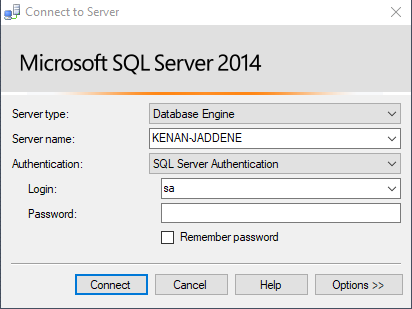
- Open SQL Server Management Studio and connect to the SQL Server instance containing the database.
- Now, from the screen, select the Database, go to Object Explorer, select “Databases”, then “Right-click database”, “Tasks,” and tap the “Back Up” option
- Configure the backup. For configuration, select the backup type as “Full Backup”, choose the ” Database ” option under Backup component, and choose “Disk” under destination.
- Then, in the next step, create a SQL Server Agent Job. To do so, use the Script Action to Job option to turn the backup operation into a SQL Server Agent job.
- From there, create the Schedule, open the Schedules section, and select the New option. Then, configure the schedule name, recurring frequency, start time, start date, and end date, if required.
- Finally, after doing all, just save the Job and verify that SQL Server Agent is running. Also, make sure to check the job history as well to confirm. This is important because creating a schedule doesn’t prove that the backup completed successfully.
How to Schedule SQL Server Database Backup With Prapl?
SQL Server Agent works well when you want to build backup jobs directly inside the SQL Server environment. But if you’re managing multiple databases, dealing with large storage destinations, performing schedules, retention settings, and backup monitoring, a dedicated backup application can simplify the process.
Prapl MS SQL Server Backup Tool is the answer to your problem. With its easy-to-use interface, you can now simply schedule multiple databases automatically. This tool supports local/NAS storage and cloud destinations like Amazon S3, OneDrive, Wasabi, Backblaze B2, Cloudflare R2, and others.
Download it for free and try it before committing to any plan.

Steps to Use the Software for Scheduling
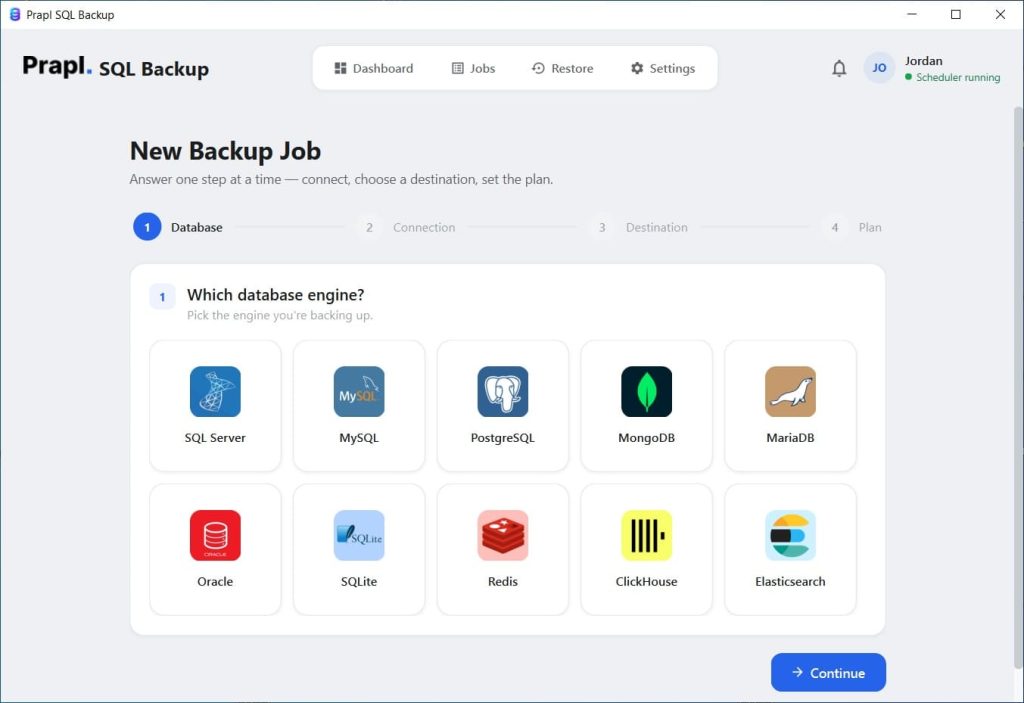
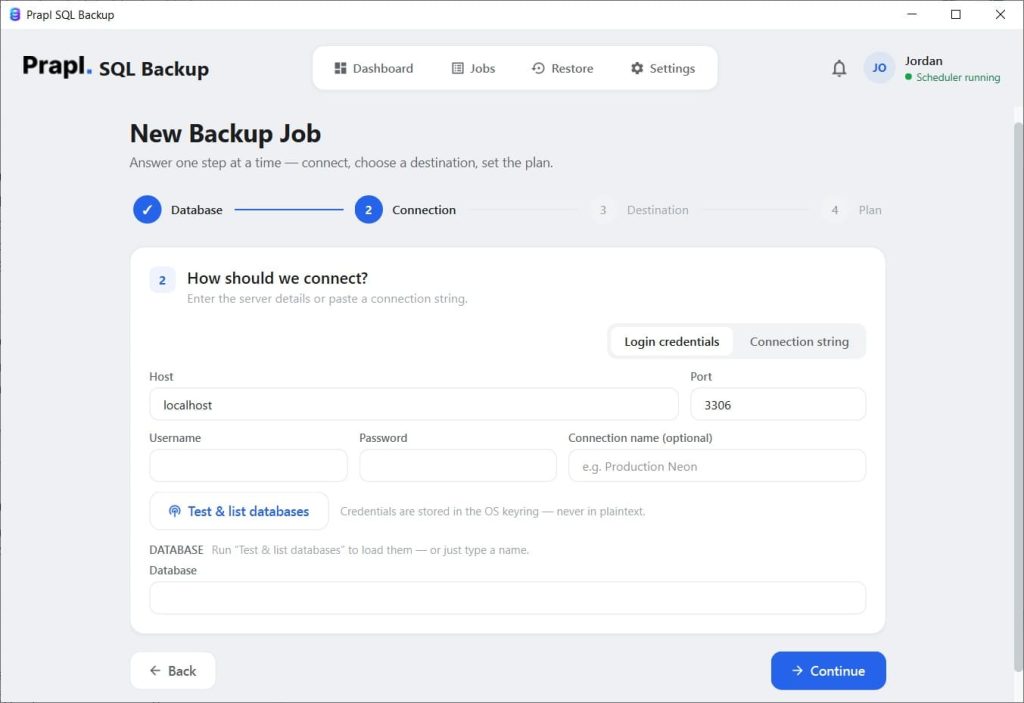
Download and launch the software, then select the SQL Server database from the interface. Connect to your SQL Server database.
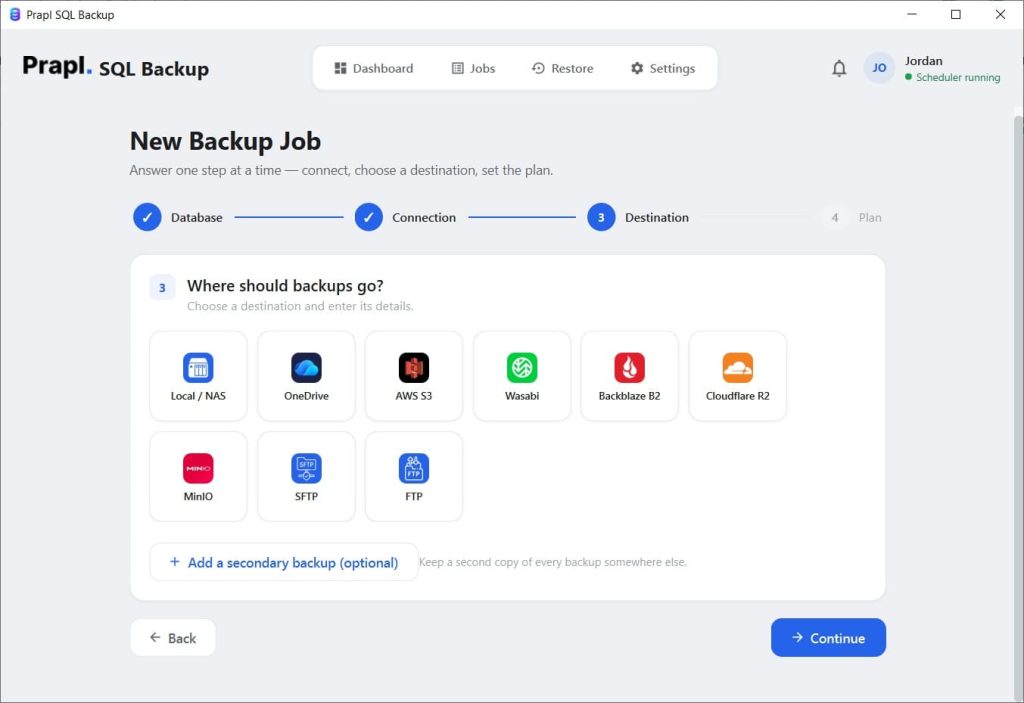
Choose the backup destination as needed to save the backup file.
Set the backup schedule in the next step. Here, choose a suitable schedule such as hourly, daily, weekly, or monthly as per your database frequency requirements.
Configure retention for how many backup copies you want to keep. Add AES-256-GCM encryption to protect backup data, and save and run the backup job.
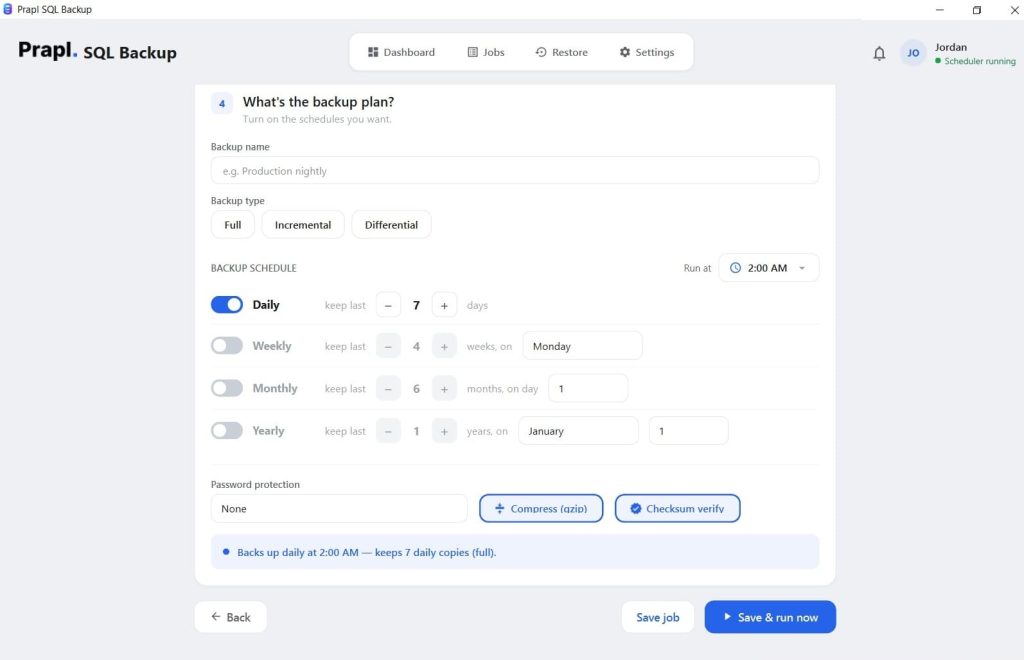
The software will immediately start the backup job and use the configured schedule for future runs.
Best Practices for Scheduling SQL Server Backups
- Choose the scheduling SQL Server backup frequency based on recovery requirements.
- Secondly, always keep your SQL Server backups separate from the primary database; don’t keep them in one system.
- For scheduling, we advise you to go for either full, differential, or log backups appropriately.
- Moreover, before scheduling the entire backup job, make sure to keep enough backup history for your retention needs.
- Always monitor backup job failures; otherwise, you might face issues while recovering data.
- If you are about to schedule SQL Server database backups, then check available storage first.
- It is better to use meaningful backup file names, rather than just naming them and forgetting later at the time of recovery.
- Scheduled backups are only feasible if they can be restored correctly at the right time. Therefore, make sure to test restoration regularly.
- Also, it is better to document the backup and recovery process.
- Lastly, make sure to review the scheduled job whenever SQL Server database usage changes.
How Often Should You Schedule SQL Server Backups?
Wondering how frequently you should run backups and schedule your SQL Server database backups? Honestly, there’s no fixed answer.
The entire scheduling frequency depends on:
- How often the SQL Server database changes
- How much SQL Server data your business can afford to lose
- SQL Server database size
- Backup duration
- Available storage to manage SQL Server backup files
- Recovery requirements
- Transaction volume
Why Choose the Software Over a Manual Method?
If your priority is managing all the tasks, from managing SQL Server backup jobs and retention to scheduling them using one application, then Prapl is your way to do so.
- Schedule Backups Without Managing Multiple Jobs: With this tool, you can easily schedule SQL Server database backups without managing multiple jobs. You won’t need to create and maintain different SQL Server Agent jobs for different backup requirements; you can simply set the schedule frequency, such as hourly, daily, weekly, or monthly, from just one software.
- Back Up Multiple SQL Server Databases: This tool allows you to manage backups from different databases as needed. It supports multiple databases and servers, so you won’t be worrying about managing a separate SQL Server backup for every database.
- Choose Where Your Backups Are Stored: This is an advanced tool that allows you to store the scheduled SQL Server backups either locally, remotely, or to cloud destinations. In short, it’s giving you flexibility over where your backup copies are stored.
- Protect Backup Files With AES-256 Encryption: Scheduling a SQL Server backup should not be treated lightly. It does contain sensitive information about your business, just like your production database; hence, with this tool, you can encrypt SQL database backups using AES-256-GCM before they leave your machine.
- Control Backup Storage with Retention Policies: Storage needs can rapidly rise if all backups are kept indefinitely. With Prapl, you may set up retention rules to eliminate older backup copies in accordance with your selected policy. This preserves the recovery points you truly require while keeping backup storage orderly.
- Restore When You Need the Backup: v Making backups is just one aspect of a recovery plan. Additionally, Prapl offers a restore procedure that can fetch the backup, decrypt and decompress it, and recover the data using SQL Server’s built-in restore features.
- Start With a Free Trial: Before committing to a plan, you can simply test the backup job and schedule it with its 15-day credit card-free trial. It has a robust, easy-to-use interface, so you won’t face any issues while scheduling.
Final Words
Knowing how to schedule a SQL Server database backup is just the first step. The proper backup frequency, storage location, retention policy, monitoring, and restore testing are all necessary for a reliable backup plan.
So, you can either schedule the backups via SSMS for SQL Server editions that support SQL Server Agent or use third-party software.
A dedicated backup application can ease the workflow if maintaining your backup environment across jobs, scripts, storage locations, and retention rules is becoming challenging. Prapl is a Windows-based software that brings database connection, scheduling, storage locations, retention, encryption, compression, backup history, and restore capabilities with its easy-to-use interface.