 Abeer Arora
 Don’t have SSMS? Wondering how to backup SQL Server database without Management Studio? No worries, you won’t even need it to do so.
In simple terms, you don’t need SQL Server Management Studio to open every time you want to create a database backup.
SSMS is only one interface for interacting with SQL Server. You can easily create backups without having SSMS, too.
Let’s find out how.
Can You Backup SQL Server Without Management Studio?
Yes, you can.
SQL Server supports the BACKUP DATABASE T-SQL statement, which can create a database backup without using the SSMS interface.
This approach can be particularly useful when:
- SQL Server Management Studio isn’t installed on your machine
- Your business wants you to run only command-line backups
- You want to script the SQL Server backup process
- In case you’re managing backups on a server
- There is a need to schedule SQL Server database backups at the time of recurring backups.
There are different methods for performing backup jobs, such as T-SQL, SQLCMD, PowerShell, Task Scheduler, or third-party software.
Let’s dig into each method one by one.
Method 1. How to Backup a SQL Server Database Using Command Prompt (sqlcmd)?
Sqlcmd allows you to run T-SQL from the command line, scripts, and other environments.
If you want to avoid using SSMS and go for SQLCMD, follow these steps:
-
- First, open the Cmd as an administrator, then run any of the commands below depending on your authentication.
- If you’re using Windows authentication:
sqlcmd -S SERVERNAME -Q “BACKUP DATABASE [YourDatabaseName] TO DISK=’C:\Backups\YourDatabaseName.bak'”
- If you are using SQL Server authentication:
sqlcmd -S SERVERNAME -U YourUsername -P YourPassword -Q “BACKUP DATABASE [YourDatabaseName] TO DISK=’C:\Backups\YourDatabaseName.bak'”
This method is basically appropriate for the time when you’re working on a server where you don’t want to install or open SSMS.
Create a SQL Server Database Backup Using PowerShell
Are you a Windows administrator and prefer scripting? Then, the PowerShell method is the best alternative to Management Studio for you.
To create backups of SQL Server databases, Microsoft offers the Backup-SqlDatabase PowerShell cmdlet. The SQL Server PowerShell module is needed for this procedure.
If you already use PowerShell for managing Windows servers or other administrative chores, this method may be helpful.
-
- Initially, open PowerShell and run the Backup-SqlDatabase command.
Backup-SqlDatabase -ServerInstance “SERVERNAME” -Database “YourDatabaseName” -BackupFile “C:\Backups\YourDatabaseName.bak”
- In case you are executing raw T-SQL inside PowerShell, then use:
Invoke-Sqlcmd -ServerInstance “SERVERNAME” -Query “BACKUP DATABASE [YourDatabaseName] TO DISK=’C:\Backups\YourDatabaseName.bak'”
Additionally, you may create a PowerShell script from the command and use it for different databases.
Important Note: Make sure to verify your SQL Server backup file. Check if the file exists, its name, file size, creation or modification times, and its destination path. After verifying all these details, it would be useful if you could run a restore test in a suitable test environment.
Method 2. Backup SQL Server Without Management Studio via Prapl
If your business deals with large database files on a server, and that keeps fluctuating. Then the above methods won’t be very feasible for recurring backups.
Download Prapl SQL Backup tool for Windows PC. You can use this software to automate SQL Server database backup. Basically, you can create backup without SSMS using Prapl. You can store the database at your desired location. The software offers multiple database storage locations. You don’t have to rely on someone else’s storage. Add your own to back up unlimited databases. The software offers full, incremental, differential, and transactional log backup types depending on the database types.

Moreover, this approach is more useful when you’re managing multiple databases, backup locations, retention rules, encryption, and restore operations.
Steps to create backup without SSMS are as follows;
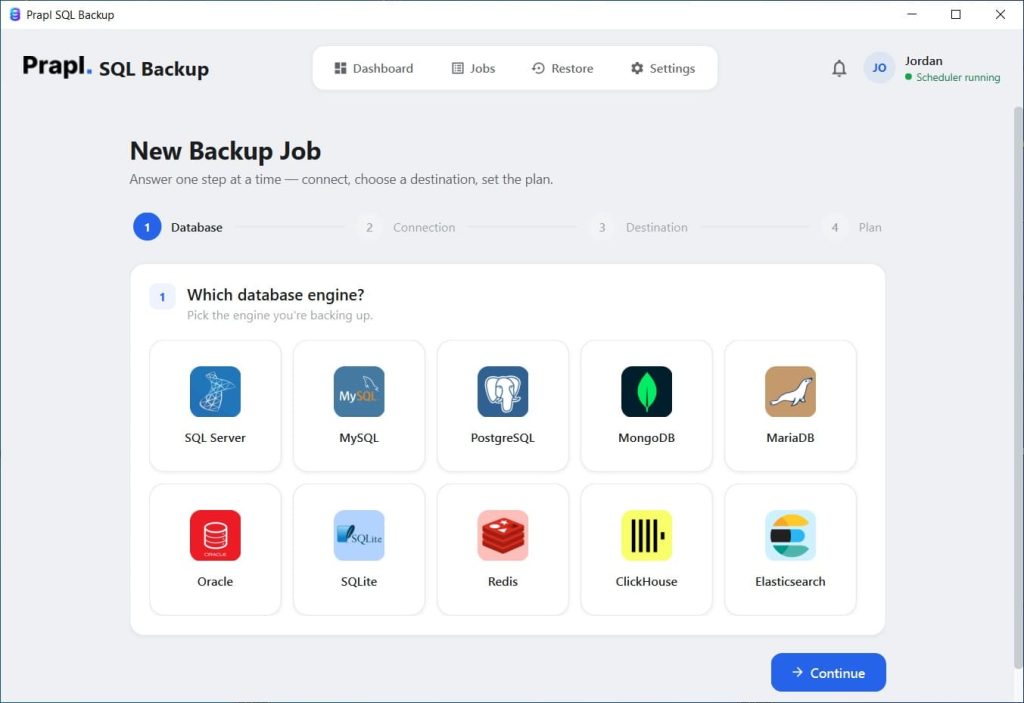
First, download, install, and launch the tool on your Windows computer. From the main dashboard, click New Backup and select SQL Server as the database engine.
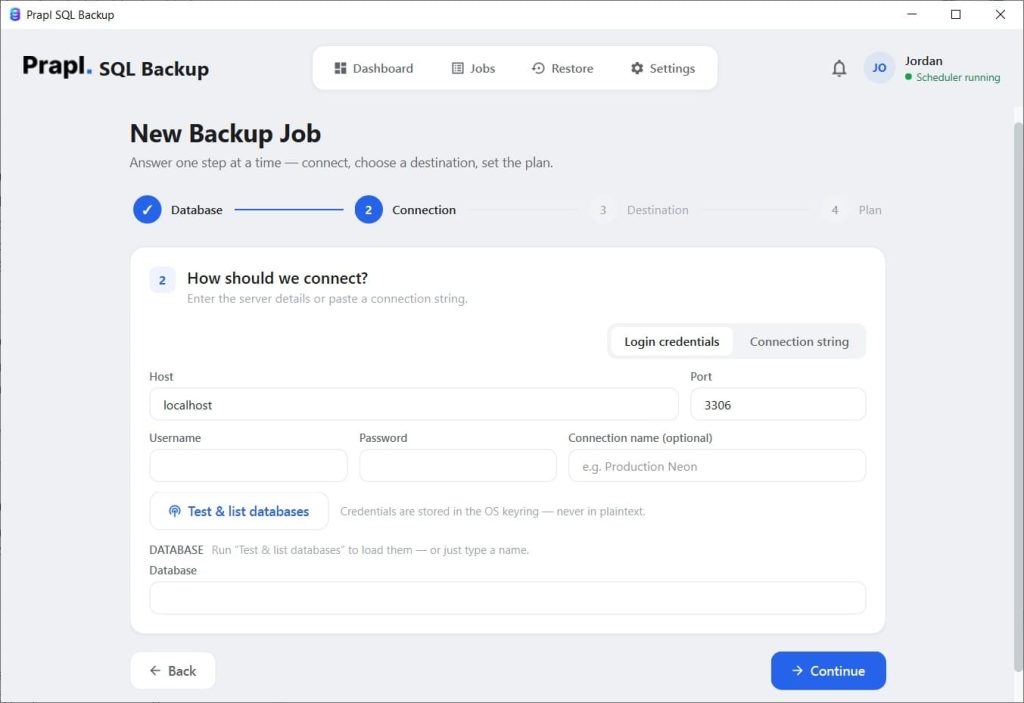
Next, connect your SQL Server database, add your login credentials, then click Test Connection.
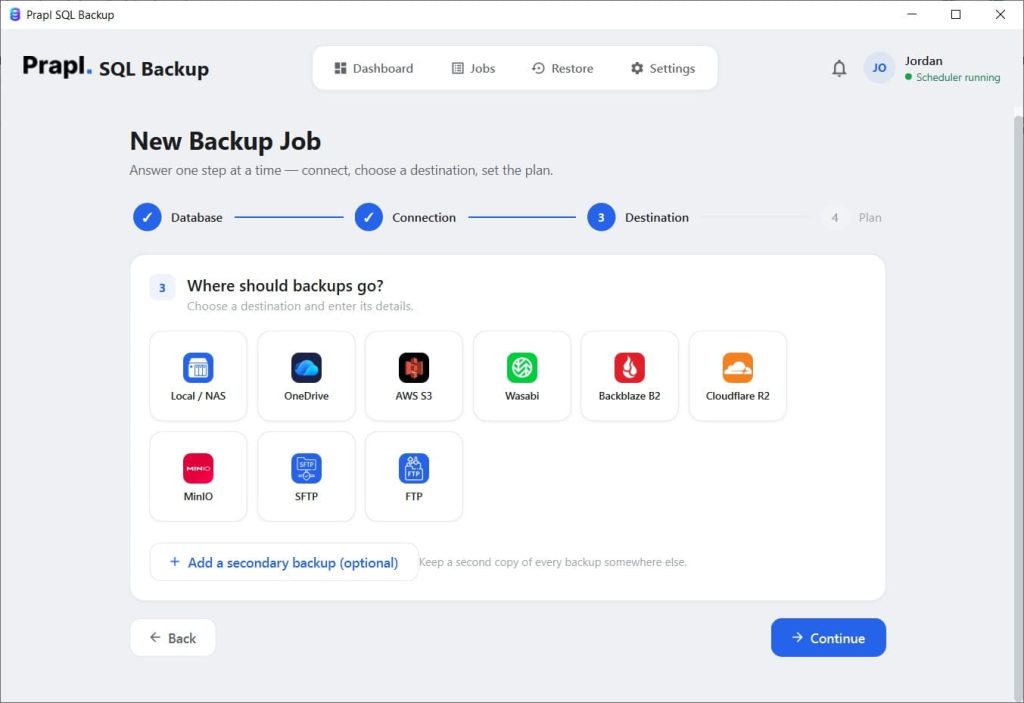
From there, choose the SQL Server database or multiple databases you want to include in the backup job. Then, you can choose the destination for your backup files from the given options. Or pick the backup type for scheduling: full or incremental backups.
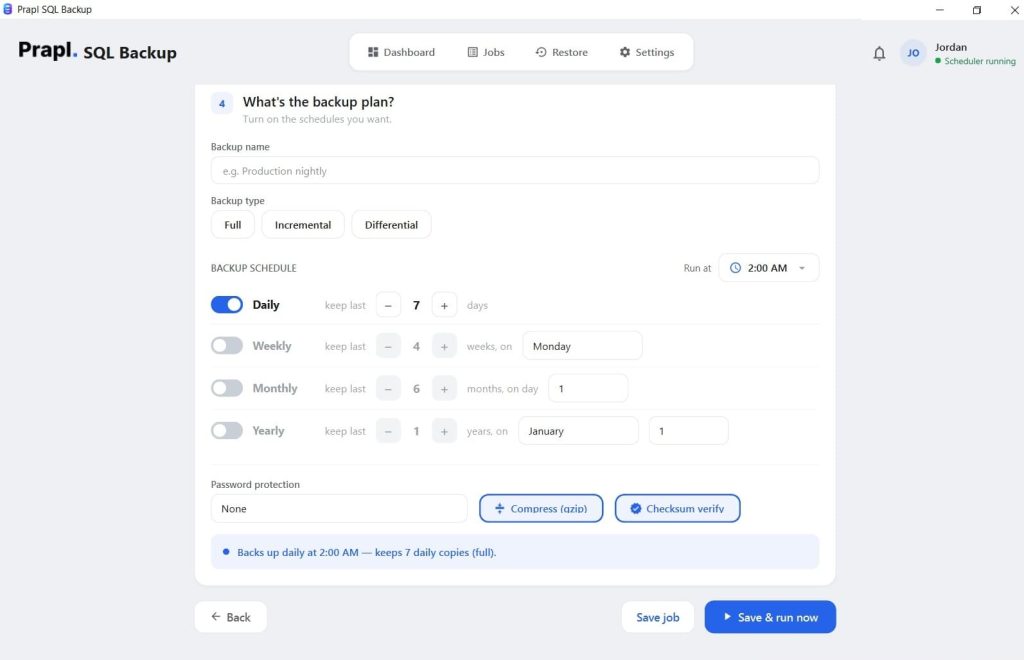
After this, decide how often you want the backup job to run; choose hourly, monthly, or customize it. If you want to reduce backup file size, you can enable compression and encryption for an added layer of protection. Then, after configuring all these settings, just click the Save & Run Now button.
Why Use Prapl SQL Backup?
- Encryption: By using the Windows desktop-supported SQL Server backup tool, you can easily back up SQL Server databases and apply AES-256-GCM encryption for more security.
- Retention: I’m sure you don’t want to pile up your storage destinations with unlimited old backup files. Therefore, to ease your pain, this tool allows you to configure retention policies rather than manually removing old backup files.
- Backup History: Prapl provides the entire backup history so you can review previous operations. From there, you can easily review the entire process and identify backup failures, if any. If you want to get notified, this tool also allows notifications for backup success or failure.
- Restore: The application also supports restoring SQL Server databases from backups without using Management Studio. Because no backup would be useful if you won’t be able to recover the data at the time of an accident.
- Multiple Databases and Servers: Prapl supports unlimited databases and servers, which makes it more useful when the backup requirement goes beyond one SQL Server database.
- Centralized SQL Server Backup Setup: Maintaining individual scripts and scheduled tasks manually for n numbers of backup files can be so difficult. Thus, Prapl provides a simple graphical backup workflow outside SSMS to perform the backup job.
- Schedule Backups from One Application: Moreover, by using this tool, you would be able to schedule your backups hourly, daily, weekly, and monthly. In short, it helps you create recurring backup plans without relying on SSMS.
- Multiple Storage Destinations: Additionally, this tool supports different storage destinations, including local drives, NAS, external hard drives, or cloud destinations as well.
Common Problems When Backing Up SQL Server from SSMS
Okay, so no matter what method you choose, keep these basics in mind while performing the backup job:
- Permission denied: Make sure to check your SQL Server permissions first, because SQL Server cannot write to the selected destination if the permissions are denied.
- Invalid path: Secondly, make sure to check the path carefully before initiating the backup method manually. Because the path may exist on your Windows machine but not be accessible to the SQL Server service.
- Backup folder doesn’t exist: It’s very useful to create the directory before running the command where required.
- Insufficient storage: Large SQL Server databases can produce large backup files as well. Therefore, ensure there is enough storage in your destination.
- Wrong SQL Server instance: The command may connect to a different instance than expected, especially when using PowerShell or the SQLCMD method. Hence, double-check the server and its instance.
- Authentication failure: The credentials or authentication method may be incorrect. Thus, keep an eye on authentication while backing up the database.
- Script runs manually but fails through Task Scheduler: Sometimes, the scheduled task may run under a different Windows account with different permissions.
- Backup succeeds, but nobody notices failures: A scheduled script needs some form of monitoring or notification in case of backup failures.
Final Words
So, the conclusion is that it is possible to backup SQL Server database without Management Studio.
To perform the backup, if you need a quick and occasional backup, then the BACKUP DATABASE command can work. But if you want to do it from the command line, then either use SQLCMD or PowerShell methods for creating backups.
But the question is: what if you need to create backups beyond one command?
In this situation, Prapl SQL Server backup tool can save you when you’re dealing with large databases, want to encrypt the file, or even schedule the entire recurring backup process. This software helps you automate the process so that you can focus where it is needed. In short, this tool brings the whole backup workflow without SSMS into one place.