 Abeer Arora
Backing up multiple databases automatically can save a lot of time when you’re managing several databases. As backing up one database is quite manageable. But managing 10, 20, and more databases individually becomes tedious. You or someone needs to remember to run a backup each time, make sure no DB is missed, and organize the files.
And that’s the real challenge while backing up the database. Managing one database backup doesn’t overwhelm anyone. But creating a backup for each DB manually takes time, and more importantly, it’s easy to miss one.
As the number of databases grows, backup becomes less about how to create a backup and more about making sure every database has backed up properly and on time.
That’s where automated database backup comes in handy. In simple words, instead of creating one backup at a time, you can schedule backup tasks to run automatically. Then, just save the resulting file locally or to some other storage destination.
In this article, we will learn practical ways to backup multiple databases automatically. What to consider while taking a backup.

Why Are Multiple Database Backups Challenging?
More databases = More repetitive work
If you have 5 databases, manually backing up each one might be manageable.
But if you have 30 databases? And 5 more DBs will be the new additions as well. Then, it becomes a completely different task.
It becomes challenging because of:
- Forgetting one database out of 35
- Inconsistent backup schedules
- Different storage locations for each database
- Naming and organizing each backup file manually
- Checking if the backup is completed now and then
- Managing old database backups
- Consuming more local storage than required
- Restoring the correct database backup when needed.
So, the problem is not creating a backup. It is making sure or remembering to create every backup, every time, without missing one.
As the number of database increases, managing manually backups becomes quite less practical. Sometimes, it’s humanly impossible to remember it.
This is where automation can help you.
How Can I Backup Multiple Databases Manually?
You can create multiple database backup individually, depending on the database systems and setups. However, this manual method is feasible only if:
- You have few databases to backup
- You only need to backup occasionally not daily
- If you are just doing it for the testing and development environment
- If you have someone reliable for monitoring the entire backup process consistently
A typical manual process involves selecting the required database, creating a backup, saving the resulting file to your computer. Then, again repeating the same process for each database.
The real problem is consistency.
More databases means more time consuming process. And depending on someone to create backup and save the file correctly and verify every time for each database is not an ideal solution.
MySQL / MariaDB
All-in-one file: Just run mysqldump -u username -p –all-databases > all_databases.sql
This method will help you to export every database into a single file.
Microsoft SQL Server (T-SQL / PowerShell)
Single file check or script: To backup DB, use SQL Server Management Studio (SSMS) to select multiple databases via a T-SQL cursor script, or execute a command via sqlcmd.
All-in-one file: In this method, run pg_dumpall -U username > all_databases.sql to dump every database on the cluster into a single text file.
However, the scenario is different if you have more than 15 or 20 databases and need a daily backup for each one. Even if a backing up a single database doesn’t take too much time, but now you’re repeating the same task across every Database.
This naturally created the demand for automation.
Why Should You Automate Database Backup?
On the other hand, automation takes the repetitive part out of the process.
You can set up backup processes to execute automatically at predetermined periods rather than manually initiating a backup for every database. When you have multiple databases that require regular security, this might be quite helpful.
An automated backup helps you:
- Schedule recurring DB backups
- Back up multiple databases
- Choose where backup files are stored
- Keep local copies of your backups if needed
- Use a designated cloud storage when required
- Manage how long older backups are retained
- Check backup history easily
- Receive notifications about backup completion
The goal is to create a reliable and repeatable backup routine without depending on someone.
Best Way to Automate Multiple Databases Backup
For businesses who want to automate backups from a desktop, Prapl SQL Backup Utility is the best solution.
This tool manages database backups from a desktop application rather than relying on an online backup services. Your data is completely handled by you not some other provider’s own infrastructure.
This software is ideal because the control it gives you over where your backups are stored. Either you can keep the backup file on your PC or just store them to a cloud storage.
It is designed to automate backups smoothly with schedule backups tasks. Also, you get the complete backup history, email notifications for each backup, retention policies, and more.
Steps to automate multiple database backup at one place
1. Launch Prapl SQL Backup in your PC and select Database types.
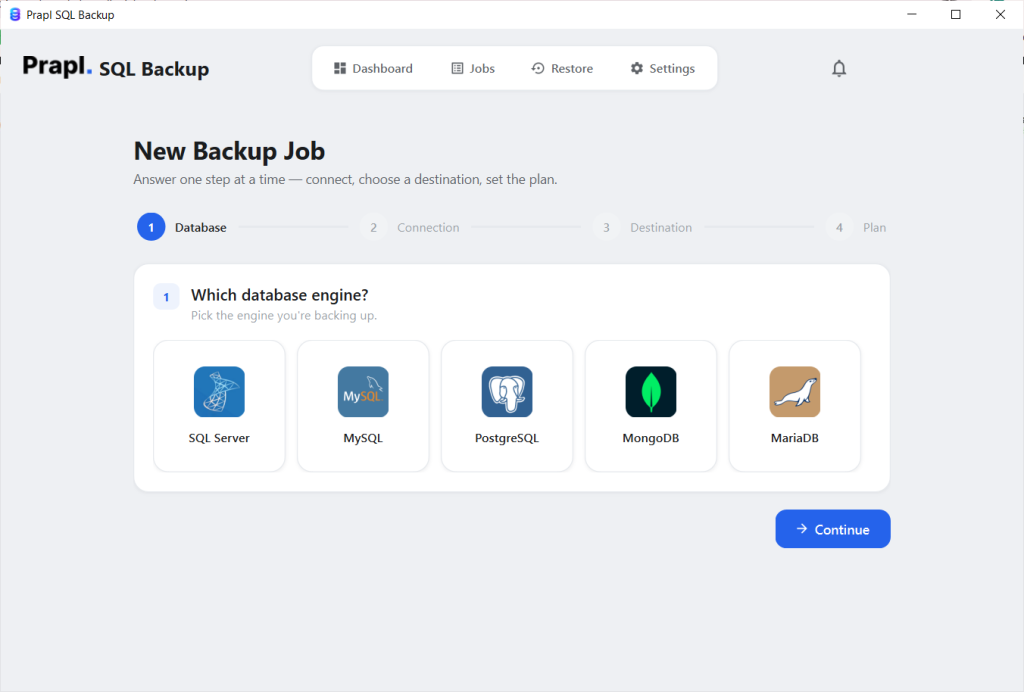
2. Enter credentials to connect software to your database.

3. Select the target location to store backup (full or incremental).

4. Schedule how often the software should download the database as a backup.
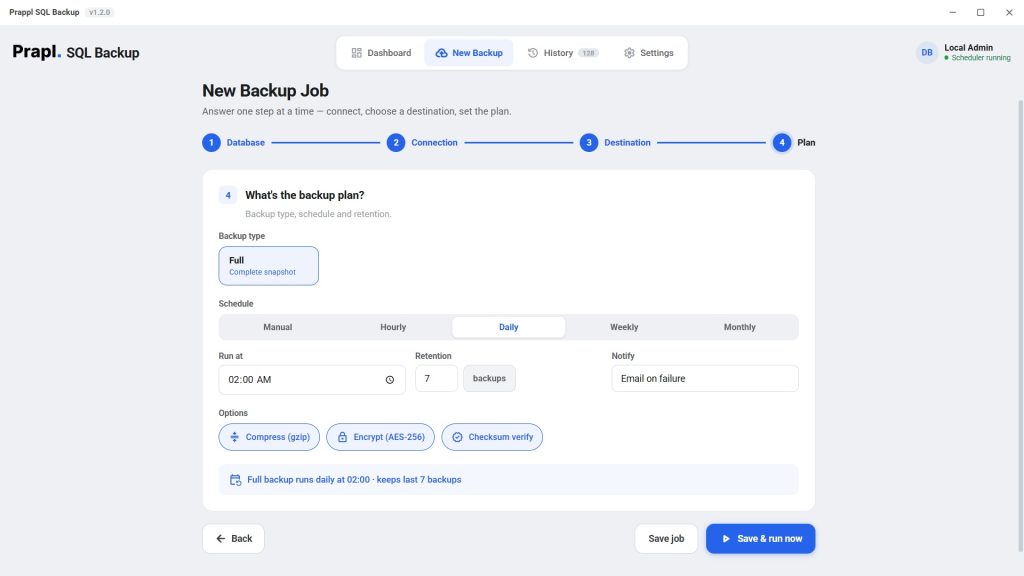
Click the Start and Run button. This will immediately start downloading your database backup files as a backup. On first, it will download the entire database, while on the scheduled time, it will backup only the newly created database from your server. Don’t worry, your old database files will remain stored on your target location.
Download the software and Try for Free
Conclusion
Backing up multiple databases manually is possible, but the process can quickly become repetitive and overwhelming. The bigger challenge is not creating one backup, it is about creating multiple database backups consistently.
Thus, automating this task can save hours and minimize the chances of missing backups. As it gives you flexible storage options, retention policies, backup notifications, and much more. So, it becomes easier to backup multiple databases automatically.
For businesses looking for a desktop based solution, SQL Backup Software is an ideal option to consider.
Read More: How to Backup Odoo Database Automatically?