 Abeer Arora
Setting up a database backup sounds simple until you start looking at the steps involved. You may need to write a script, configure a scheduler, decide where the backup files should go, and then make sure the whole process keeps working.
If you don’t want to maintain scripts just to create regular backups, there’s another option: database backup software that lets you create scheduled backup tasks through a graphical interface.
Let’s learn how to schedule database backups without writing scripts, what a no-code backup setup should include, and how you can automate recurring backups from a desktop application.
Why Should You Automate Database Backups?
You can manually back up databases; there is no harm in doing it manually. However, it becomes less practical when it comes to more and more databases.
Thus, it is quite convenient to automate the process and keep your data safe before any mishap.
There are several benefits of automating the database backup:
- Consistent Backups: With an automated approach, you won’t be dealing with daily backups for each database.
- Fewer forgotten backups: There is a high chance of missing some backups while backing up multiple databases. And automating this task saves you from that.
- Predictable backup schedule: With an automated approach, you can easily schedule your backups.
- Easy management: While automating DB backups, it becomes quite easy to maintain multiple databases.
- Backup history: Moreover, you can simply look for the entire backup history with an automated solution.
- Retention management: Reduce the amount of removing old backups manually.
In simple words, automation is not about eliminating responsibility. It is more about removing repetitive manual workload.
Do You Need Scripts to Schedule Database Backups?
No. Scripts can automate backups. These are helpful for executing, managing, and scheduling the process of saving database data. Scripts are one way to manage and run backups, but they are not the only option.
Yes, that’s true: you can automate backups by integrating with task schedulers like Cron, Windows Task Scheduler, Bash, or database-native commands.
However, scripts come with maintenance requirements.
Someone needs to write the script, test it, modify it when something changes, handle credentials securely, configure scheduling, check logs, and troubleshoot failed backups.
But if your goal is to schedule database backups without writing scripts rather than build a custom automation workflow, a graphical backup software can provide the easiest alternative.
Yes, scripts do provide a high degree of flexibility, but they may require technical knowledge and ongoing maintenance. So, it would be a smart choice to use the application’s interface rather than writing commands manually.
What Should a No-Script Backup Solution Offer?
If you are one of those users who don’t want to depend on someone to write technical scripts. Or just want to schedule database backups without writing scripts, then you should go for an automated solution. Make sure it offers:
- Graphical configuration: You should be able to configure backup jobs without manually writing commands.
- Scheduling backups: You can choose when backups should run, like daily, weekly, or any other specific time.
- Multiple databases: If you’re managing more databases, you should be able to schedule backups without creating a separate script for every database.
- Storage options: The tool should allow you to decide where backup files are stored. It should allow you to keep the backup on the PC, network storage, or cloud storage.
- Retention: If the backups run automatically every day, you’ll eventually have lots of backup files. Therefore, you should be able to automatically manage older backups rather than deleting them manually.
- Notifications: A scheduled backup isn’t very useful if you don’t know when it fails. Therefore, email notifications or another form of status reporting can be valuable.
How to Schedule Database Backups Without Writing Scripts?
If you are looking for a desktop-based solution to schedule database backups without writing scripts, there is a Prapl SQL Backup Tool that can configure and manage backups.
It is a simpler way to automate your database backups without writing any scripts.

Instead of creating a PowerShell or command-line script and configuring a separate scheduler, you can define the backup task within this tool. Then, you can specify the databases, backup type, schedule, destination, and retention settings.
Steps to Use Tool for Automated Scheduled Backups
Download and launch the SQL backup software, then select the database type you need.

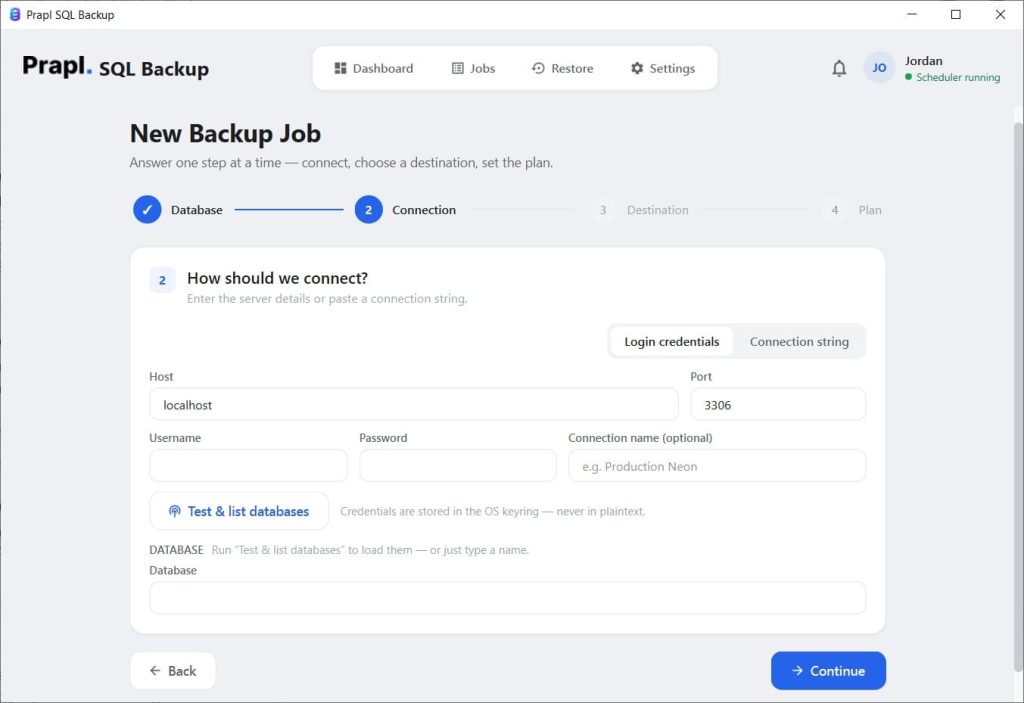
Then, enter credentials to connect the software to your database.
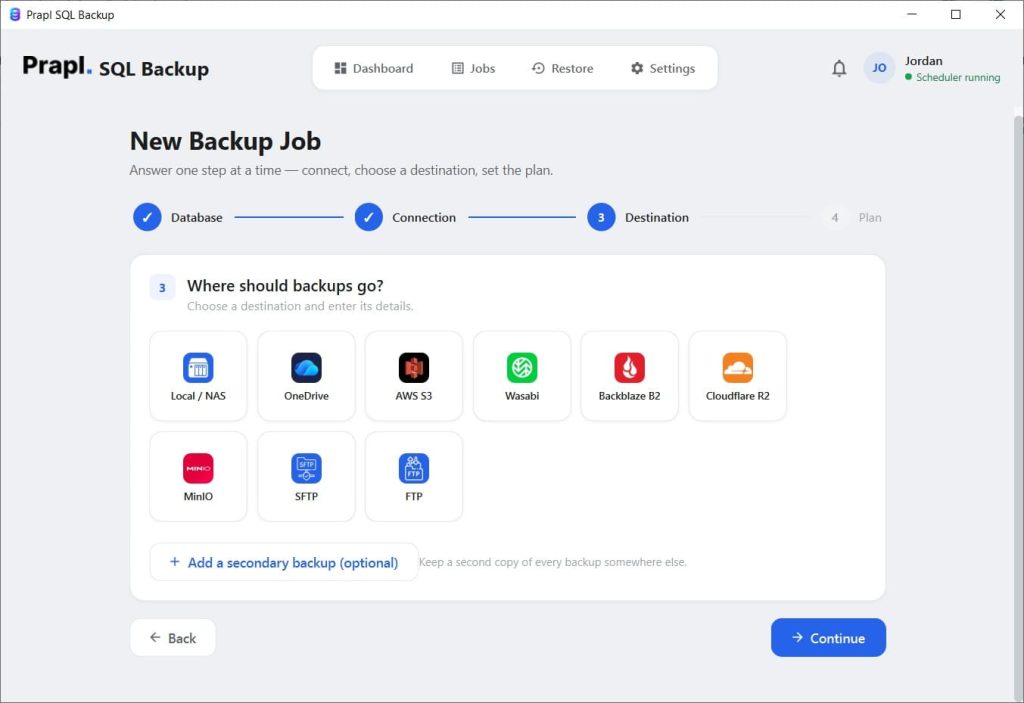
Depending on your backup type, select the target location to store the backup (full or incremental).
Now, schedule the backup: when it should run and how frequently you want it to repeat.
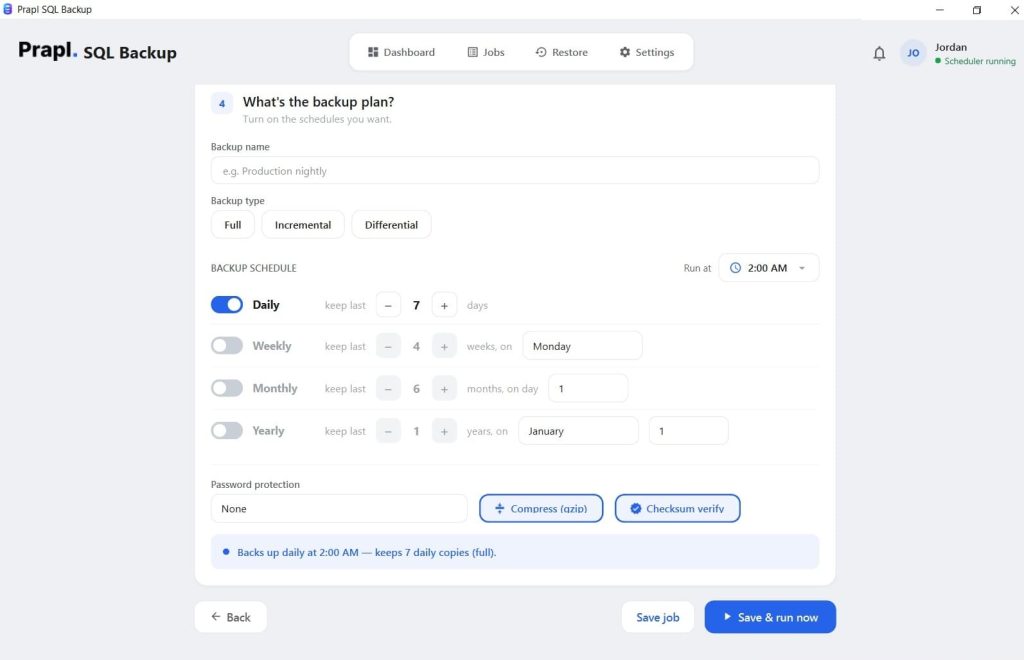
Click the Start and Run button; it will start backing up the entire DB data.
Conclusion
You don’t necessarily need to write scripts to schedule database backups. Scripts can be a powerful option for customized automation, but a database backup tool can be a simpler alternative when you want recurring backups without maintaining code.
The basic process is straightforward: connect your database, select what you want to back up, choose the backup type and storage destination, set a schedule, configure retention, and monitor the results.
For Windows users looking for a desktop-based approach, SQL Backup Software provides a way to schedule database backups without writing scripts. Now, just configure and automate database backup tasks easily with this software.