 Abeer Arora
If your backup is located on the same system as your database, you won’t be well protected if that machine crashes. For this reason, businesses are increasingly backup SQL database to S3 bucket and keeping a secondary copy in cloud storage.
Amazon S3 helps you keep your backup files away from the machine hosting the original database by providing you with an alternative storage place. Additionally, it can make it simpler to keep backup copies for longer periods without relying just on local storage.
However, for occasional backups, you can create the database backup and upload it to your S3 bucket manually. But if you need recurring SQL backups, repeating the same process every day can quickly become overwhelming and easy to miss. On the other hand, automation can take over the routine work and help you maintain a more consistent backup process.
Offloading SQL db backups to S3 solution?
byu/Dolinhas inaws
Let’s find out how.
Why Backup a SQL Database to an S3 Bucket?
Keeping every backup on the same machine or local storage is not an ideal solution to keep your database safe. Hence, you can use Amazon S3 to save it, as it offers:
- Protection against local hardware failure
- Off-site backup storage
- Scalable cloud storage
- Easier long-term retention
- Separation between the database environment and backup copies
- Disaster recovery
- Access from different environments when required
What Do You Need Before Backing Up?
-
- An AWS account: Of course, for storing your SQL database backup file, the most important thing you need is access to Amazon S3.
- S3 bucket: Once you have an authorized AWS account, you can create a dedicated bucket or a dedicated folder or prefix for database backups.
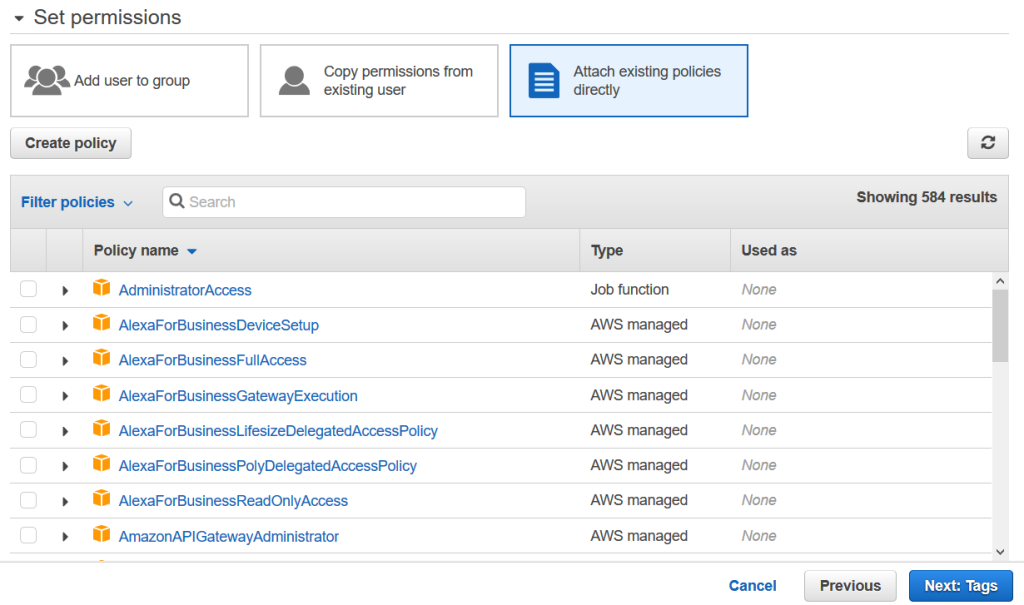
- Appropriate AWS permissions: Proper permissions you may need for AWS before processing. The account, role, or application uploading backups needs the required S3 permissions.
- A backup process: In addition to these, you need a way to create the actual SQL database backup before storing it in S3. It depends on the number of SQL databases you have. In case of a few databases or if you create backups occasionally, you can go for a manual method. Whereas, you can choose a dedicated SQL database backup tool in case of recurring backups or large databases.

- Retention strategy: Make sure to decide how long you need daily, weekly, monthly, or older backups for performing a retention strategy.
- A recovery plan: Don’t treat uploading the file to Amazon S3 as the end of the backup process. You should also know how you’ll retrieve and restore a SQL database backup when required.
How to Backup SQL Database to an S3 Bucket Manually?
The first step is to create a usable backup of the SQL database to perform the strategy manually.
For example, if the database engine creates a .bak backup file, the file becomes the object that you upload to S3.
Once your backup file is created, make sure to keep it in a separate folder for easy identification while uploading it to S3 bucket.
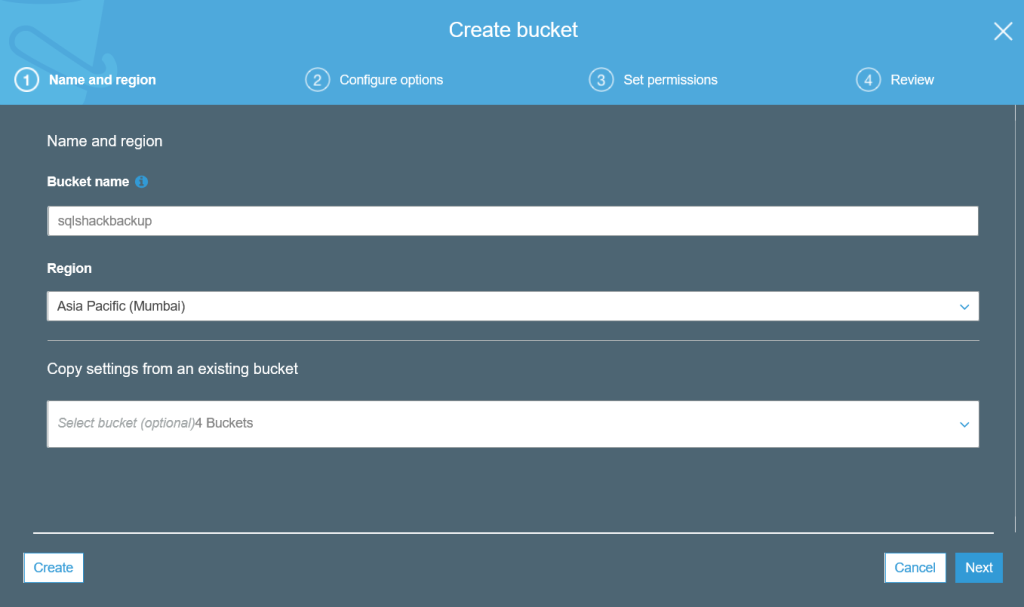
Create an S3 Bucket: Second steps is to create an S3 bucket, to do so, open Amazon S3, create a bucket, choose the appropriate AWS Region, give the bucket a clear name, then configure access controls, and enable appropriate security settings.
Upload the Backup to S3: In the last step, upload it to Amazon S3 bucket. There are many available approaches for doing so. You can upload the backup file using the AWS Management Console, AWS CLI, AWS API/SDK, or backup software.
How to Automatically Backup SQL Database to S3 Bucket?
When you need to perform backups every day or every few hours, manual uploads become unstable. However, they can be useful for occasional backups. On the other hand, by automating the complete backup and storing it in S3, you can avoid having a hard time. Backup scheduling, automatic file generation, automatic upload, retention, failure monitoring, backup history, and recovery testing can all benefit from it. There are two ways to automate the procedure:
Option 1: Build Your Own Automation
For example:
Scheduled backup → backup file → AWS CLI/script → S3
This approach gives you control but requires you to manage scripts, credentials, scheduling, failures, and retention yourselves.
Option 2: Use Backup Software
Prapl SQL Backup Tool is another way to backup SQL database to S3 buckets automatically. It supports S3 as a backup destination alongside other storage options and provides automated scheduling SQL database backup and backup management too.
Therefore, instead of creating a separate script to create backups and another process to move those files to S3, this tool can manage the backup workflow for you from a single Windows desktop application. Moreover, it is useful for businesses that don’t want to build and maintain separate scripts and want to schedule database backups without writing scripts.
Why Use Prapl to Backup SQL Database to S3 Bucket? Major Benefits
- Automatic scheduling: With the help of this Windows desktop application, you can schedule backups as per your requirements, like hourly, daily, weekly, or monthly, instead of relying on manual uploads.
- Amazon S3 support: This tool allows you to send database backups to Amazon S3 as a cloud storage destination.
- Multiple database engines: Moreover, this software supports multiple database engine systems. So, you can manage backups for different databases from one Windows application without depending on other applications.
- Backup retention: To keep your S3 storage in check, this tool even manages how long backup copies should remain available.
- Encryption & Compression: By using this automated software, you can protect backup data with AES-256-GCM encryption. Also, with the help of this software, it is easy to backup SQL database with compression and save storage space.
- Restore: By using this tool, you can keep recovery as part of the backup workflow rather than treating storage as the final step.
- Backup history and health: This tool monitors previous backups and identifies problems instead of assuming every scheduled job is completed successfully.
- Multiple storage destinations: S3 doesn’t have to be your only backup destination when it comes to storing a backup file. Hence, Prapl also supports local/NAS storage and other cloud/storage options.
Steps to Use a Tool for Automated Process
Launch the Prapl SQL Backup Tool and click New Backup from the interface. Select the database engine you want to back up and enter the necessary details to login.
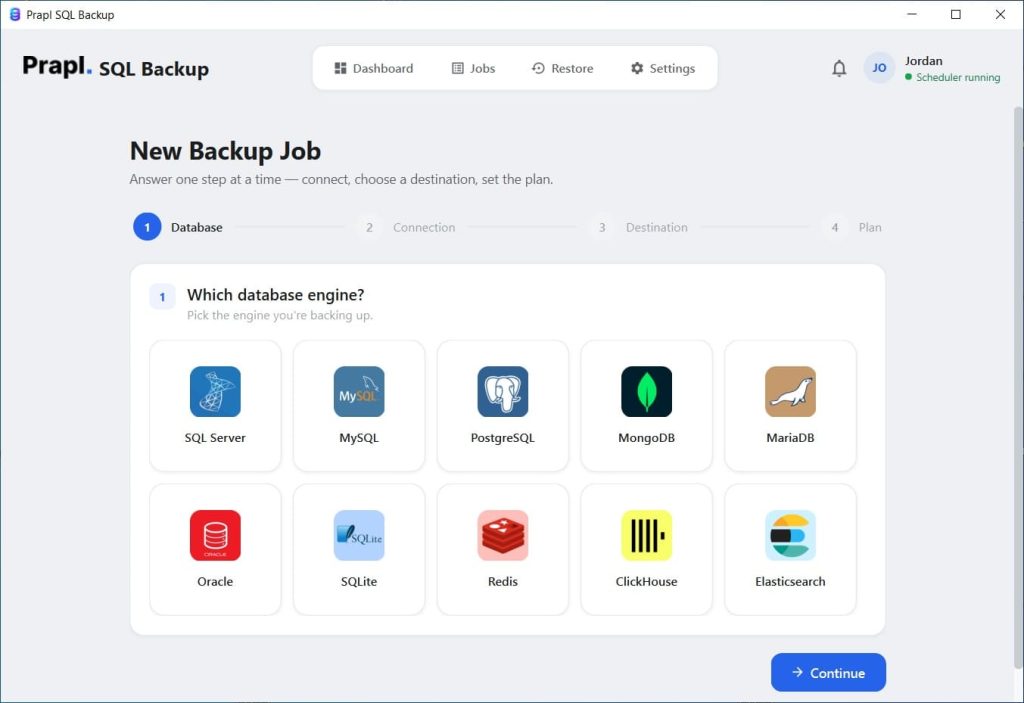
Click Test Connection to verify that Prapl can connect to your database, then select the database you want to back up.
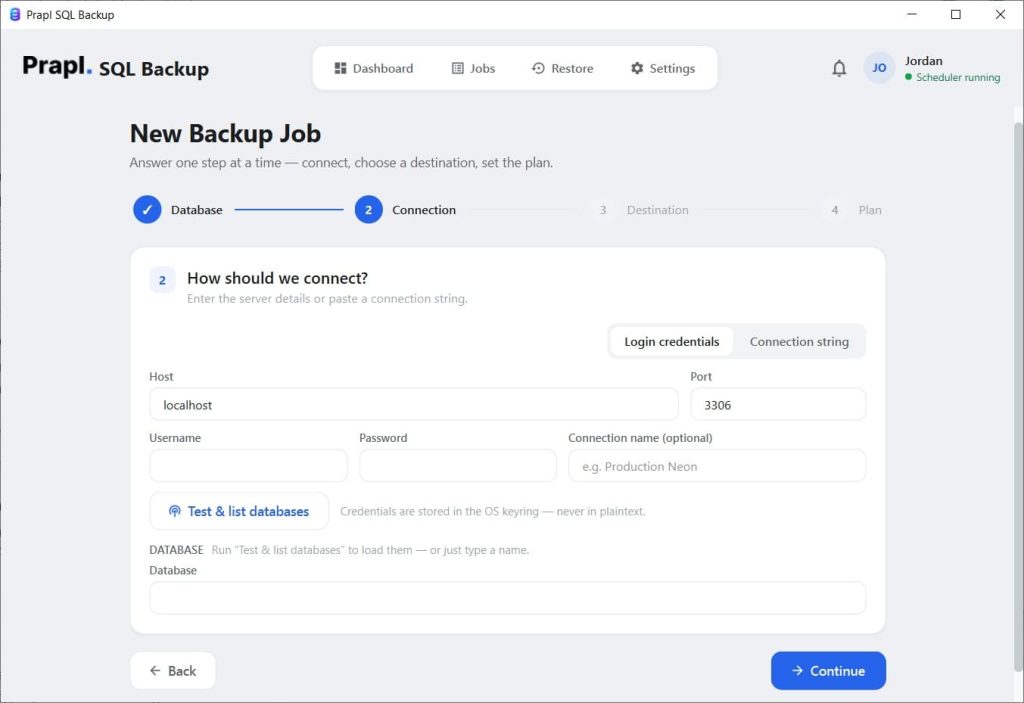
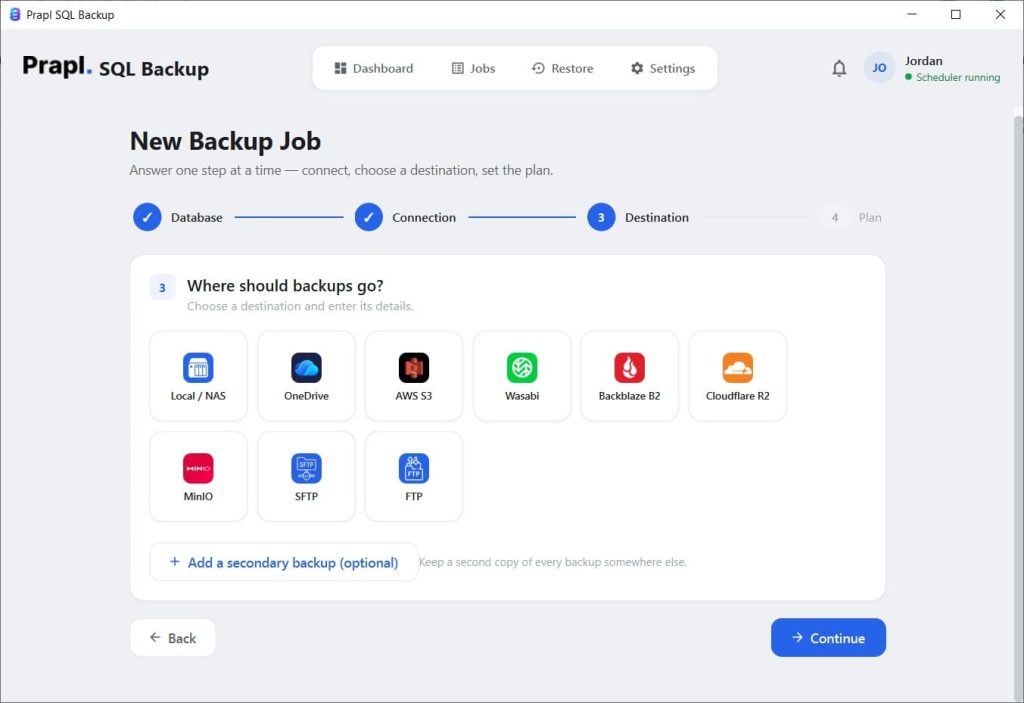
After connecting to your database, choose the storage location for the backup. Here, select Amazon S3 and provide your S3 bucket details and required access information.
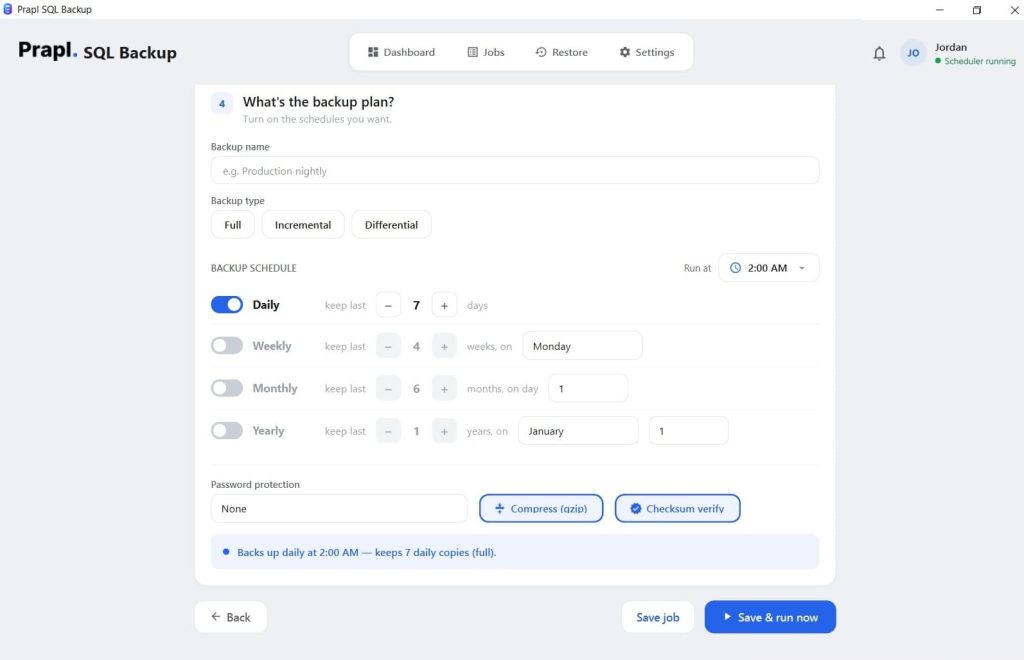
Next, configure how you want the backup to run. Enable compression to reduce the backup file size and encryption for data protection. Once you’ve configured all other settings, click the Run button.
How to Secure SQL Database Backups Stored in S3?
Amazon S3 storage doesn’t mean your backup strategy is secure; therefore, you must consider:
- Encrypt Your Backups: Make sure to encrypt your database wherever possible, either before or during the backup procedure. SQL database backups with encryption are a better option than leaving the file unattended.
- Protect AWS Credentials: The next thing you can do to secure your data is to never hard-code credentials into scripts or expose them in shared files.
- Use Least-Privilege Permissions: Giving all the permissions while performing a backup might not be as useful as you think. Thus, give the backup process only the S3 permissions it actually needs.
- Restrict Bucket Access: Keep necessary restrictions while storing the files in S3. In short, make sure to avoid making database backup objects publicly accessible.
- Separate Backup Access: While creating and storing the SQL database backup to S3, keep the access separate. Don’t give every database user access to the backup bucket; only provide the access it needs.
- Consider Versioning and Retention: Retention policies help you avoid unnecessary storage growth, while keeping older versions can help you recover from accidental loss or overwriting.
Common Problems When Backing Up SQL Database to Amazon S3
- Backup file is too large: If you have large SQL databases, then backing up and storing those large files can take longer to upload and consume more storage.
- Upload fails midway: Sometimes, network interruptions can prevent successful transfers to S3.
- Incorrect S3 permissions: If you don’t have the correct AWS permissions, then the backup process may create the file successfully but fail when uploading it.
- Backup succeeds but upload fails: Sometimes everything goes well until it’s time to upload it to the actual destination. Simply put, creating the backup and transferring it to S3 are two separate stages. Your entire backup process can succeed, but uploading the backup file to S3 might fail.
- Too many old backups: The number of backup files may accumulate during recurring backups. Eventually, it starts consuming more storage. Without retention regulations, storage may expand needlessly, meaning more cost.
- Backup exists but hasn’t been tested: A successful upload doesn’t automatically prove that you can restore the database.
Conclusion
Storing database backups outside of the main database environment can provide you with an additional degree of security when local systems malfunction, stop working, or lose data. Although Amazon S3 offers a versatile cloud storage option, a reliable backup strategy requires more than just uploading files to a bucket. Consistent scheduling, suitable retention, security, monitoring, and a recovery plan are also necessary.
Manually completing each of these procedures can eventually become challenging for teams who oversee routine database backups. Therefore, using Prapl SQL Backup Tool, you can connect your database, transmit backups to Amazon S3, manage schedules, set up retention, encrypt backups, and track backup activity easily.