 Abeer Arora
Creating a SQL database backup file and actually having a reliable backup strategy are two different things. You may have a .bak file sitting somewhere on your computer, but if the same system fails or the backup hasn’t been maintained properly, that file may not help when you need it most.
A hard drive failure, system crash, malware infection, accidental deletion, or other common mistakes can make both the original database and its backup unavailable at the same time.
An easy solution is to keep an external drive. In short, backup SQL database to an external hard drive, as it gives you a separate storage location that isn’t dependent on the primary disk.
However, simply copying a backup to an external drive isn’t enough. You also need to consider how often backups should run, whether the drive has enough storage, how older backups will be managed, and whether the backup can actually be restored when required.
Now, let’s learn the ways to do so to keep your backup routine more reliable.
Can I Automatically Backup SQL Database to an External Hard Drive?
If you are wondering if you can back up your SQL DB to a USB, any disk location or external hard drive, the simple answer is YES.
SQL Server allows database backup files to be saved on disk.
An external HDD can serve as the destination if the SQL Server service account can access and write to that drive.
However, the exact process depends on whether you want to create the backup manually through SQL Server Management Studio, use a T-SQL command, or automate the process with backup software.
Why Backup SQL Database to an External Hard Drive?
Keeping a backup on a separate USB drive provides an additional layer of protection for your database. There are various reasons, such as:
- Separate backup from the main system: If the internal drive fails, a backup stored on the same drive can become inaccessible. So, an external drive is a quick way to protect your database.
- Offline storage: The external HDD can be disconnected after the backup process. Hence, it reduces the exposure to certain system failures or malware incidents.
- No recurring cloud storage cost: Moreover, you can use your own external storage without paying for cloud storage. It is quite useful for businesses that want a local backup copy.
- Easy to move: Backup external drives can be stored separately or moved to another system when required.
- Additional backup copy: An external hard drive can work alongside cloud or network backups rather than replace them.
Important Note: Even Microsoft recommends that a business should keep its backup files separate from the database files.
How to Backup SQL Database to an External Hard Drive Using SSMS?
- Connect to SQL Server: First, open SSMS and connect to the appropriate SQL Server instance.
- Select the Database: Go to Databases, then choose “Your Database”, click “Tasks,” and click “Back Up”. This opens the SQL Server backup configuration window.
- Select Full Backup: Then, set backup type to Full, and backup component to Database. A full backup is usually the simplest starting point for a complete backup.
- Choose the External Hard Drive: Now, under destination, select Disk as the backup destination. Remove the default destination if necessary, and select Add. Browse to the external hard drive and select or create the backup folder. Enter any suitable backup file name.
- Start the Backup: Then, just click OK and wait for the backup to complete.
- Verify the Backup: Remember, don’t assume that a backup is useful just because the process is completed. Make sure to verify it after completion. For important databases, we suggest you test the restore process.
How to Automatically Backup SQL Database to an External Hard Drive?
Creating one backup manually is quite easy and a short process. The problem starts when it comes to remembering to connect the external drive and repeat the process every day.
Want to step out of the loop?
Then, you should choose to back up multiple SQL databases automatically to an external hard drive.
Using dedicated backup software, you can simplify the process. Here, you get to combine database connections, backup destinations, scheduling, retention, compression, encryption, and monitoring in one interface.
Prapl SQL Backup Tool is a Windows desktop utility that helps you to automate database backups and save them to a disk location or cloud storage. This can be particularly useful when you have multiple databases or want backups to run automatically without writing scripts and scheduled tasks.

With this tool, you can use an external hard drive for local backup storage while keeping the option to send copies to another destination when needed. You won’t need different software to perform one task.
Benefits of Choosing Automated Software for a Backup
Prapl offers various benefits for backing up SQL databases to an external hard drive. Such as:
- Unlimited databases: With this tool, you can back up as many databases as you need without having to purchase a separate database limit.
- Unlimited servers: You can also add different servers and schedule database backups for the databases on them without a separate server limit.
- Restore option: Backup is of no use if you won’t be able to recover it. Hence, this software also provides a restore option so you can restore a SQL database when needed.
- Supports major database engines: Additionally, instead of installing separate backup tools for every database, Prapl supports PostgreSQL, MySQL, SQL Server, MongoDB, MariaDB, Oracle, SQLite, Redis, ClickHouse, Elasticsearch, Amazon RDS, Neon, Supabase, and other managed databases. It is a one-stop solution for your business.
- Multiple backup destinations: You can even save backups to local drives or NAS and supported storage services such as OneDrive, Amazon S3, Wasabi, Backblaze B2, Cloudflare R2, MinIO, SFTP, and FTP. You can also use multiple destinations for extra backup copies.
- Flexible scheduling: If you want to schedule the backup process, then just configure the required settings, and you’re good to go.
- Encryption: Prapl can encrypt your SQL DB backup files using AES-256-GCM. This helps protect the contents of your database backup if someone gains access to the backup file.
- Free updates: Here, you also receive software updates during the license term without having to pay an additional update fee.
- Technical support: Technical assistance is available if you need help with setup, configuration, or backup-related issues.
- 14-day money-back guarantee: You can buy the Windows desktop software with a 14-day money-back guarantee. This tool also currently offers a 15-day free trial without requiring credit or debit card details.
Steps to Create SQL Backup Automatically to External Hard Drive
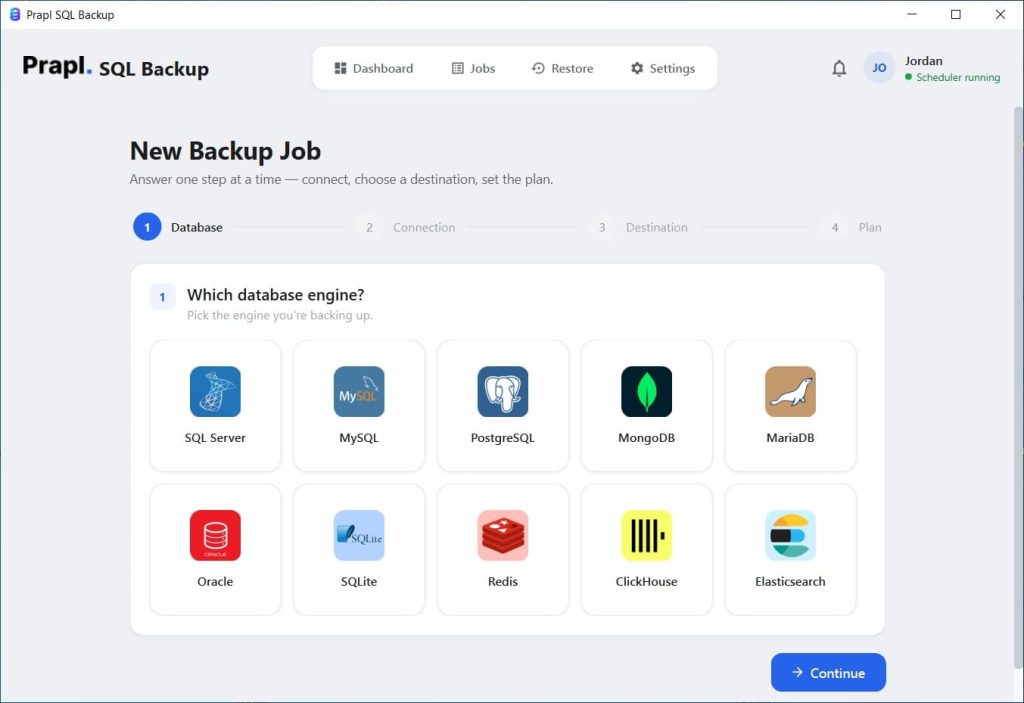
Open Prapl SQL Backup software, click New Backup, and select your database engine.
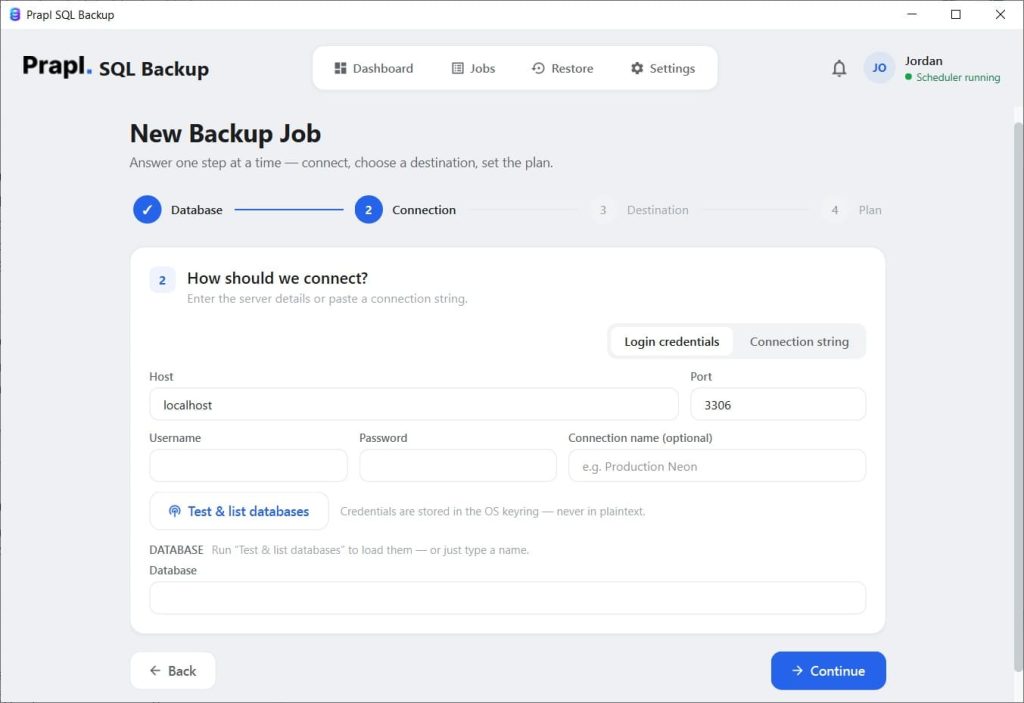
Add your login credentials for a connection, then select the database you want to back up.
Then, choose NAS and select external hard drive as the destination for saving the .bak file.
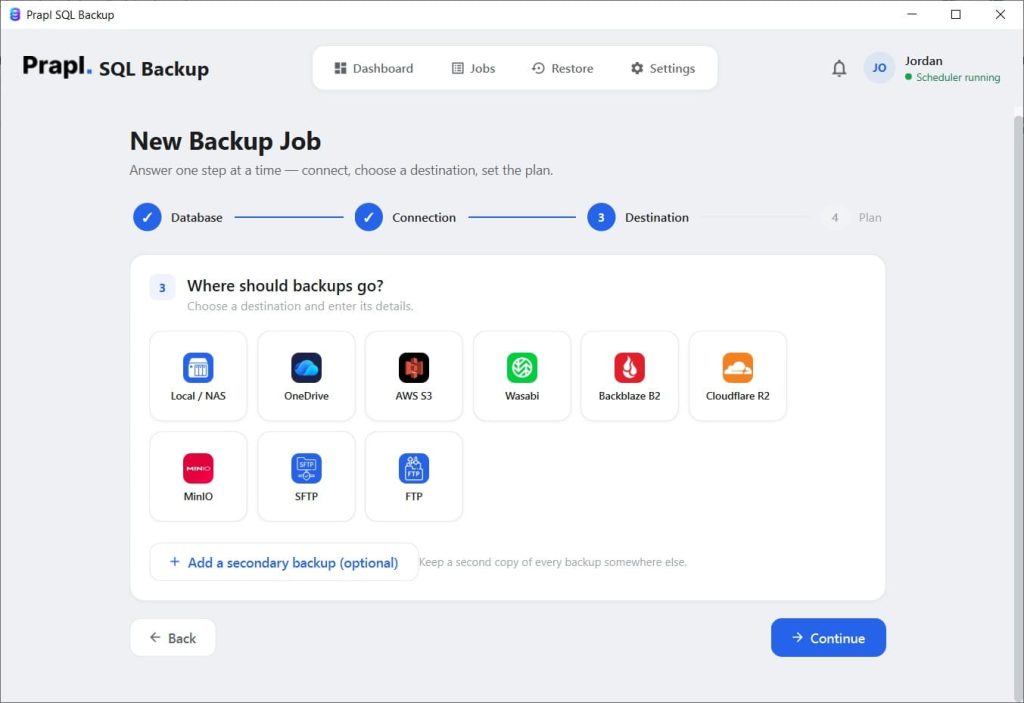
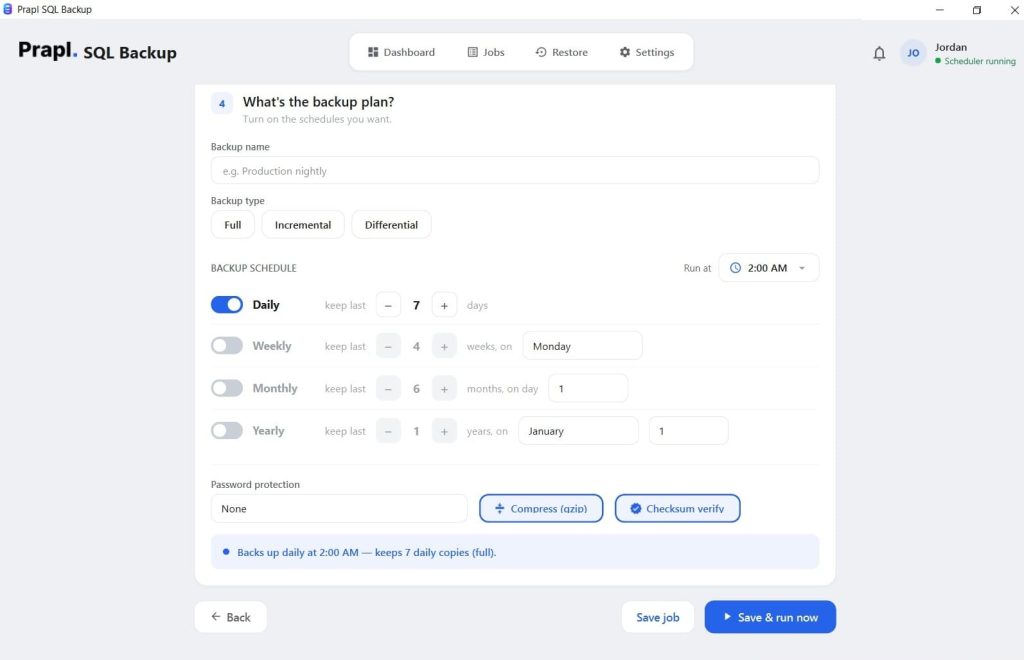
After this, select the backup type and enable compression and encryption if required, hit the Run button to initiate the process.
Conclusion
Should you backup SQL database to an external hard drive?
Yes, an external hard drive can be a practical storage destination for SQL database backups, especially when you want a separate local copy that you can control physically. It is easy to handle.
However, manually copying backups isn’t enough for databases that change regularly. It might be enough for occasional backups, though. Therefore, choosing a way that can automatically back up to an external hard drive would be a more reliable strategy.
A dedicated tool such as Prapl can help you connect to databases, schedule backups, set storage destinations, retention, encryption, compression, backup history, and restore easily.
FAQ by Users
Question: How do I backup my entire SQL database to an external hard drive?
Answer: To do so, you can either use SSMS to back up the file, or choose a T-SQL command, or just automate the process with a dedicated backup tool.
Question: Can I backup SQL Server to an external hard drive automatically?
Answer: Yes, you can use the Prapl SQL Database backup software to automate the entire backup process and save the file on your local storage or a USB.
Question: Is it safe to store SQL backups on an external hard drive?
Answer: Yes, it is quite a safe and practical way to keep your sensitive SQL database protected from any mishap. However, for better protection, keep multiple copies, consider an off-site or cloud copy, encrypt sensitive backups, and regularly test that your backups can be restored.