 Abeer Arora
It soon becomes tedious as the database keeps growing and you attempt to create database backup each time. When your database runs in Azure, you can use Azure’s available backup capabilities and scheduling options to create a more consistent backup routine. Automate Azure database backup processes to reduce this manual effort and create a more consistent backup routine.
It can reduce repetitive manual work while helping you maintain recovery points according to your business requirements. However, the exact process depends on which Azure database you use.
In this guide, we’ll look at how Azure database backups work, how to schedule backups, how encryption protects backup data, and what to consider when choosing an Azure database backup and restore tool.
Why Automate Azure Database Backup? Benefits?
- Reduce manual work: Nobody needs to remember to start every backup when there is a need to create a backup every day or multiple times a day.
- Maintain consistent recovery points: Scheduled backups help maintain a predictable backup routine.
- Reduce human error: Automation can reduce mistakes associated with repetitive manual tasks. You can also automate multiple database backups when your environment contains several databases that require regular protection.
- Support multiple databases: If a business manages multiple databases, automation becomes even more valuable. Thus, automate backups for multiple databases without writing scripts.
- Improve recovery readiness: Regular automated backups give you more predictable recovery points, but emphasize that businesses still need to verify and test those backups. As it is best to avoid database backup mistakes than regretting it later.
How to Schedule & Automate Azure Database Backups Easily?
Option 1: Use the Azure database service’s built-in backup capability
If you’re using Azure SQL Database, you don’t necessarily need a separate scheduler for the service’s built-in backups. Azure manages the automated backup process, while you can configure the available retention and recovery options according to your requirements.
This is a detailed guide on setting up backups using Azure SQL Database. Here, we have used guidelines from the official Azure training module.
Initially, build a database and logical server. You can run the following instructions to establish a logical server and database using the Azure CLI:
- Set up a few variables first to automate azure database backup. This script creates a unique server name, establishes admin credentials, and uses your resource group to determine the location.
- Next, establish the logical server.
- Right after this, establish the database.
- By default, this generates a general-purpose database with two vCores and Standard-series hardware.
Option 2: Automated Backup for SQL Server on Azure VMs
This is different because SQL Server on an Azure VM gives you more control over the database environment. You’re responsible for managing SQL Server and can use Azure Backup’s SQL Server backup capabilities to create and manage backups. For more data security, you can additionally enable vault encryption with customer-managed keys (CMK).
For this, follow these steps
- Connect the SQL Server VM to Azure Backup: The SQL Server environment needs to be configured for Azure Backup.
- Create a backup policy: Define when backups should run and how long Azure should retain them.
- Configure backup frequency: Depending on the backup configuration, you can schedule full, differential, and transaction-log backups to meet your recovery requirements.
- Select retention settings: Decide how long you need to keep your recovery points for Azure database backup.
- Monitor backup jobs: After this, check whether scheduled backups complete successfully and investigate failures.
- Test restoration: Also, periodically verify that you can restore the Azure database from the available recovery points.
How Does Azure Backup Encryption Work?
Encryption protects backup data from unauthorized access if someone obtains access to the backup storage. Moreover, encryption adds an important layer of protection, but businesses should also control access to backup storage, protect credentials, and monitor backup activity. As database backup contains the same sensitive information as the original Azure database.
- Encryption at rest: Simply put, encryption at rest protects stored backup data. For Azure services, encryption capabilities can depend on the specific service and storage configuration. Thus, review the encryption options available for your database before deciding which backup approach to use.
- Encryption in transit: On the other hand, encryption in transit protects data while it moves between systems. This becomes particularly important when your backup process sends data to a separate storage location.
Therefore, businesses should consider:
- What encryption Azure provides by default?
- Whether customer-managed keys are available
- Who controls the keys?
- Where encrypted backups are stored?
- Whether the chosen backup tool supports encryption
To keep everything safe, a practical Azure database backup strategy should combine encryption with access controls, monitoring, and appropriate storage permissions.
How to Restore an Azure Database from a Backup?
- Identify the recovery point: To restore the data, choose the appropriate backup based on when the problem occurred.
- Start the restore process: However, the exact restore process depends on the Azure database service you are using.
- Verify the restored database: Once you start the restore process, make sure to check the data integrity, application connectivity, permissions, configuration, and expected records.
- Document the recovery process: Documenting the entire recovery process is particularly useful for businesses. Make sure to document it.
Best Practices for a Smooth Azure Database Backup
- Automate recurring backups: Don’t depend entirely on manual processes while backing up your Azure database. It can be lengthy and tedious if there are too many databases to back up.
- Follow a suitable retention policy: Secondly, don’t keep everything forever without a reason. Thus, keep decluttering the old backups when they are not needed anymore.
- Keep appropriate recovery points: Make sure you have enough historical backups for your recovery requirements.
- Protect backup credentials: Additionally, don’t expose Azure storage credentials in scripts or unsecured locations. Only authorized users and services should access backup storage and credentials. As precautions are better than cures.
- Encrypt backup data: Moreover, always use appropriate encryption controls to keep your sensitive information more secure.
- Monitor backup jobs: While performing manual Azure database backup, there is no guarantee that it won’t fail. Sometimes, even scheduled backups can still fail. Hence, it is better to keep monitoring the process rather than regretting it later.
- Test restoration: This is one of the most important points while performing a backup of an Azure database. The backup won’t be useful at the time of the inconvenience if there is missing data in that backup copy. Therefore, test your recovery process periodically.
Using an Azure Database Backup and Restore Tool
Azure’s native backup capabilities can work well for many environments, but some businesses may prefer a dedicated backup tool to manage database backup tasks through a centralized interface.
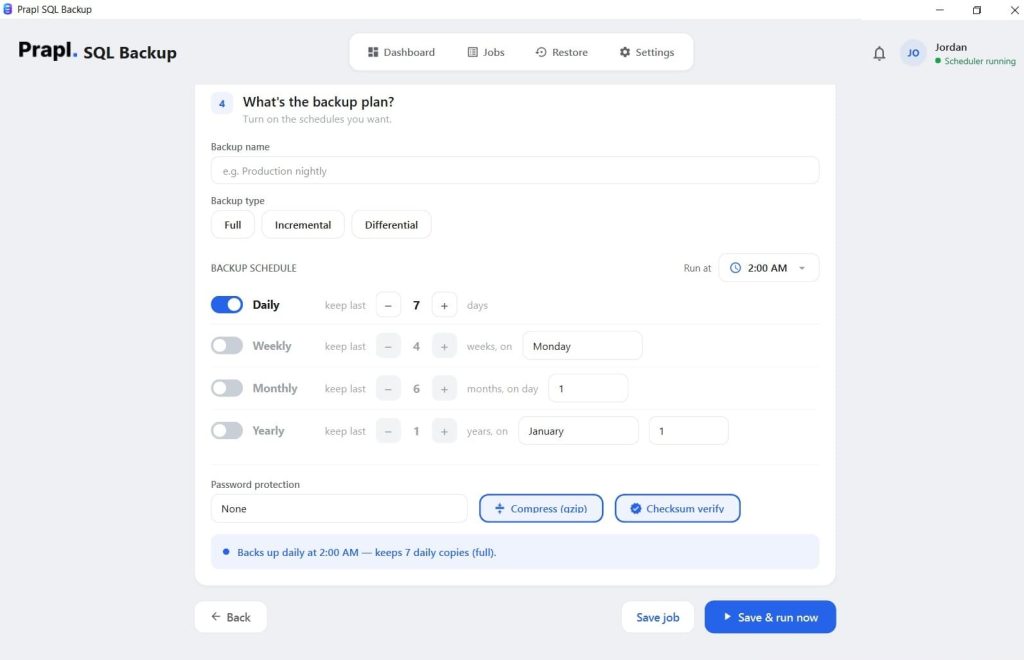
Hence, a Prapl SQL Database Backup tool can simplify recurring Azure DB backup management by bringing scheduling, backup configuration, storage options, and restoration workflows into one interface.

With this software, businesses can save the backup file locally or to any desired cloud destination. Moreover, this tool lets you easily schedule and encrypt the database during the process. An Azure database backup and restore tool can provide a centralized interface for managing recurring backup tasks, depending on the database platform it supports.
Steps to automate azure database backup via tool:
Download the tool on your PC, launch it, and select the Azure SQL database.
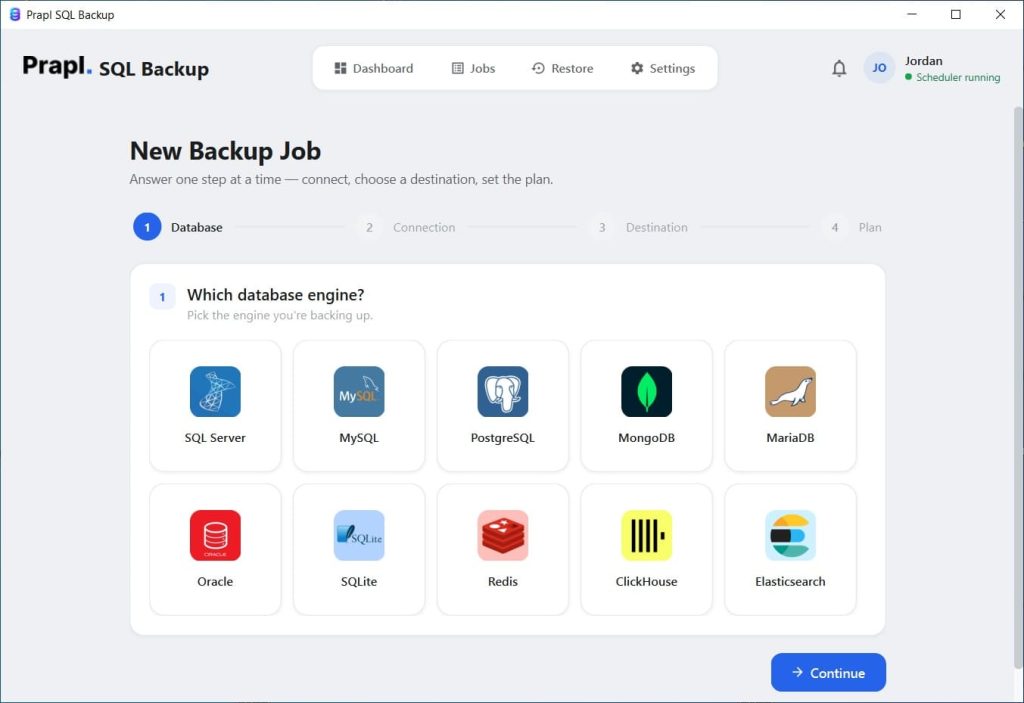
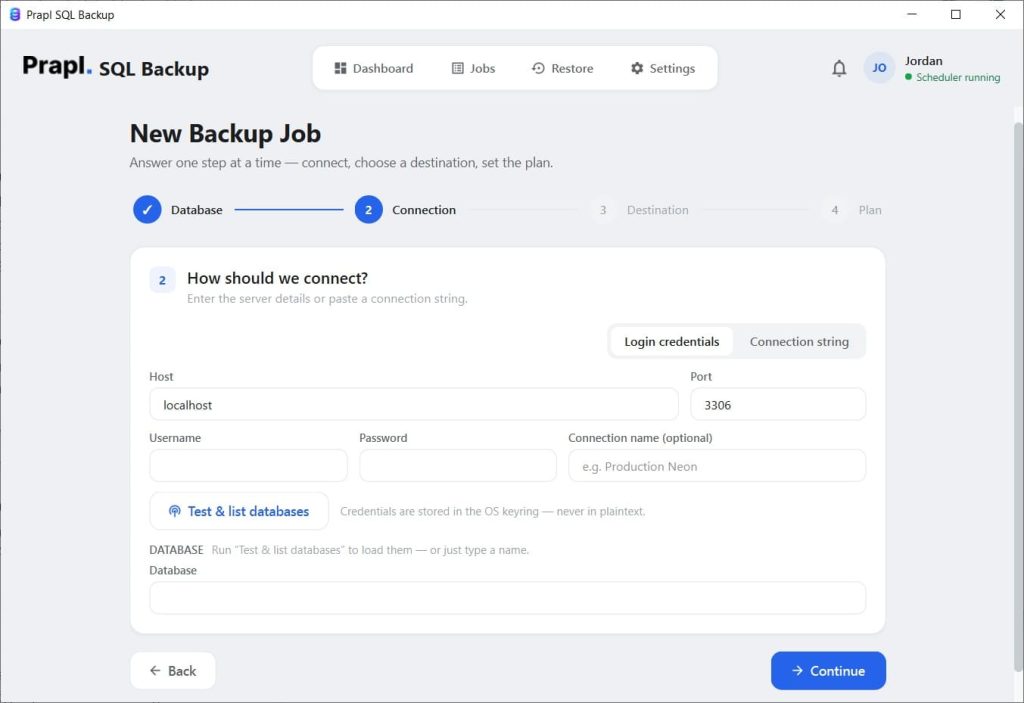
After this, add your login credentials and test the connection.
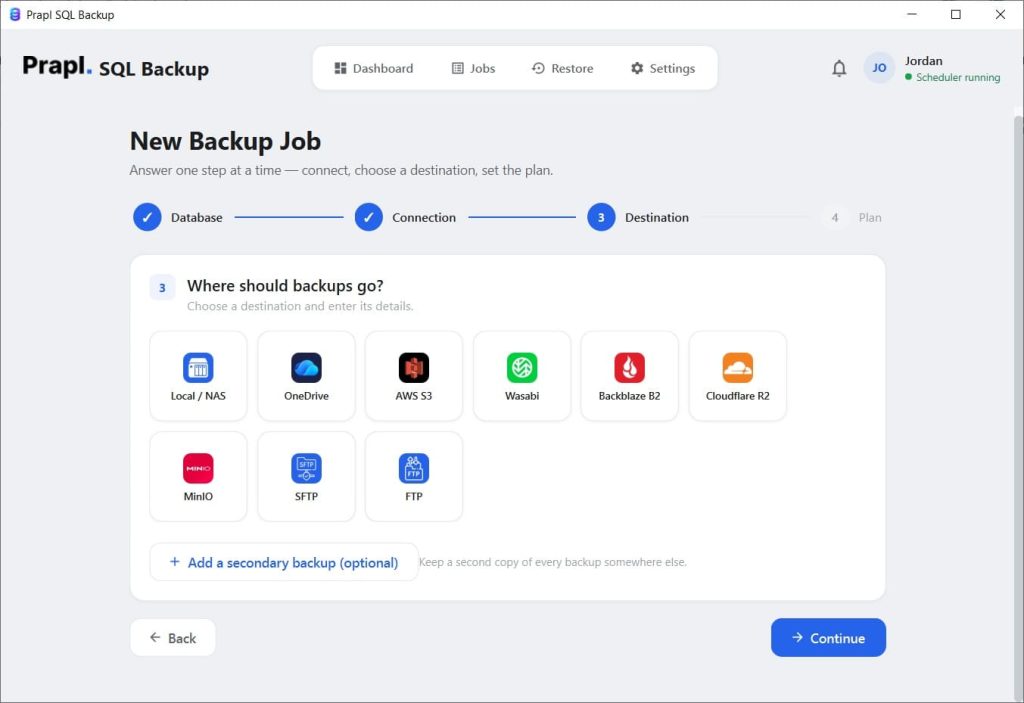
From the next screen, select the desired storage location to save the backup file.
Finally, set the backup schedule frequency and hit the Run button.
Conclusion
You can maintain consistent recovery points and cut down on tedious manual labor if you automate Azure database backup procedure. But making a schedule is just one component of a solid backup plan.
Identify your Azure database service and learn about its backup and restore features first. Next, decide on the best backup frequency, retention duration, storage location, and security measures. Monitor scheduled tasks, test restoration frequently, and safeguard backup data with the proper encryption and access controls.
An Azure database backup and restore tool can offer you an alternative to manually handling each backup process for companies that require greater control over backup management.