 Abeer Arora
Dealing with a large database is already challenging, but managing huge backup files on top of it can make things even more difficult. If you’re on the same page, compression is your solution. Just backup SQL database with compression and keep the files secure rather than managing regular backups.
But large SQL backup files can become a storage problem long before your database does. As databases grow, keeping multiple uncompressed backups can quickly consume local disk space, external drives, or cloud storage. And when database backups run frequently, the amount of data being written and transferred can become another concern.
Therefore, compression can reduce the size of backup files required during the backup.
Now, let’s focus on how compression works, its advantages and disadvantages, and how to enable it manually and automatically with dedicated SQL backup software.
Benefits and Limitations of Compressing SQL Server Database Backup
How to reduce the size of the database
byu/JayJones1234 inSQL
For compressed SQL database backups, the size of the final backup completely depends on how compressible the data is, and you won’t get to know it before the backup process finishes. There are some pros and cons of compression:
Pros
- Reduce storage consumption: Large databases can be tricky to manage, but their backup files shouldn’t be. And by using a reliable compression strategy, you may significantly decrease the size of backup files, resulting in significant storage space savings.
- Cost savings: Reducing backup size directly reduces costs for your business. Less physical storage space is needed since SQL database backup files are compressed.
- Reduce the backup window: The entire backup procedure takes less time when less data needs to be sent. Compression makes the backup and restore process easier.
- Increased use of network bandwidth: During backups, because backup files are small, they require less network traffic. The impact on other network activity may be less severe.
- Improved Disaster Recovery: Faster data recovery becomes possible with compressed backups. Decreased backup file storage improves overall business continuity by accelerating data recovery and transmission.
Cons
- Compressed backup is still large: Compression doesn’t reduce every type of data equally. Some compressed backup files can still be large.
- Backup is using too much CPU: Additionally, compression requires processing power, so always check your CPU usage during the backup process. A compressed SQL database backup significantly increases CPU usage and can affect concurrent operations.
- Compressed and uncompressed backups are being mixed: According to Microsoft, compressed and uncompressed backups can’t coexist in the same media set. So, you have to keep your compressed database in different locations.
- Can’t Read: Microsoft says that previous versions of SQL Server can’t read compressed backups.
Compress SQL Server Database Backups Using SSMS Manually
- Open SSMS, then connect to your SQL Server instance.
- Now, select Databases, right-click the database, choose “Tasks”, and tap “Back Up”
- From there, choose Backup Type; you’d better choose Full. You can also apply compression to other supported backup tasks, including differential and log backups.
- Then, select the Backup Destination, choose Disk, and specify the backup file location.
- Open Backup Options, go to the Options page, and just find the compression setting and select “Compress the backup”.
- Start the Backup, tap the OK option on the screen. SQL Server will create the compressed backup file.
- Finally, make sure to verify the Backup file.
Compress SQL Server Database Backups Using Transact-SQL
You can create, modify, and manage tables, views, stored procedures, functions, and other functions in a SQL Server database using the programming language Transact-SQL (T-SQL).
It is frequently used for creating database applications, managing massive amounts of data, and carrying out complex database queries and operations. T-SQL, in fact, is the primary programming language in SQL Server.
You can use T-SQL to produce a compressed SQL Server backup by following these steps:
- Open SSMS and establish a connection to your instance.
- On the Standard bar, select “New Query”.
- Lastly, to begin the backup, select “Execute” from the toolbar.
Enable SQL Database Backup Compression via Tool
If you need compressed backups but don’t want to maintain separate scripts and schedules for every database, dedicated backup software can make the process easier.
Prapl SQL backup tool supports database backup across multiple engines and provides compression as part of its backup workflow. Not just this, it allows you for scheduling, retention, encryption, and managing multiple storage destinations.

Compression isn’t the only feature that matters. Useful backup software should also handle automation, storage, retention, security, and recovery. And this tool does it all.
Why Use It?
- Compressed Backups: With this Windows desktop tool, you can reduce the amount of storage consumed by backup files.
- Automatic Scheduling: Schedule SQL backups hourly, daily, weekly, or monthly rather than creating each backup manually. Automate the process that usually eats up your time.
- Multiple Storage Destinations: With this software, you can save backups on an external hard drive, local/NAS storage, or supported cloud and remote destinations.
- Encryption: Prapl also supports AES-256-GCM encryption for protecting your compressed SQL backup database.
- Retention: This tool is advanced enough to automatically manage older backup copies according to your configured retention settings. So, use it for free for 15 days and try it on your own terms.
- Multiple Database Engines: Instead of using a different backup application for every database engine, with this application, you can simply backup multiple databases.
Steps to Backup SQL Server Database with Compression
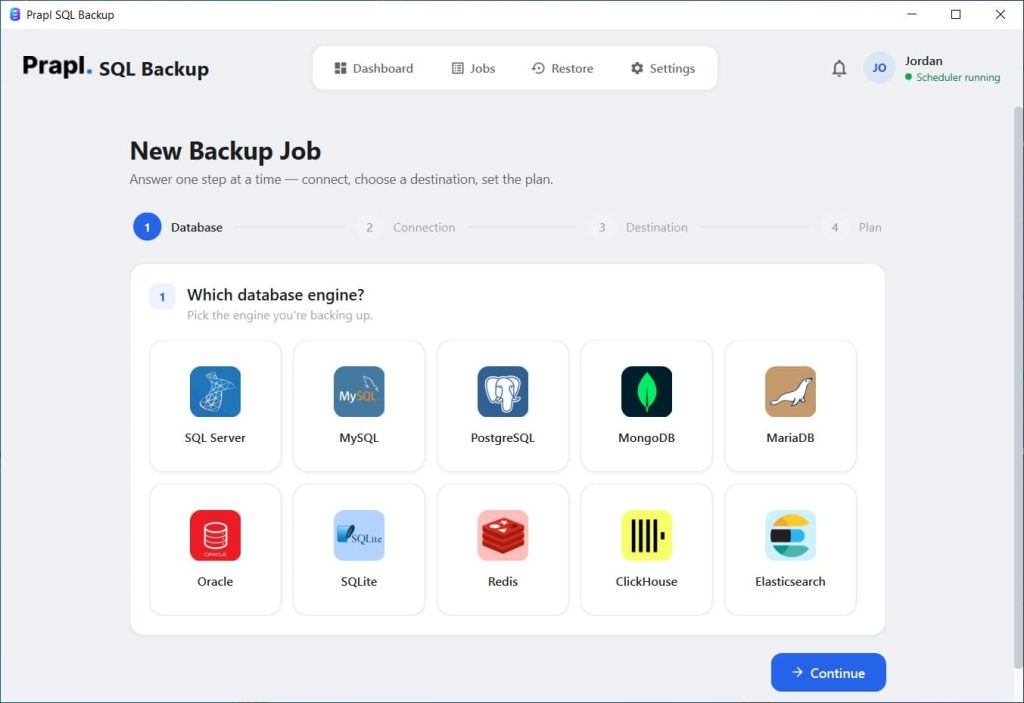
Download, launch, and open the Prapl SQL backup utility, and create a new backup job. From its interface, first connect to the database engine and select the database.
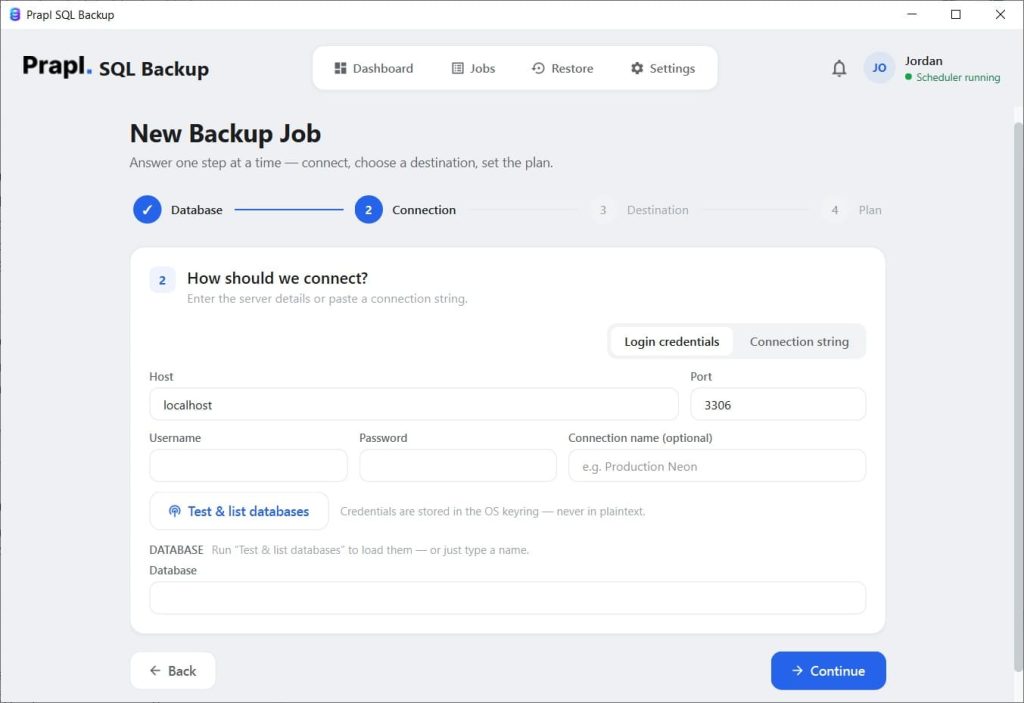
Then, choose a backup connection, login with your credentials.
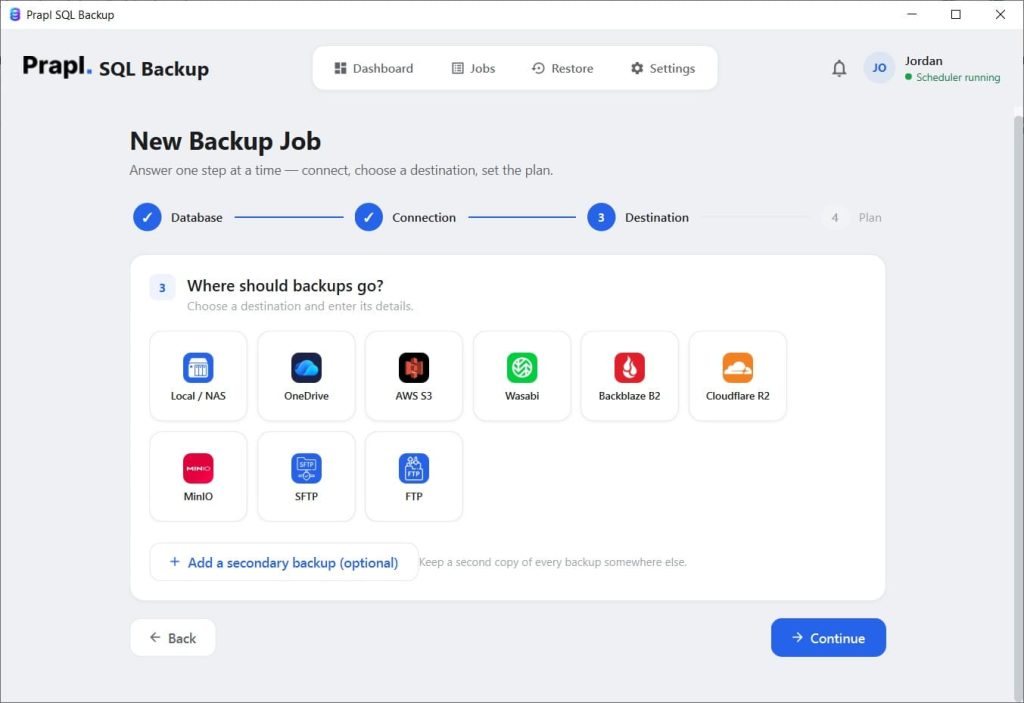
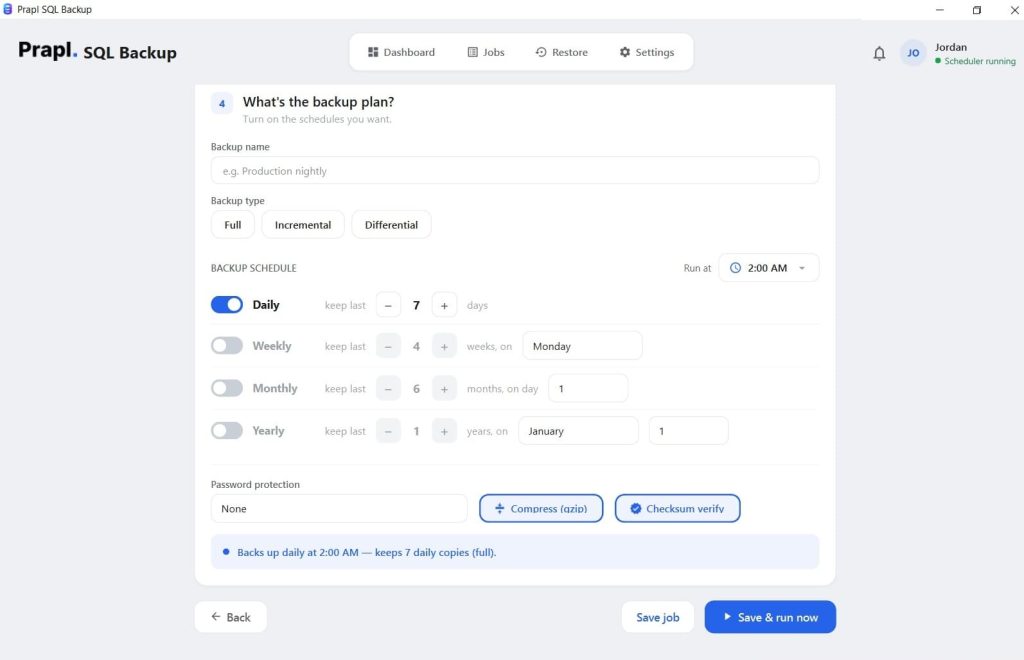
Then, choose a backup destination and set the backup schedule.
After this, enable compression to reduce your backup file size; also enable encryption if required. Then, click the Run option to initiate the first backup.
Conclusion
Backup files for SQL databases expand along with the databases themselves. And maintaining multiple large backups can quickly consume more storage and increase the difficulty of backup transfers.
Therefore, by lowering the size of backup files and the amount of data that you might need to write or transfer, it is better to backup SQL database with compression. Additionally, Microsoft points out that while compression requires more CPU power, compressed backups usually use less I/O.
To do so, you can use SSMS or T-SQL to directly enable compression for occasional backups. However, specialized backup software can ease your problems if you need to perform frequent backups across multiple databases by combining compression with scheduling, retention, encryption, storage management, and recovery options. So, the choice is yours, or it depends on the size of the database you usually maintain.
Frequently Asked Questions
Question: What is compression for SQL database backups?
Answer: When you backup SQL database with compression, a backup file’s size is decreased before being stored. This can reduce the amount of data that needs to be written or transferred and helps you to save storage space. The type of data in the database determines how much space is saved.
Question: How can I create a compressed backup of a SQL database?
Answer: You may use SQL Server Management Studio to create a compressed backup by choosing the Compress the backup option in the backup settings. Additionally, you can simply use automated dedicated software or the T-SQL command.
Question: Does SQL backup database with compression affect performance?
Answer: Yes. Compression can reduce the amount of data written and may improve backup performance when storage I/O is a limiting factor, but it also uses additional CPU resources. It’s a good idea to monitor your server workload when enabling compression.