 Abeer Arora
What happens if you don’t back up your SQL database for a few days? If you’re keeping a close eye on it, a manual backup procedure can work, but one overlooked task could leave you without a recent recovery point. And what if you don’t have any updated database backup file at the time of loss?
Thankfully, you don’t need to remember to perform each backup on your own. SQL Server Agent jobs and Maintenance Plans are two of the methods that SQL Server offers for automatically scheduling backups. Because SQL Server Agent is not included with SQL Server Express, a new strategy is needed.
We’ll look at alternatives, how to schedule SQL database backups automatically, and how backup programs can make the process easier in this guide.
Why Should You Automate SQL Database Backups?
When a backup is recent and accessible when you need it, it is most helpful. Old backup files are of no use if your SQL database keeps changing. But the fact is, backups are easily forgotten or delayed if they are entirely dependent on human actions.
On the other hand, automation and scheduling can help you:
- Manual backups can be forgotten, but with automation, backups can be scheduled consistently.
- Businesses may need regular recovery points; hence, automation can maintain them
- Automation reduces the chance of missed backups
- Older backups need retention management; automated solutions keep backup files according to a defined retention policy.
- Scheduling SQL backups automatically manages recurring backups easily.
- A backup should also be tested through restoration
What Are the Different Ways to Schedule SQL Server Backups?
There is not just one method to learn how to backup SQL databases automatically, and that works for every environment. The appropriate option depends on your SQL Server edition, technical setup, and how much automation you need.
- SQL Server Agent: For SQL Server editions compatible with SQL Server Agent, scheduled jobs can be created. The SSMS documentation from Microsoft offers a process for scheduling and creating a backup job.
- Maintenance Plans: Recurring database backups can be set up using maintenance plans, which can also manage features like differential backups and retention.
- Windows Task Scheduler: Since SQL Server Agent is not part of SQL Server Express, Microsoft recommends utilizing a T-SQL backup script in conjunction with Windows Task Scheduler.
- SQL Server Backup Software: Dedicated Third-party software can provide a graphical way to configure backup jobs, schedules, storage, encryption, compression, retention, and restoration. Using the Prapl SQL Backup tool, one can easily create backups and restore the data whenever needed.
How to Schedule SQL Database Backup Automatically?
If you don’t want to maintain backup scripts or manually manage scheduled jobs, dedicated backup software provides another approach.
Using the Prapl SQL backup software, one can select a SQL database, select a storage destination, and configure backups as needed.

With this application, you can also schedule & backup multiple SQL database backups and manage options such as compression, encryption, and retention.
Features of this Tool:
- Automatic SQL DB Backups: This software eliminates the need to manually initiate each backup by automatically creating SQL DB backups according to a schedule.
Flexible Backup Scheduling: Moreover, depending on your needs, you can plan backups to run on an hourly, daily, weekly, or monthly basis. - Full and Incremental Backups: You can select a method according to your backup and storage needs easily. In short, this application offers both full and incremental SQL backups.
- Encryption: Before backup files leave your computer, they can be encrypted using AES-256-GCM. When backups are moved or stored, this helps safeguard sensitive database data.
- Backup Compression: To minimize backup file sizes, this tool employs streaming gzip compression. This ensures backup files can be significantly reduced in size, which can help save storage space.
Step-by-Step: Automatically Schedule SQL Backups Using the Tool
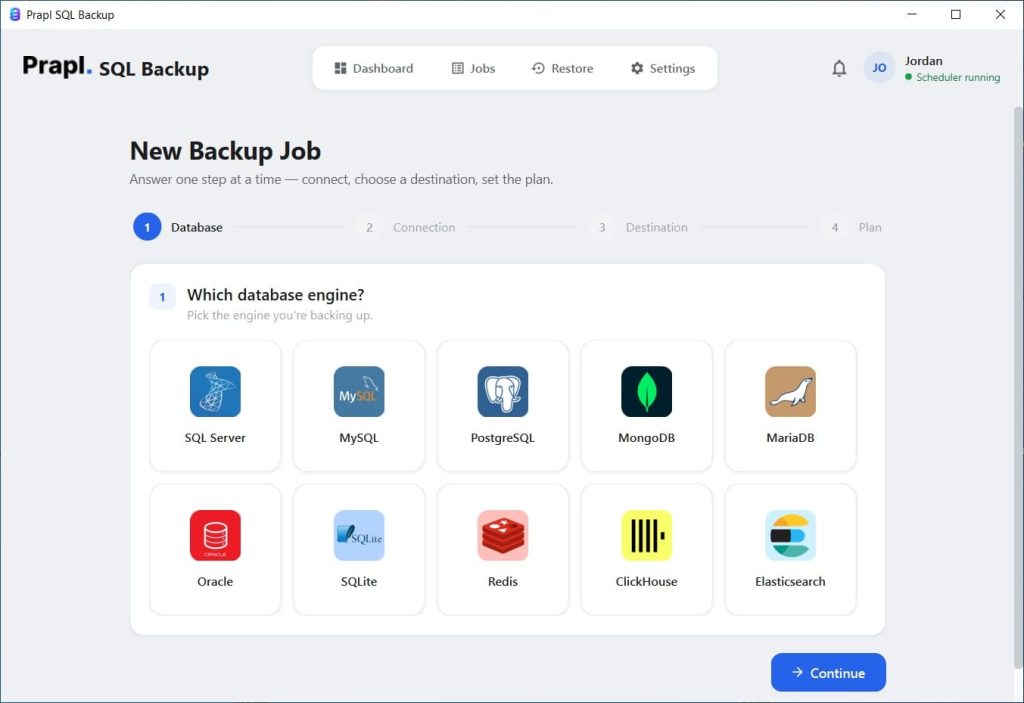
Launch the Prapl SQL Backup Tool on your Windows system, click New Backup, and select SQL Server.
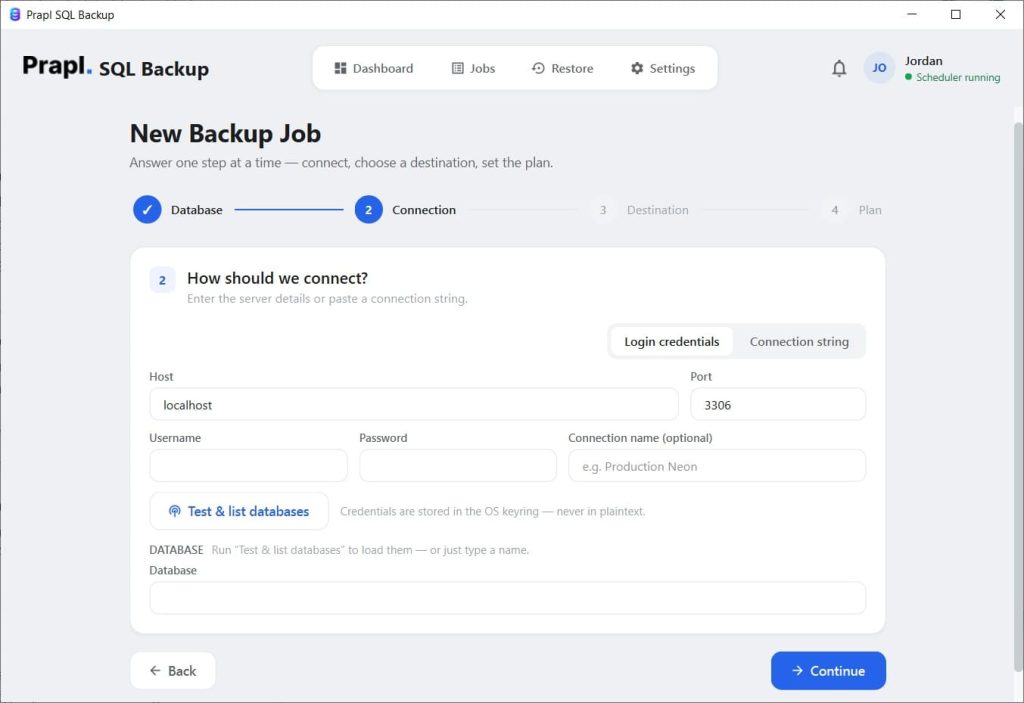
Enter or select the required SQL Server connection details and test the connection.
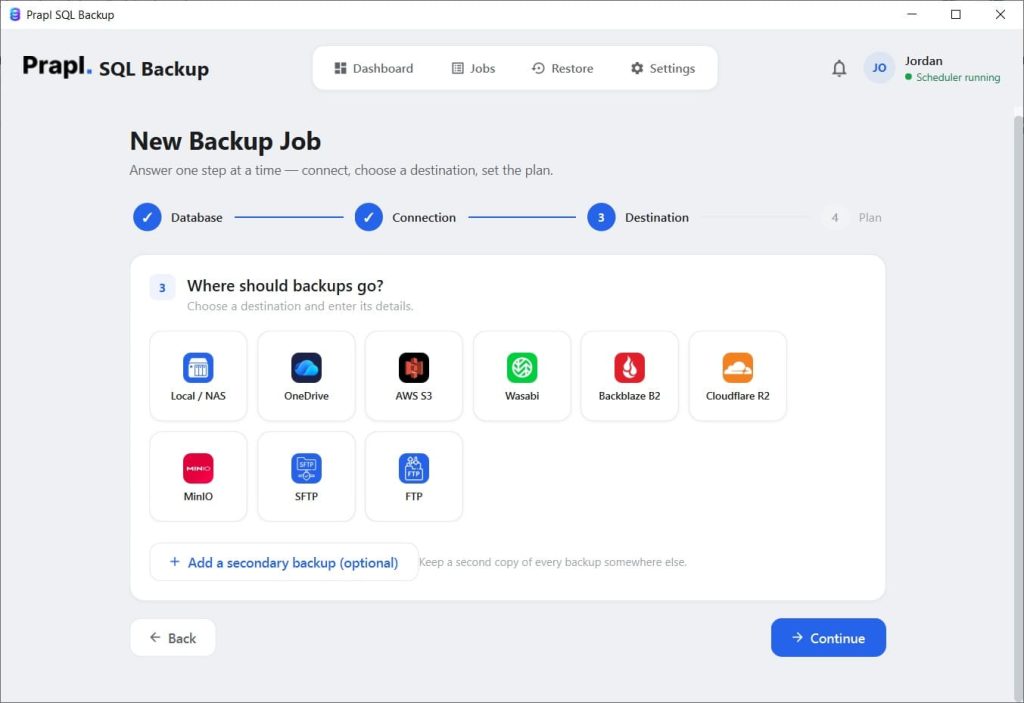
Choose the database you want to include in the backup job and select where you want to store the backup.
Finally, configure the backup frequency, enable compression to reduce backup size, and hit the Run button.
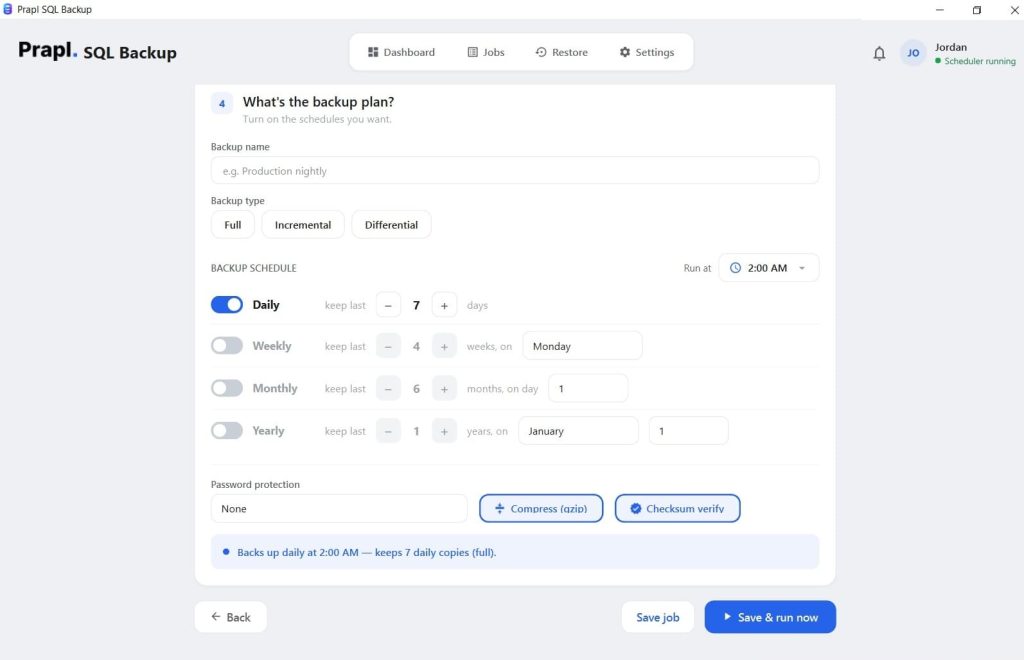
How Often Should You Schedule SQL Database Backups?
The important point is to choose the schedule based on your recovery requirements rather than simply choosing the most frequent option available. However, you can schedule them as:
Daily: It is more suitable for many databases with moderate changes.
Hourly: Scheduling SQL backups hourly is useful where losing several hours of changes would be unacceptable. It may make more sense for databases that receive frequent updates.
More frequent transaction-log backups: Relevant for databases using recovery models that support log backups and where lower work-loss exposure is required.
Common Mistakes When Scheduling SQL Backups
- Scheduling the backup but never checking it: A schedule doesn’t guarantee a successful backup. In simple words, a scheduled backup task can fail because of permissions, storage problems, connection issues, or other configuration problems. Therefore, check the backup job history regularly.
- Saving every backup on the same system: If that system fails, the backup may be lost too, along with the original database.
- Never testing restoration: A backup strategy should include recovery testing, not just backup creation. Always verify that backups are successful after the job is done.
- Keeping unlimited backups: Retention policies help control storage usage. Because without retention, frequent backups can take a large amount of storage, which is not feasible.
- Ignoring SQL Server edition: The scheduling options available for SQL Server Standard/Enterprise and Express aren’t identical. For example, SQL Server Express does not include SQL Server Agent.
- Forgetting permissions: The account running a scheduled backup must have the necessary permissions. Also, a backup schedule should reflect how much recent data your business can afford to lose.
Final Words for Safely Scheduling Backups Automatically
Let’s be real, someone doesn’t need to remember to perform a daily SQL database backup.
Dedicated SQL backup software can offer a more centralized solution if managing and writing scripts, scheduled tasks, storage, and retention seems quite complex. It helps you maintain a more reliable automated backup practice for scheduling backups by enabling you to configure backup tasks, storage, compression, encryption, and retention from a Windows PC.
Frequently Asked Questions
Question: How do I schedule a SQL database backup automatically?
Answer: SQL Server Agent, Maintenance Plans, Windows Task Scheduler for SQL Server Express, or specialized backup software can all be used for SQL database backups. Your SQL Server edition and the level of automation and backup management you need will determine which solution is best for you. Then, you should make an informed decision.
Question: Can SQL Server backups run automatically?
Answer: Yes, with a Prapl SQL backup tool, you can easily schedule SQL database backups automatically.
Question: How frequently should I back up a SQL database?
Answer: How frequently your data changes and how much data you can afford to lose will determine the appropriate frequency. For some databases, daily backups might be adequate, but databases that change regularly might need backups at shorter intervals. So, it may vary.
Question: How can I check whether an automated SQL backup was successful?
Answer: Check the backup job history, make sure the backup was successful, and validate that the backup file is in the intended destination path. Additionally, you should also evaluate the restoration process on a regular basis.