 Abeer Arora
A backup is the only thing standing between an ordinary mistake and permanent data loss. ScaleGrid runs standard database engines, backing up a deployment is really matter of knowing how to backup PostgreSQL database/MySQL database or MongoDB database whichever one your instance is running. There are three practical routes to backup ScaleGrid database. One is the platform’s built-in snapshot backups, native database utilities that produce a portable dump file and the third one is a dedicated backup software that runs on a schedule and store copies at a location you control.

This guide discusses how to restore when the time comes, walks through each route, and compresses them side by side.
Table of Contents
- What is ScaleGrid?
- Can We Backup ScaleGrid Database Manually?
- Where is the Built-in Backup Stop?
- Why Take Independent Backups of ScaleGrid Database?
- How to Backup ScaleGrid Database?
- Method 1. ScaleGrid Automated Backups
- Method 2. ScaleGrid Database Backup Using Native Tools
- Method 3. Backup ScaleGrid Database Using Prapl
- Manual vs Automated: Comparison Table
- How to Restore ScaleGrid Database?
- Conclusion
- Frequently Asked Questions
What is ScaleGrid?
ScaleGrid is a fully managed Database-as-a-Service platform. Rather then provisioning servers, configuring replication, tuning parameters and writing your own backups scripts, you deploy through ScaleGrid’s console and the platform handles the operational layer.
It supports PostgreSQL, MYSQL, MongoDB and Redis deployments across AWS, Azure, GCP, DigitalOcean, Orcale Cloud Infrastructure, Akami Linode, Zadara and VMware.
ScaleGrid is not a database in and of itself. It is a layer of management on top of regular, unaltered database engines. In addition to dedicated hosting, it offers a Bring Your Own Cloud model, which allows the database servers to be located inside your own cloud account while ScaleGrid takes care of them.
Can We Backup ScaleGrid Database Manually?
Yes, you can manually create backup of ScaleGrid database. ScaleGrid automates backups for your deployments and offers two strategies. On-Demand backup that you trigger manually and Scheduled Backup that runs in a defined schedule. These are full backups. All databases, users and settings on the instance are captured not just a single database. They are point-in-time backups and they are typically implemented using disk level snapshots rather than logical exports.
ScaleGrid also provides Selective restore which enables you to inspect the contents of a backup without touching your production cluster.
Where is the Built-in Backup Stop?
Three limitations are worth knowing before you rely on them exclusively.
- Backup Count is Limited: ScaleGrid offers up to five backups per deployment on its dedicated hosting plans. Additional rolling and ad hoc backups are available but they carry an additional fee and require contacting ScaleGrid. Five snapshots is a short history if your schedule is daily.
- Encryption at Rest Locks Backups to Their Original Hardware: This is the most important constraint in the entire platform and it is easy to miss. If you enable encryption at rest for deployment, the backup snapshots are encrypted too and encrypted snapshots can only be restored on the machines on which the backup was taken.
- Snapshots are Not Portable: Even without encryption, a disk-level snapshot is a cloud provider artifact. It is not a file you can download and read. It restores within the platform.
Why Take Independent Backups of ScaleGrid Database?
- Retention After Five Snapshots: Compliance and audit duties may last for months or even years after a rolling snapshot window closes.
- Portability: An independent backup file can be restored into any PostgreSQL, MySQL, or MongoDB instance, regardless of the host.
- Migration: External backup will help in moving to a different cloud or different provider.
- Restore when the Platform or Account is Unavailable: A copy stored outside the hosting environment survives problems that reach the hosting environment.
- Custom Retention Policies: Keep month-end copies for seven years and daily copies for a week.
How to Backup ScaleGrid Database?
There are three practical ways to create ScaleGrid backup. The first is ScaleGrid’s own automated backups which run on a schedule inside the platform and need almost no setup. The second is native database tools which give you portable file you can store anywhere. The third is professional backup solution that combines both advantages, creating portable backups automatically and saving them to a location you choose. Each method is explained below.
Method 1. ScaleGrid Automated Backup
ScaleGrid includes built-in backup feature that automatically creates database backups at scheduled intervals. This is the easiest way to protect your database without manually exporting them.
Steps to Configure Automatic Backup in ScaleGrid
- Sign in to your ScaleGrid account.
- Open the database deployment you want to protect.
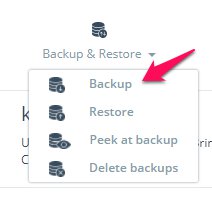
- Click on Backup & Restore section and choose backup.
- Click on Scheduled tab and configure your backup settings. Backup frequency, Backup start time and Number of backups to retain.
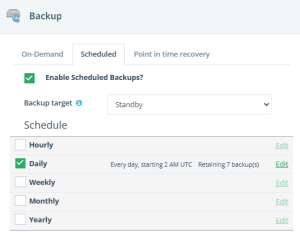
- Save the configuration.
When activated, ScaleGrid will automatically generate backups in accordance with the specified schedule and store them in accordance with your retention policy.
Limitations of ScaleGrid Automatic Backup
While ScaleGrid built-in backup provide reliable protection, they are primarily intended for restoring databases within the ScaleGrid environment. Additional backups are kept outside the platform by organisations who need long-term retention, independent backup copies, compliance archiving and external storage.
Method 2. ScaleGrid Database Backup Using Native Tools
You can use native database utilities to produce portable file you own.
#1. Backup ScaleGrid PostgreSQL Database
If your ScaleGrid deployment uses PostgreSQL then use pg_dump. It produces a file you control, in a format any PostgreSQL server can read.
pg_dump "postgresql://username:password@hostname:5432/database_name?sslmode=require" \

-F c -f scalegrid_backup.dump
#2. ScaleGrid MySQL Database Backup
For MySQL deployments, mysqldump is the equivalent tool but the default invocation is not safe for live database.
mysqldump -h hostname -P 3306 -u username -p \

--single-transaction \

--routines --triggers --events \

--ssl-mode=REQUIRED \

database_name > scalegrid_backup.sql
#3. ScaleGrid MongoDB Database Backup
MongoDB data is exported into BSON files using mongodump. Since ScaleGrid MongoDB installations are typically replica sets, the connection string is more important than just the address and port.
mongodump \

--uri="mongodb://username:password@host1:27017,host2:27017,host3:27017/database_name?replicaSet=RS-yourcluster&authSource=admin&ssl=true" \

--out=mongodb_backup
Limitations of Native Tools
Native tools are free and reliable but they come with a few limits:
- You must run every backup yourself or write and maintain your own scripts.
- If a backup fails nothing tells you.
- The file is created where you run the command.
- Large databases take a long time.
Method 3. Backup ScaleGrid Database Automatically
ScaleGrid automatic backups are fast and complete but they never leave the platform. You cannot download a snapshot. Native tools give a file you can keep and restore anywhere but only if you run the command. A dedicated tool like Prapl SQL Backup Tool fixes both problems together. It creates the same portable file the native tools create, on the schedule you choose and saves it to a location you pick outside ScaleGrid. The software compresses and encrypts each file, removes older ones based on your retention setting and notifies you if backup fails. When you need the data back, this tool restore it to the original deployment, a new one or a different provider entirely.
Note: Nothing here replaces ScaleGrid’s snapshots. It keep those for quick day-to-day recovery. This is the second copy that exists somewhere ScaleGride does not control.
Steps to Download ScaleGrid Database Automatically
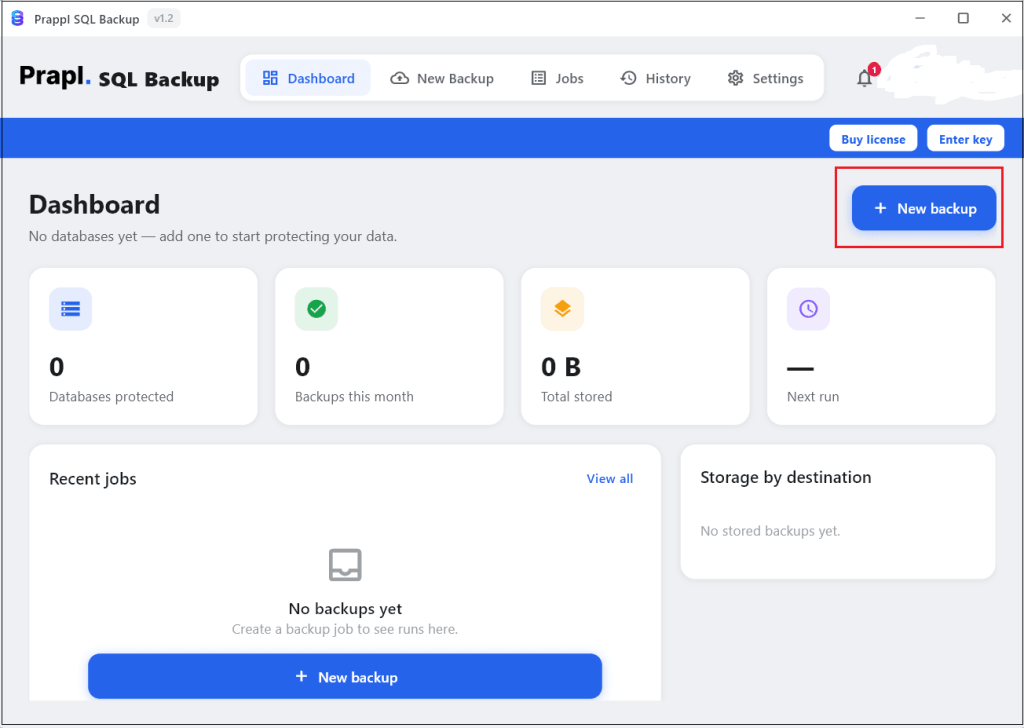
Step 1. Run the SQL Backup Tool on your Windows PC and click on + New Backup.
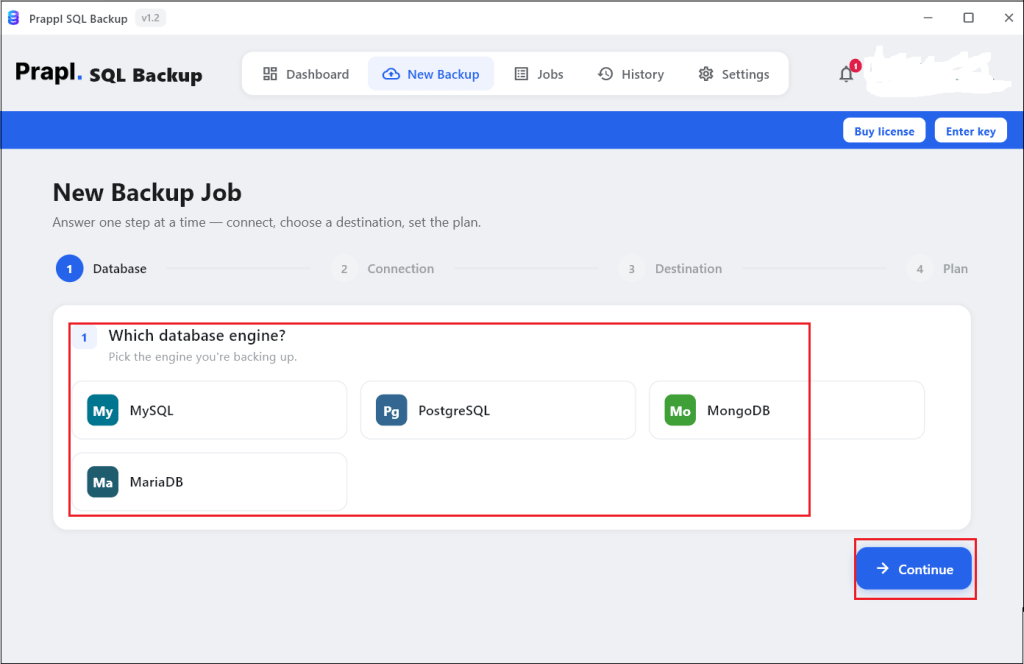
Step 2. Select the database engine your deployment runs – PostgreSQL, MySQL or MongoDB.
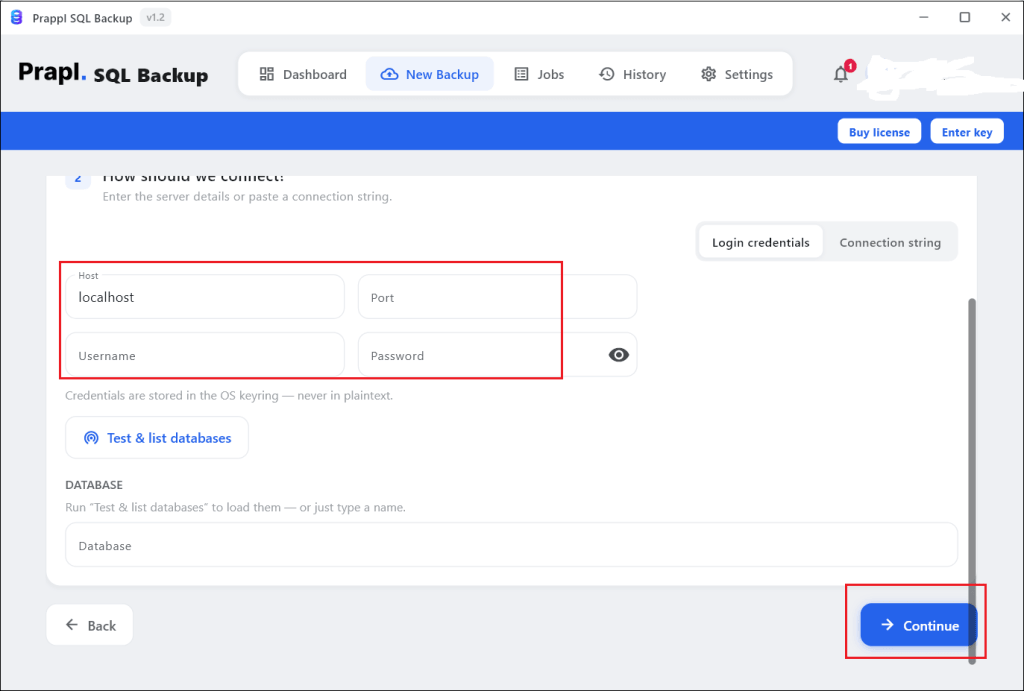
Step 3. Enter the connection details from the ScaleGrid console and click on Continue.
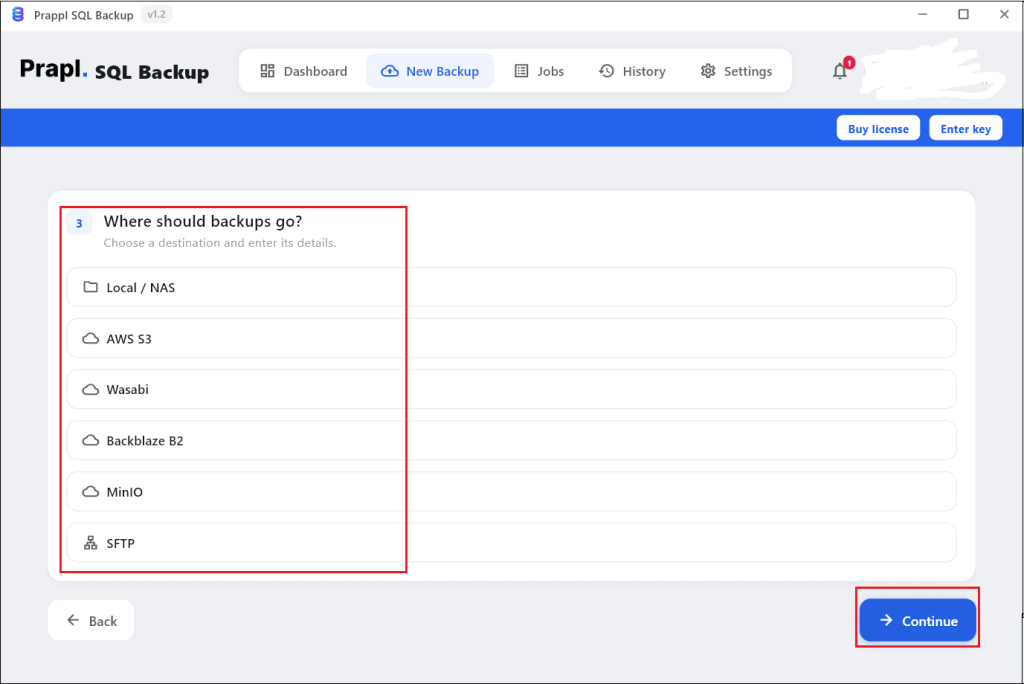
Step 4. Choose the location where you want to store backups.
Step 5. Set schedule and retention policy. After that, click on Save & Run Now.
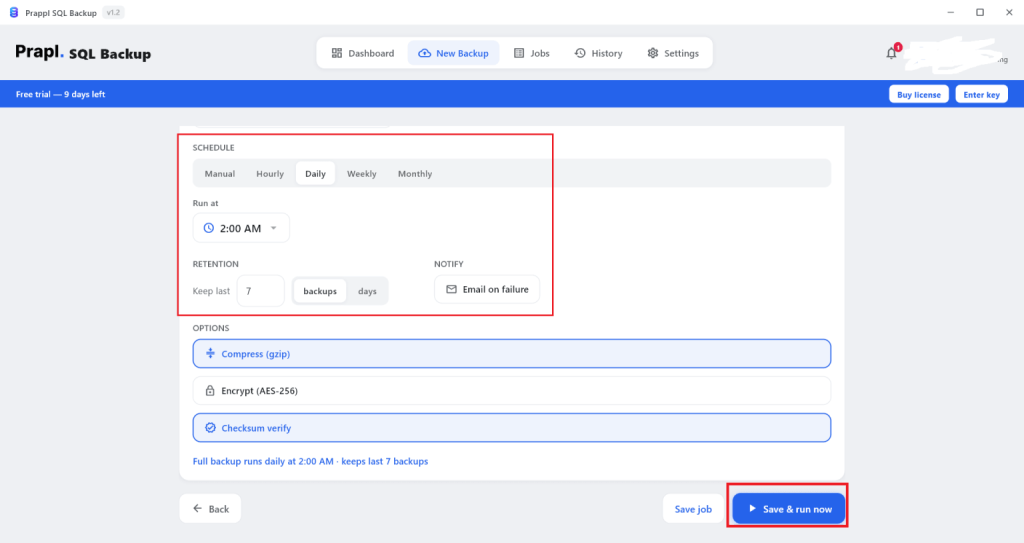
The software will create backup of ScaleGrid database on the predefined schedule at your chosen location.
Manual vs Automated: Comparison Table
| Feature | ScaleGrid Snapshots | Native Tools | Prapl SQL Backup Tool |
|---|---|---|---|
| Setup Effort | None (built-in) | High | Low |
| Runs Automatically | Yes | No | Yes |
| Backup Type | Disk-level Snapshot | Logical Dump | Logical Dump |
| Retention | Up to 5 per Deployment | Unlimited | Unlimited |
| You Hold the Encryption Key | No | If you encrypt it yourself | Yes |
| Store Anywhere | No | Yes | Yes |
| Restore Elsewhere | No, blocked if encryption at rest is on | Yes | Yes |
| Failure Notification | Console | No | Yes |
| Best for | Fast recovery from everyday mistakes | Migration, one-off exports | Automated independent copies |
How to Restore ScaleGrid Database?
ScaleGrid allows you to restore databases directly from the management console. The platform provides one-click restore functionality which makes recovery straightforward when you need to recover lost data or revert to a previous state.
Restore from ScaleGrid Console
- Log in to ScaleGrid account and open the database deployment you want to restore.
- Click on Backup & Restore. It displays all available backups created for your database.
- Choose the backup that you want to restore.
- Review the selected backups details carefully.
- Click Restore and confirm the operation.
Wait for the restore operation to complete. Once finished, the database will be available with the data from the selected backup point.
Important: If encryption at rest is enabled on the deployment, the backup can only be restored on the machine on which it was take. If those machines are no loner available, use one of the paths below instead.
Use Selective Restore for Partial Recovery
If someone deleted one table rather than corrupting the whole database, restoring everything is the wrong response. ScaleGrid’s Selective Restore lets you inspect the contents of backup without impacting your production cluster, so you can recover only what you need while the application stays online.
Restore from Native Dump
When your recovery comes from pg_dump, mysqldump or mongodump file, the work happens outside the ScaleGrid console.
PostgreSQL
pg_restore -d "postgresql://user:password@host:5432/dbname?sslmode=require" \

--no-owner scalegrid_backup.dump
MySQL
mysql -h hostname -P 3306 -u username -p --ssl-mode=REQUIRED \

database_name < scalegrid_backup.sql
MongoDB
mongorestore --uri="mongodb://user:password@host:27017/dbname?authSource=admin&ssl=true" \

--drop mongodb_backup/
Restore from Professional Tool
Select the backup, choose the destination and run the restore. The destination does not have to be where the backup originated, which makes this the answer when the earlier paths are unavailable.
Conclusion
ScaleGrid handles the hard part of backup for you. Scheduled snapshots run by default, cover every database and restore quickly when someone makes a mistake. What they cannot do is leave the platform or survive a short retention window. Filling those gaps takes a second layer: native dumps for portability and backup software to produce them automatically and store them outside ScaleGrid. Here, we have explained all these methods to backup ScaleGrid database. You can choose any method as based on your needs.
Frequently Asked Questions
Q1. Does ScaleGrid backup my database automatically?
Ans. Yes, ScaleGrid offers built-in scheduled backup for supported databases such as PostgreSQL, MySQL and MongoDB. You can configure backup frequency and retention settings from the dashboard.
Q2. Are scheduled backups enabled by default?
Ans. Yes, newly created deployments come with scheduled backups switched on.
Q3. How many backups does ScaleGrid keep?
Ans. Up to five per deployment on dedicated hosting plans. Additional rolling and ad hoc backups are available for an extra fee by contacting ScaleGrid.
Q4. Can I download ScaleGrid backup?
Ans. Snapshots are cloud-provider artifacts that restore within the platform rather than files you can download. While native tools and professional solution will enable you to download ScaleGrid backup.
Q5. Why should I keep an independent backup of my ScaleGrid database?
Ans. Independent backups can help with long-term retention, compliance requirements, database migration and maintaining copies outside the ScaleGrid environment.