 Abeer Arora
To backup Cloud SQL database, you can use the built-in backups(automated daily backups plus on-demand backups) to recover an instance in place. However, those native backups live inside Cloud SQL and can not be downloaded.
To get portable file you own, export the database to a cloud storage bucket as a SQL dump or run it directly then store a copy off-site. This guide will explain five different methods for Cloud SQL backups.

Table of Contents
- What is Google Cloud SQL?
- Why Cloud SQL Backup Is Important?
- Native Backups vs Exports: What is the Difference?
- Prerequisites Before you Start Backup
- How to Backup Cloud SQL Database?
- Method 1. Automated Backups
- Method 2. On-Demand Backups
- Method 3. Export to Cloud Storage Bucket
- Method 4. Backup with mysqldump/pg_dump
- Method 5. Cloud SQL Backup with a Dedicated Tool
- Bonus: Point-in-Time Recovery (PITR)
- How to Restore Cloud SQL Database?
- Which Method Should You Choose?
- Concluding Words
- Frequently Asked Questions
What is Google Cloud SQL?
Google Cloud SQL is a fully managed relational database service on Google Cloud Platform. It runs on MySQL, PostgreSQL and SQL Server. It handle provisioning, patching, replication and scaling so you do not need to manage the underlying servers yourself.
Cloud SQL runs standard database engines, so you can protect your data in two ways: With Google’s built-in backup feature and with the same portable tools that you use anywhere such as mysqldump, pg_dump or SQL dump exports. Understanding the difference between these is the key to backup strategy that actually protects you.
Why Cloud SQL Backup Is Important?
Cloud SQL is reliable but managed infrastructure does not remove your responsibility for the data itself. You still need your own backups because:
- Human Error: A bad migration or a DELETE without the right WHERE clause can wipe production data in seconds. It happens well inside your backup window.
- Portability: Native Cloud SQL backup restore only to Cloud SQL instance. If you want to move data to another provider, a local server or a non-GCP environment, you need a portable dump file.
- Retention and Compliance: Some industries often require off-site copies and longer retention than default settings provide.
- Independence: A strong strategy never depends on a single platform. An external copy is your safety net if an account, project and region have a problem.
Native Backups vs Exports: What is the Difference?
This distinction trips up most people, so it is worth being precise.
Native Backups (automated + on-demand) are Cloud SQL built-in feature. They are incremental, encrypted by default and stored by Google. They are perfect for fast in-place recovery but:
- They are stored only to a Cloud SQL instance.
- They are not downloadable as a file that you can move.
- Standard backups live in the same project as your instance. Enhanced backups add centralized management, enforced retention and backup vaults for immutable copies.
Exports produce a portable SQL dump file in a Cloud Storage bucket. Cloud SQL runs pg_dump/mysqldump for you. This file:
- Can be downloaded, relocated offsite, or imported into any compatible database.
- It is an ideal tool for migration, long-term archiving, and cross-provider portability.
Important: For speedy recovery, use native backups, and exports to create a portable copy.
Prerequisites Before you Start Backup
- Install the Google Cloud CLI (gcloud) and authenticate with gcloud init or gcloud auth login.
- Set your project: gcloud config set project PROJECT_ID.
- For exports: Create a Cloud Storage bucket the grant the Cloud SQL instance service account permission to write to it. Find the service account with:
gcloud sql instances describe INSTANCE_NAME

# look for the serviceAccountEmailAddress field
- Then grant it write access to the bucket:
gcloud storage buckets add-iam-policy-binding gs://BUCKET_NAME --member=serviceAccount:SERVICE_ACCOUNT_EMAIL --role=roles/storage.objectAdmin
How to Backup Cloud SQL Database?
Method 1. Automated Backups
Automated backups are the foundation of Cloud SQL data protection. Cloud SQL takes daily backup during a window you choose and retains them according to your configured retention policy. It is 7 days by default and configurable up to 365 days depending on your Cloud SQL edition.
How to Google Cloud SQL Automated Backups Work?
- Go to the Cloud SQL Instances page and click your instance.
- Open the Backups tab.
- Enable Automated backups.
- Choose a backup window and set your retention period.
- Click on Save button.
Now Cloud SQL backups the instance daily and manages the copies for you.
Using gcloud: gcloud is a command line interface of Google Cloud.
gcloud sql instances patch INSTANCE_NAME \
--backup-start-time=03:00 \
--retained-backups-count=30
Automated backups are great for hands-off, in place recovery but they can not be downloaded.
Method 2. On-Demand Backups
On-Demand backups allow you to capture a restore point at any moment. It is ideal right before a risky migration or deployment.
- Open your instance and go to the Backups tab.
- Click Create Backup.
- Add an optional description and click Create.
Using gcloud:
# Create an on-demand backup

gcloud sql backups create --instance=INSTANCE_NAME --description="pre-migration"
# List backups (and get their IDs)

gcloud sql backups list --instance=INSTANCE_NAME
Unlike automated backups, on-demand backups are kept until you delete them.
Method 3. Export to Cloud Storage Bucket
Cloud SQL exports database to a Cloud Storage bucket as a SQL dump using pg_dump/mysqldump behind the scenes.
- Open your instance and click Export.
- Choose SQL under File Format.
- Select the database to export.
- Choose a Cloud Storage bucket/folder as the destination.
- Click Export.
Using gcloud:
gcloud sql export sql INSTANCE_NAME gs://BUCKET_NAME/backup-$(date +%F).sql.gz \

--database=DATABASE_NAME \

--offload
Once exported, you can download the file from the bucket and store it to any other storage.
Note: Export sql includes only views not triggers or stored procedures. If you need those then you can use mysqldump method.
Method 4. Backup with mysqldump/pg_dump
Connect to the instance directly with the native command line tools for maximum control or to include objects with the managed export skips.
PostgreSQL:
pg_dump -Fc \
-h INSTANCE_PUBLIC_IP -U USERNAME -d DATABASE_NAME \
-f cloudsql_backup.dump
MySQL:
mysqldump -h INSTANCE_PUBLIC_IP -u USERNAME -p \
--routines --triggers --single-transaction \
DATABASE_NAME > cloudsql_backup.sql
To connect, either authorize your IP under the instance’s Connections -> Networking settings or use the Cloud SQL Auth Proxy for a secure connection without exposing the public IP. This method gives you a portable file locally with full control.
Method 5. Incremental Backup of Cloud SQL Database to PC
Manual backups will only protect you if you remember to use them. For a production database, a single missed cycle might result in significant data loss. A dedicated backup tool is able to automate the entire process.
The Prapl SQL Backup Tool connects to your Cloud SQL instance and enables you:
- Run backups on a schedule (hourly, daily, weekly, monthly)
- Encrypt backup files with AES-256 encryption
- Save backup copies to multiple locations such as local drive, NAS, Cloud, etc.
- Store backup history and retain older versions
- Compress files to save storage
- Get notified when a backup fails
Download its free trial version and analyze its working procedure.
Steps to Backup Cloud SQL Database Automatically
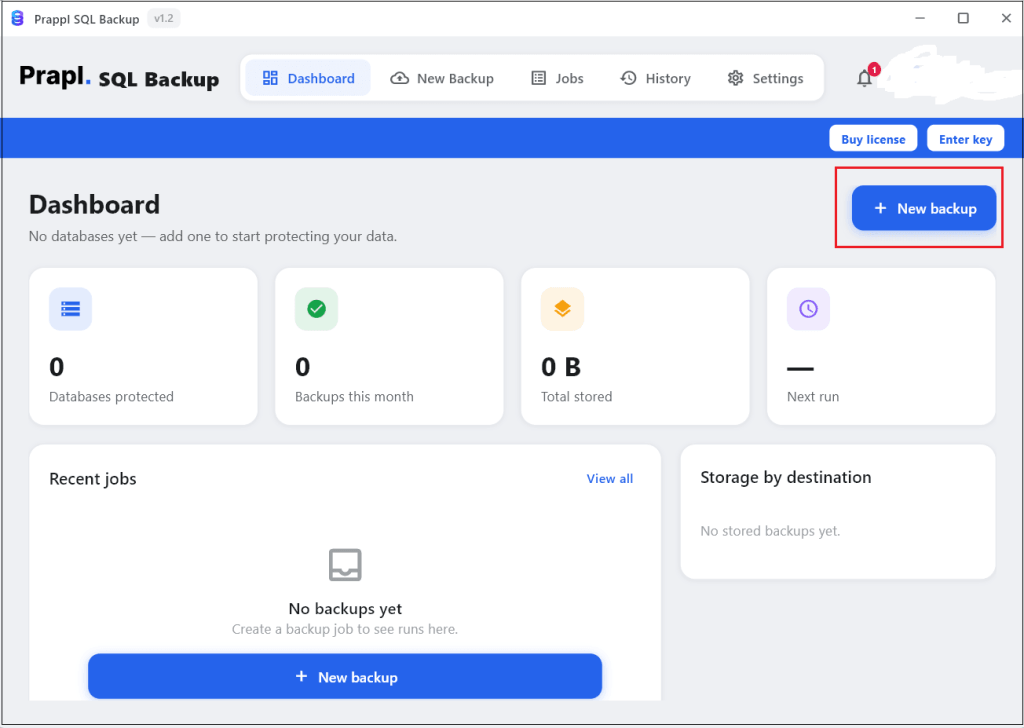
1. Run the SQL Backup Tool on your system and click on + New Backup.
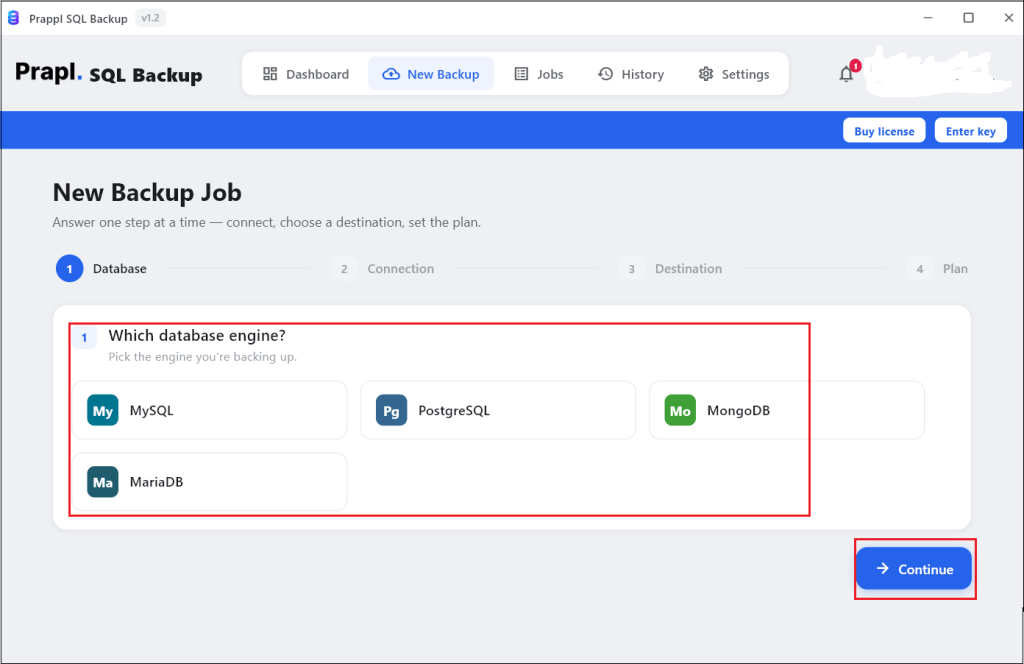
2. Choose your relevant database engine and click Continue.
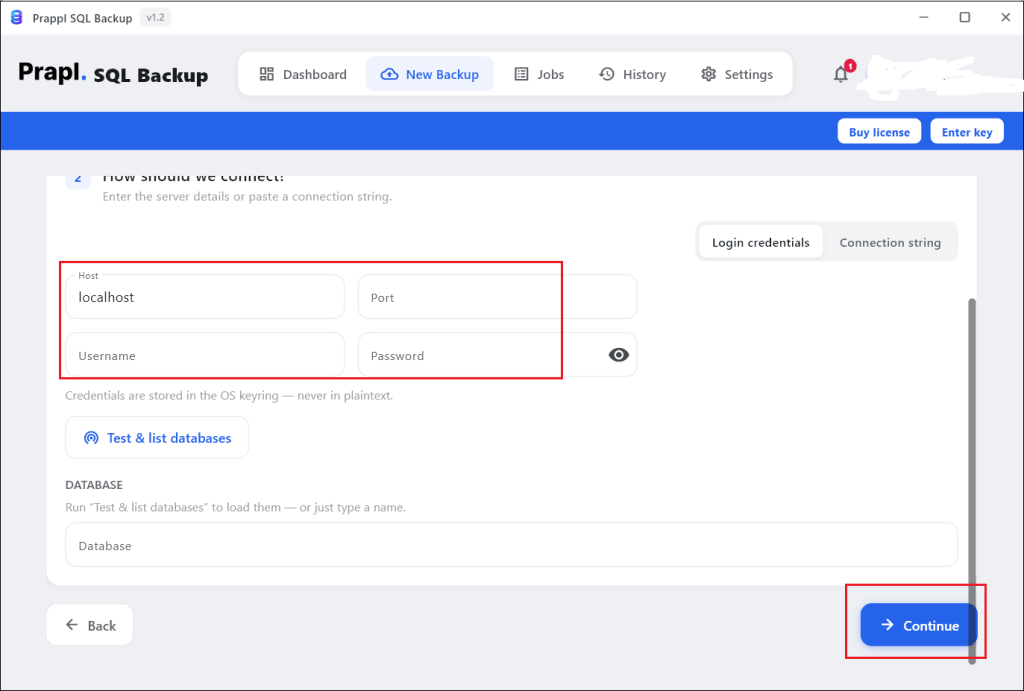
3. Enter Cloud SQL credentials such as Host name, Port, Username, Password and Database name. After that, click on Test Connection to verify it.
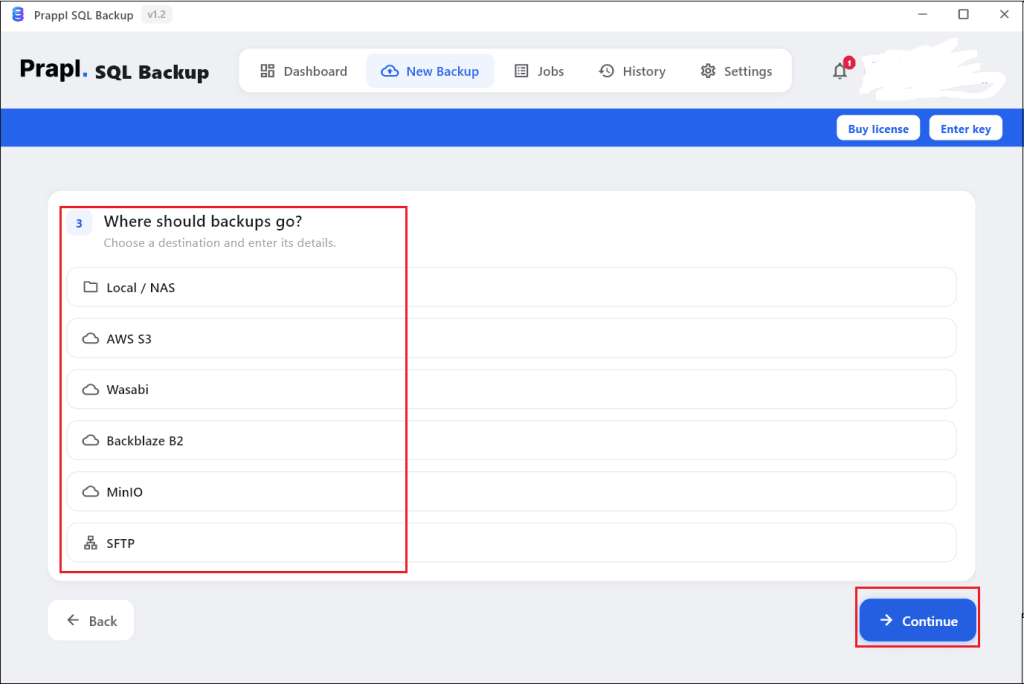
4. Choose location where you want to save the backup.
5. Configure Schedule, Retention, Compression and Encryption. Then, click Save & Run Now button.
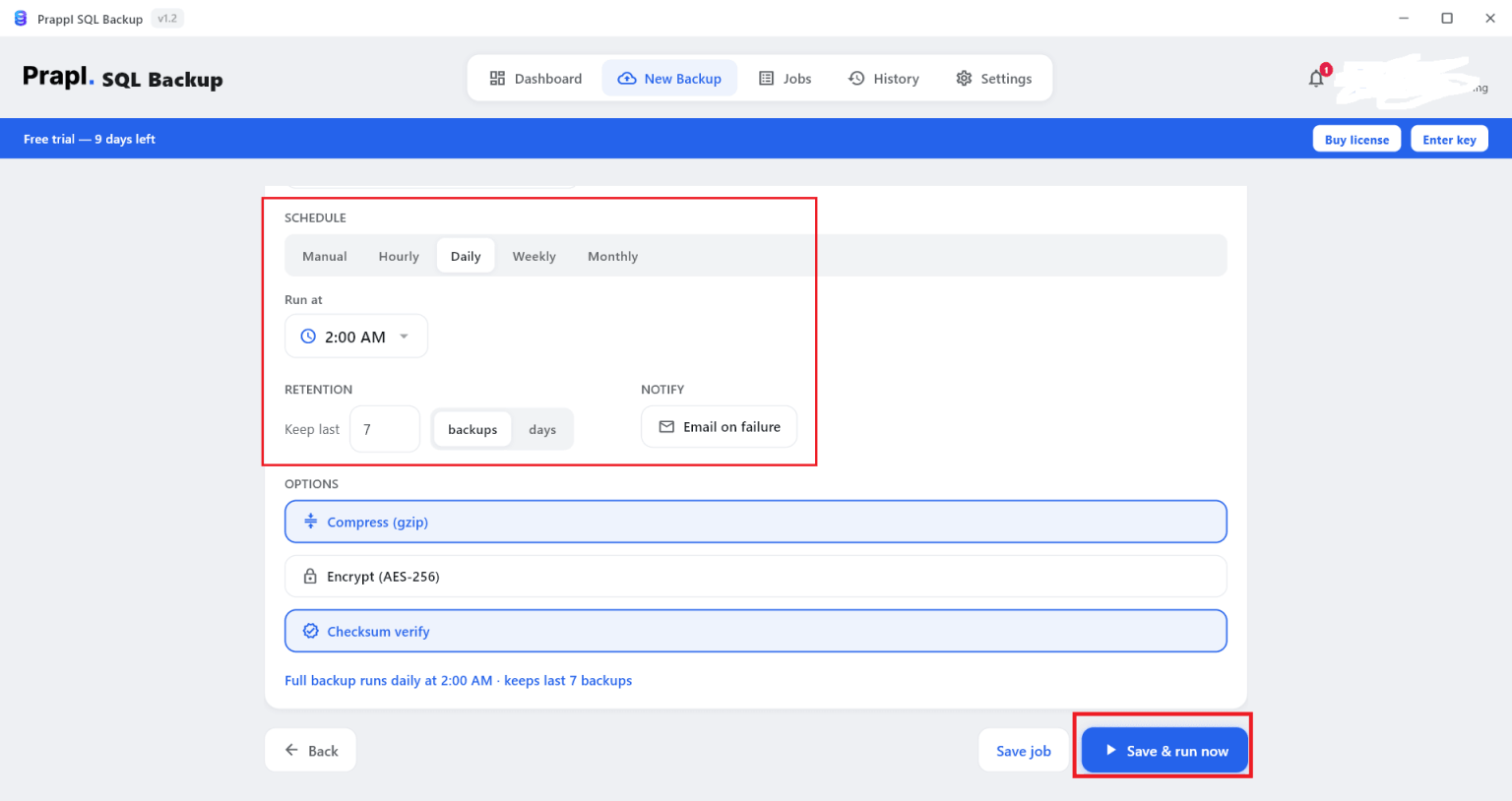
The software will generate portable, off-site backups automatically on your schedule.
Bonus: Point-in-Time Recovery (PITR)
PITR allows you restore your instance to any second within your log-retention window far more precise than a daily snapshot. It is the difference between losing a full day of data and losing almost none.
PITR requires automated backups as well as write ahead/transaction logging (WAL for PostgreSQL, binary logs for MySQL, and transaction logs for SQL Server). Enable it in the instance backup options and specify the number of days to keep records. For high production applications, PITR is usually worth the extra storage cost.
How to Restore Cloud SQL Database?
Test your restore path before you need it.
Restore from a native backup:
# Find the backup ID
gcloud sql backups list --instance=INSTANCE_NAME

# Restore it
gcloud sql backups restore BACKUP_ID \
--restore-instance=TARGET_INSTANCE_NAME
Import SQL dump from Cloud Storage bucket:
gcloud sql import sql INSTANCE_NAME gs://BUCKET_NAME/backup.sql.gz \

--database=DATABASE_NAME
Restore local pg_dump/mysqldump file:
# PostgreSQL (custom-format .dump)
pg_restore -h INSTANCE_PUBLIC_IP -U USERNAME -d DATABASE_NAME cloudsql_backup.dump

# MySQL (.sql)
mysql -h INSTANCE_PUBLIC_IP -u USERNAME -p DATABASE_NAME < cloudsql_backup.sql
Which Method Should You Choose?
There is no single best method. It depends on whether you need in-place recovery or a portable copy.
| Feature | Automated Backups | On-Demand Backup | Export to Bucket | mysqldump/pg_dump | Prapl SQL Backup Tool |
|---|---|---|---|---|---|
| Technical Knowledge Required | Low | Low | Medium | High | Low |
| Downloadable File | No | No | Yes | Yes | Yes |
| Restore in Place | Yes | Yes | Import Needed | Import Needed | Import Needed |
| Automated Scheduling | Yes | No | Manual/scripted | Manual | Yes |
| Backup Encryption | Yes (default) | Yes (default) | No | No | Yes |
| Multiple Storage Option | No | No | Yes | Manual | Yes |
| Failure Notification | Limited | No | No | No | Yes |
| Best for | Daily safety Net | Pre-change Snapshot | Migration | Full Control | Hands-off Production |
Concluding Words
Backing up Google Cloud SQL is about more than turning on automated backups. The entire process include enabling automated backups and PITR for fast-in-place recovery, performing on-demand backups prior to dangerous changes, exporting portable SQL dumps that you actually own, storing copies off-site in several locations, and, most critically, testing your restore before an emergency forces you to.
Whether you use MySQL, PostgreSQL, or SQL Server, the goal is the same: restore vital data when it matters most. Here, we have explained five different methods to backup Cloud SQL database. Pick the method that fits your needs.
Frequently Asked Questions
Q 1. Is Cloud SQL backup downloadable?
Ans. No. Native automated and On-Demand backups live inside Cloud SQL and restore only to Cloud SQL instance.
Q 2. What is the difference between Cloud SQL backup and export?
Ans. A backup is Cloud SQL built-in feature for fast in-place recovery to an instance. An export produces portable SQL dump file in Cloud Storage bucket that you can download and move off-site.
Q 3. How long does Cloud SQL keep automated backups?
Ans. By default, automated backups are retained for 7 days but you can configure the retention count up to 365 depending on your Cloud SQL edition.
Q 4. What is Point-in-Time Recovery in Cloud SQL?
Ans. PITR enables you to restore your instance to specified second inside your log retention window, rather than just the daily backup.
Q 5. How do I create on-demand Cloud SQL backup?
Ans. Open your instance, go to the Backups tab and click Create backup. With the Command Line Interface, run gcloud sql backups create –instance=INSTANCE_NAME.
Q 6. How do I backup my Cloud SQL database automatically?
Ans: Enable scheduled daily backups in the instance settings or choose professional solution to manages automated scheduling for you.