 Abeer Arora
 You can directly backup SQL Server database to Azure Blob Storage by creating an Azure storage account and container and running commands. However, if you need recurring backups with scheduling, retention, compression, and encryption, a dedicated Prapl SQL Server backup tool can simplify the process.
Having a backup gives you an off-site copy of your database that you can access when you need to restore it.
However, you can use SQL Server’s native commands for occasional backups.
So, in this article, we will learn how to perform this process manually with commands or without running any commands. How to verify the backup, common problems and fixes when needed, and manage recurring backup jobs.
Which Method Should You Go For?
| Functions | Manual Approach | SQL Backup Software |
| Backup destination | Azure Blob Storage | Supported local/cloud destinations |
| Setup | Azure storage + credential + SQL configuration | Connect database and choose destination |
| Scheduling Backup | Requires separate scheduling approach | Built-in scheduling |
| Multiple databases | Needs individual configuration | Manage multiple databases |
| Retention | Requires management/configuration | Built-in retention option |
| Email alerts | Needs additional configuration | Built-in email alerts function |
| Restore | Supported from Azure Blob | Built-in restore workflow |
Backup SQL Server Database to Azure Blob Storage Manually
Before performing the job manually, there are some prerequisites that you need to follow. You must have an established SQL Server, an Azure subscription, a new or existing Azure Storage Account, a Blob container, all the appropriate permissions, and a SQL Server credential for Azure Storage authentication.
First, create an Azure Storage Account. If you already have one, fine; otherwise, follow these steps:
1. Sign in to the Azure Portal.
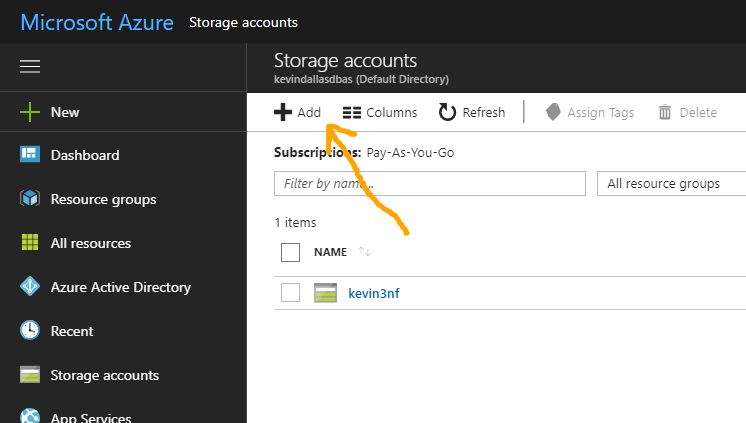
2. Create or open a Storage Account, then open Data storage and look for containers.
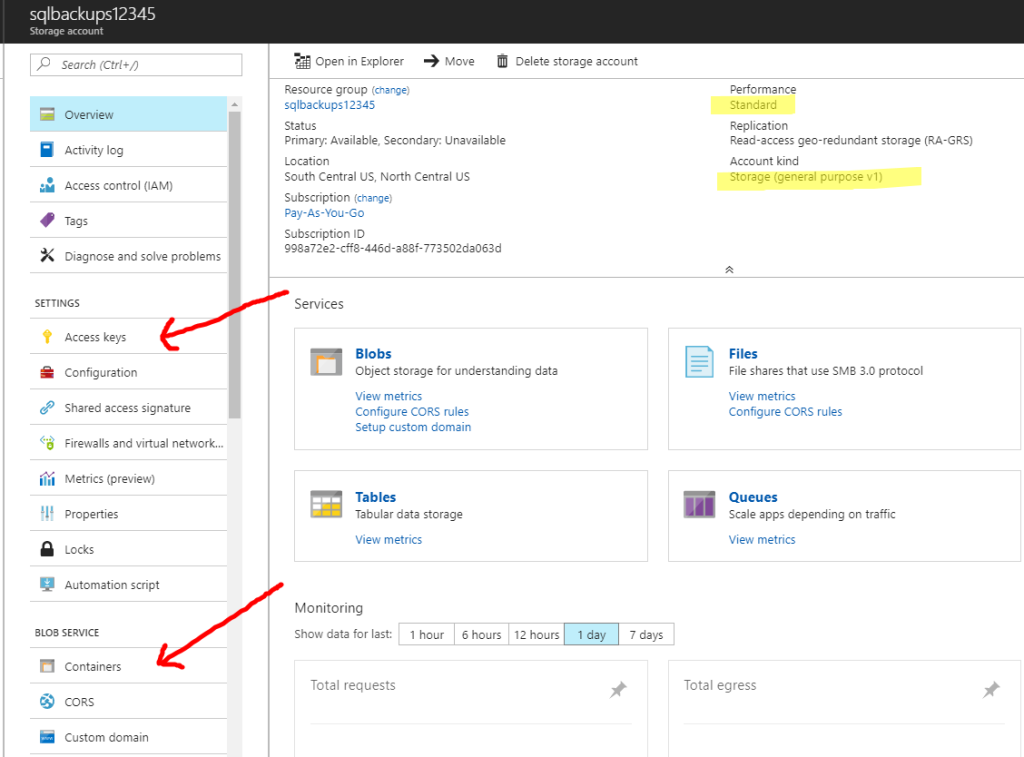
3. Now, just create a new container and give it private access. Make sure to add the storage account and container names correctly for appropriate authentication so that the backup job won’t fail later.
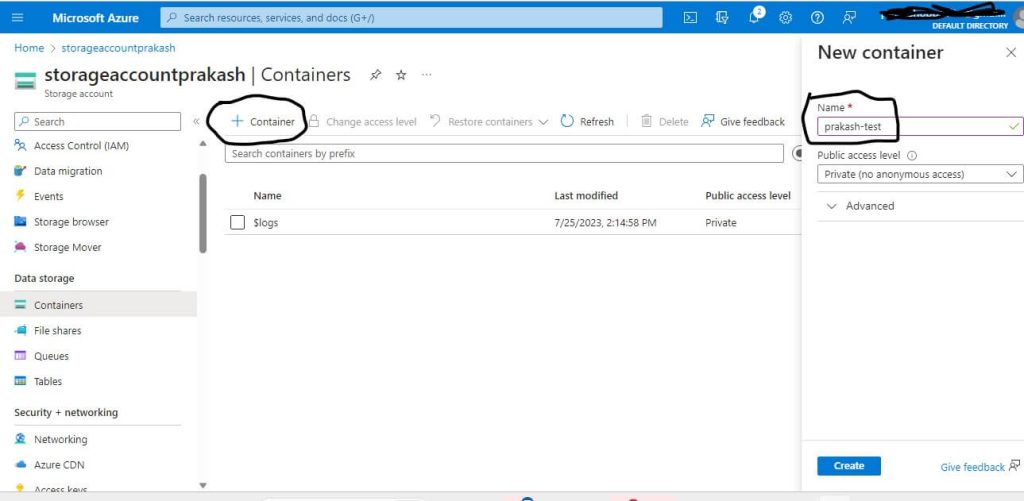
4. Once the Azure Storage account is created, create an Azure Blob Container. Azure Blob Storage organizes blobs inside containers, so the SQL Server backup file needs a container as its destination path to store it safely.
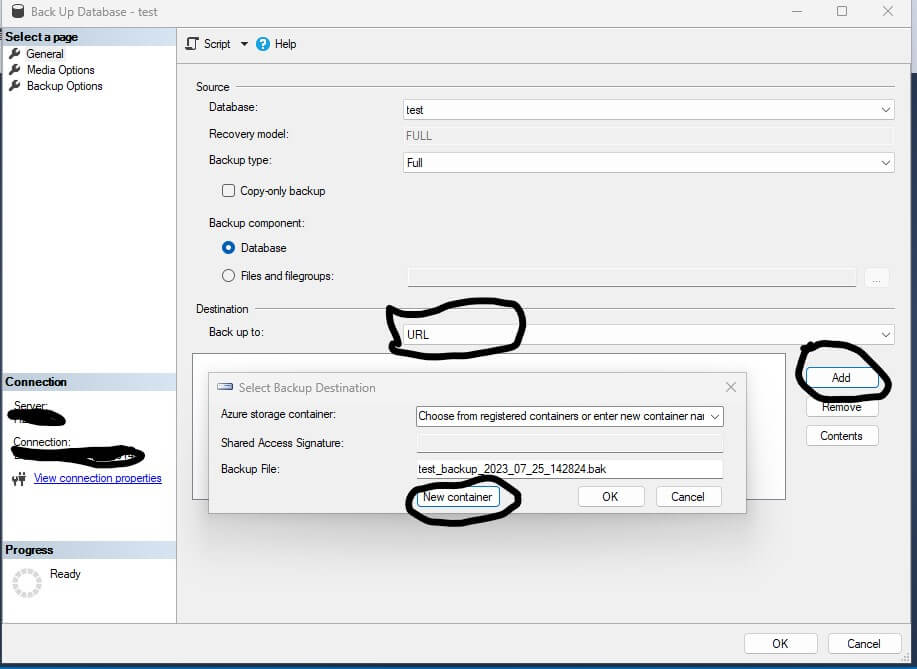
5. After this, create SQL Server credentials in Azure. These credentials will be used for backup and restore operation authentication against Azure Blob Storage. Open SSMS, connect to your SQL Server instance, and create credentials there.
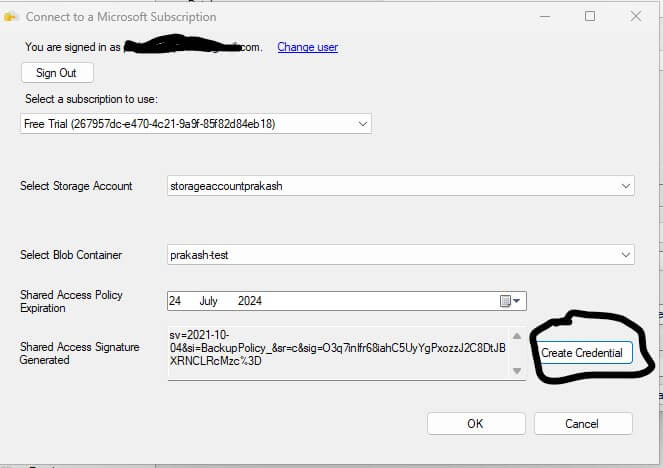
6. Then, back up the SQL Server database to Azure Blob Storage using T-SQL. To do so, open a new query window in SSMS, run this command:
BACKUP DATABASE [YourDatabase]

TO URL = 'https://<storage-account>.blob.core.windows.net/<container-name>/YourDatabase.bak' WITH CHECKSUM, COMPRESSION,

STATS = 10;
That’s it; now you have successfully created a backup in an Azure container. Now, you need to verify it.
How to Verify the SQL Server Backup in Azure Blob Storage?
The job is not done when the backup operation is complete; it is better to verify it. For verification if the backup ran smoothly, follow these steps:
- First, open the Azure Portal, then open the Storage Account.
- Now, go to Containers, look out for the backup container, and open it.
- You will see the .bak file; confirm it’s there with the appropriate file name.
- Also, check the file size and creation time of the backup.
We suggest that you keep every backup with a unique filename in Azure Blob Storage to avoid accidentally overwriting blobs.
How to Automate Backup SQL Server Database to Azure Blob Storage?
Yes, the manual approach works fine, but it is useful for handling a single or a few backup operations. But when you need a proper scheduling and management strategy for running recurring backups.
That’s why the Prapl SQL Backup Tool is a strong alternative. It’s a good choice if your business goal is to manage SQL Server backups to Azure Blob Storage through a Windows desktop application rather than maintaining T-SQL and scheduling configuration yourself. This software runs backups from a single interface and provides options like scheduling, retention, compression, encryption, monitoring, and supported storage destinations.

It lets you automatically backup multiple databases to your own storage, Amazon S3 bucket, local machine, external hard drive, or other remote destinations. Additionally, it supports unlimited servers for unlimited databases backup jobs.
Steps to Use Software for SQL Server Backups to Azure Blob Storage
1. Launch and run the Prapl SQL Backup Tool on a Windows desktop. From the first screen, select SQL Server, then connect to the SQL Server instance.

2. Now, select the database as needed for a backup job.

3. Then, choose a supported backup destination from the given options.

4. To set a recurring backup operation, configure the schedule. Save all the required settings, and press the Save and Run Now button to begin the process.

Common Problems and Fixes While Running a Backup Job Manually
This article can have a really useful troubleshooting section.
- Credential does not exist: If the credentials are not there while backup SQL Server database to Azure Blob Storage, the backup job won’t begin. SQL Server needs the appropriate credential to authenticate with Azure Blob Storage to move further.
- Authentication/SAS error: Sometimes, authentication or SAS errors create issues while running a backup job. Therefore, check the SAS token, expiration, all necessary permissions, container URL, credential name, or whether the token was copied correctly.
- Backup URL is incorrect: While creating a SQL Server backup to Azure Blob Storage manually, the backup URL must identify an actual blob path. Make sure the URL points to the specific backup blob, not just the container.
- Backup file already exists: Always use a unique filename for every backup rather than repeatedly targeting the same blob.
- Backup is taking too long: If creating a backup takes too much time, then check the database size, network bandwidth, Azure region, and compress the file during the backup operation.
- Restore fails: If restoring the database fails, then you must look out for credential/access issues, backup file availability, correct database/file paths, correct permissions, or whether the backup itself is valid.
Conclusion
Choosing how to handle your SQL Server backups and setting up Azure Blob Storage as a separate recovery destination are the first steps in performing a backup. SQL Server’s built-in Backup to URL capabilities offer you direct control through T-SQL. On the other hand, a specialized backup application can simplify recurring jobs, retention, monitoring, and other backup management chores,
Prapl SQL Backup software is a way to perform backup operations and securely save the file to Azure Blob Storage when you need recurring backups. However, the choice is yours, but if you’re managing multiple DBs, then the software is worth trying.