 Abeer Arora
If you want to take backup Supabase database then run pg_dump with your project’s session pooler connection string to create portable .sql or .dump file. Supabase also takes automatic physical backups on Pro, Team and Enterprise plans with Point-in-Time Recovery as a paid add-on but those native backups restore in place and are not downloadable. So keep your own logical backup for portability, off-site storage and long-term retention. In this article, we will describe three different methods to create Supabase Database backup, how to restore a backup and exactly what a database backup does and does not include.

One of the most critical assets of any program is its data. Your database holds important client information, orders, payments, items and business data if you are creating a SaaS platform, eCommerce website, mobile application or corporate utility. Losing this data due to accidental deletion, faulty deployments and cyber incidents can lead to significant downtime and financial loss.
In particular, the hosted database as a service at Supabase is considered highly reliable, but it is always a good idea to have an independent backup solution for your database. This way, you will be able to restore your database from the backup points in case of any emergencies and have more control over the process. The four methods below will help you backup PostgreSQL database and protect your data & minimize the risks around any data-related activity down the road.
Table of Contents
- Why Should You Backup Supabase Database?
- Understand How Supabase DB Stores Your Data?
- What a Backup Includes and What It Misses?
- How to Create Supabase Database Backup?
- Method 1. Backup Supabase Database Using pg_dump
- Method 2. Download Supabase Database Using pgAdmin
- Method 3. Incremental Backup of Supabase Database to PC
- How to Restore Supabase Backup?
- Which Method Should You Choose?
- Where Should You Store Supabase Backup?
- Summary
- FAQs
Why Should You Backup Supabase Database?
Supabase manages the complexity of a traditional database for you, but it is always essential to have regular backups of your data. Teams often need database replicas for testing software updates in production, developing new applications, performing data analysis or auditing. A recent database copy will give you more flexibility and control over the data throughout the application lifecycle. It means that you will be able to make critical changes to the database with minimal disruption to the software.
Furthermore, a database backup can protect you from data loss in case of corruption, deletion, or other issues. In addition, businesses often need to fulfill legal requirements by retaining data for a specific amount of time, and a backup copy can be helpful in this case as well.
Understand How Supabase DB Stores Your Data?
Understanding what you are truly backing up is crucial before knowing how to make backups. New users often mistakenly believe that Supabase keeps all their data in a single location forever but in actually, a Supabase project is made up of several interconnected services.
At the center of every Supabase project is a PostgreSQL database which stores structured information such as tables, relationships, indexes, functions, triggers and application data. Every API request, dashboard operation and SQL query interacts with these databases. Around the database, Supabase provides additional services such as authentication, storage, edge functions and real time messaging. While these services are tightly integrated, they do not store all information in the same way.
For example when a user uploads a profile picture, the image file itself stored in Storage Bucket but information about that file such as filename, path, owner and metadata is stored inside database tables. So, a database backup preserves the metadata but not the actual uploaded files. Similarly, Supabase Authentication stores user accounts in database tables. Therefore, backing up the database also preserves users records, login information and authentication metadata.
How to Create a Supabase Database Backup Manually and Automatically?
It is critical to understand your possibilities before selecting a backup strategy. Supabase is built on PostgreSQL that means you can use PostgreSQL-compatible tools and services to protect your data. Depending on your requirements, you may create backup manually, use built-in export capabilities, rely on command-line utilities or automated the entire process with a dedicated backup solution. We will understand each method in detail one by one.
Method 1. Backup Supabase Database Using pg_dump
pg_dump is the standard PostgreSQL utility for creating a portable logical backup. Make sure you have set up the connection string and matched your version.
Run the backup. This creates a compressed, dated .dump file.
pg_dump -Fc -v \
  -f supabase_backup_$(date +%F).dump \
  "postgresql://postgres.[project-ref]:[password]@aws-0-[region].pooler.supabase.com:5432/postgres"
The flags that matter:
- -Fc – Custom compressed format. It is roughly 10-20% of raw size and supports selective and parallel restore.
- -v – Verbose output so you can watch progress.
- $(date +%F) – Stamps the filename with today’s date so runs don’t overwrite each other.
To backup only your application data and skip Supabase’s internal schemas:
pg_dump -Fc -v \
  --exclude-schema=auth \
  --exclude-schema=storage \
  --exclude-schema=realtime \
  -f supabase_backup_$(date +%F).dump \
  "postgresql://postgres.[project-ref]:[password]@aws-0-[region].pooler.supabase.com:5432/postgres"
Method 2. Download Supabase Database Using pgAdmin
Database administration and backup tasks are made easier with pgAdmin’s graphical user interface.
- Download and install the latest version of pgAdmin.
- Create a new server connection using your Supabase session pooler credentials (host, port 5432, username, password, database). After that, save the connection.
- Right-click on the database and choose Backup.
- Configure backup settings and click Backup to start the process.
Wait some time to complete the process. pgAdmin will show progress and confirm completion.
Method 3. Automate Supabase Database Backup
Manual backups are effective when performed infrequently, but they are difficult to maintain as databases get larger and company operations depend more on data availability. It is impractical to remember to manually perform a backup every day for a production application with thousands of active users. Data loss risk might rise if even one backup cycle is missed. That’s why organizations use a professional solution to automate their backup strategy.
With Prapl SQL backup Tool you can backup Supabase database automatically to local drive or cloud server. This incremental backup service allows you to:
- Schedule backups on a daily, weekly, or monthly basis
- Store backup history
- Retain older versions
- Also encrypt backup files
- Save backup at different locations
- Compress backup file to reduce storage usage
- Notify administrators about failures
Steps to Create Auto Backup Job for Supabase Database
- Run the Prapl SQL Backup in your Windows PC and then click on New Backup option.
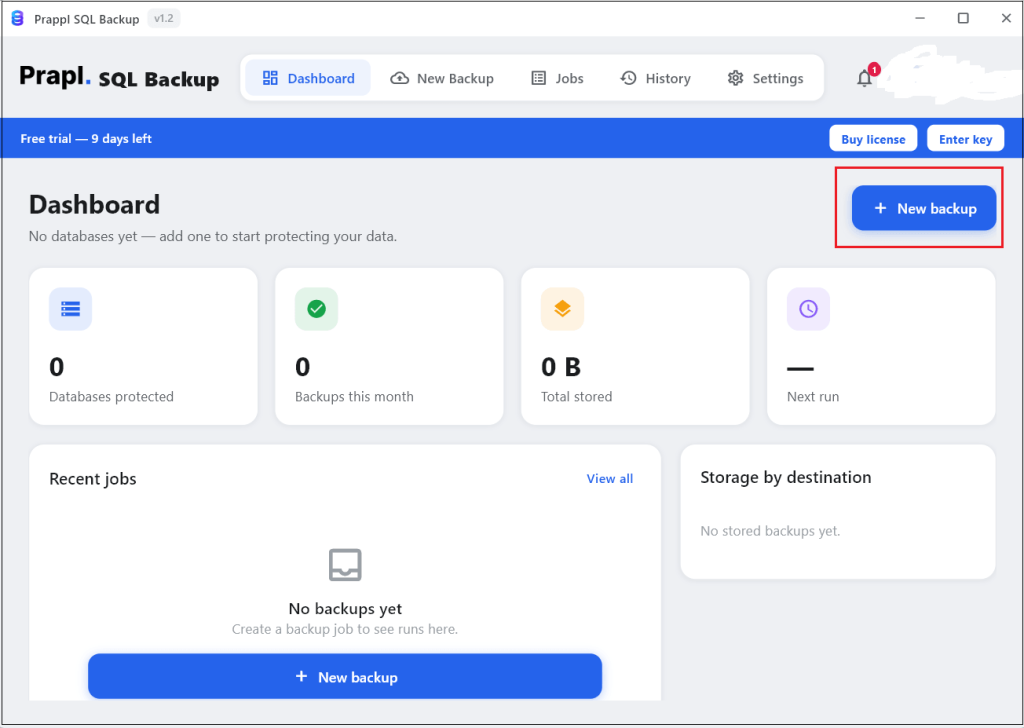
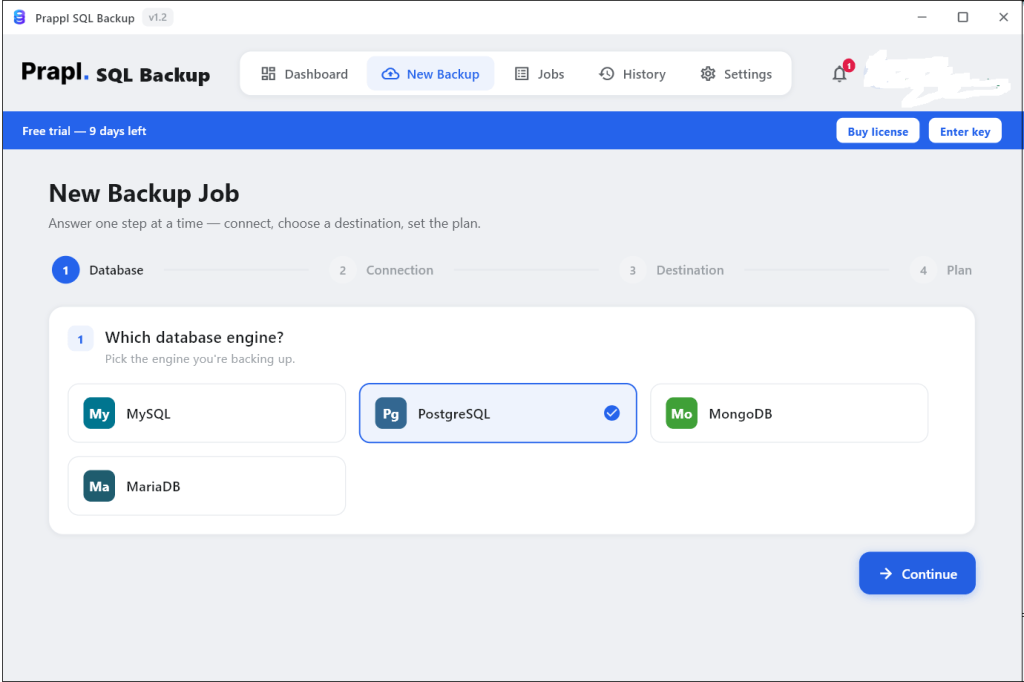
- Choose PostgreSQL from Which database engine and tap on Continue.
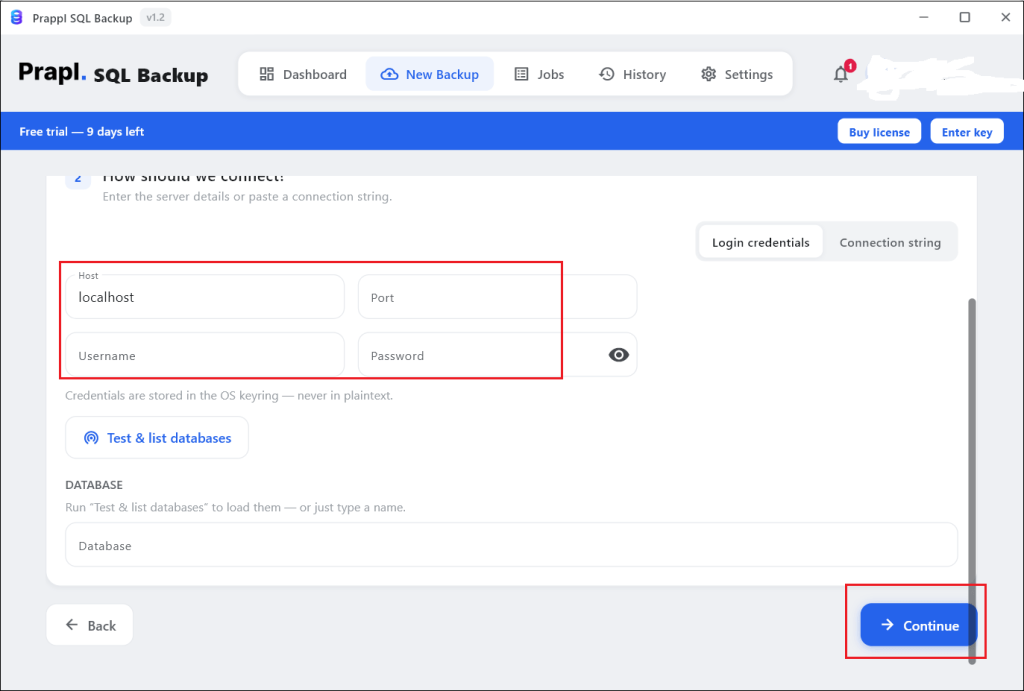
- Enter your Supabase server details such as Host, Port, Username, Password and Database name. After that, click on Test Connection to verify the connection.
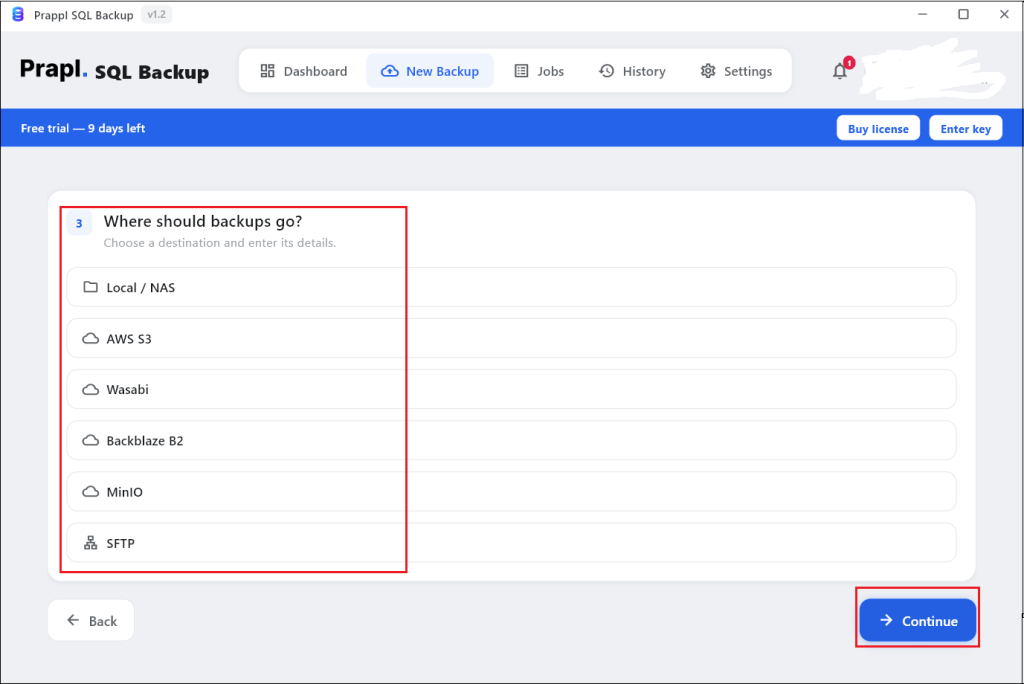
- Choose a location where you want to save backup.
- Configure backup settings like Schedule, Retention, Run Time, Compression, Encryption, etc. and then click on Save & Run Now to begin the process.
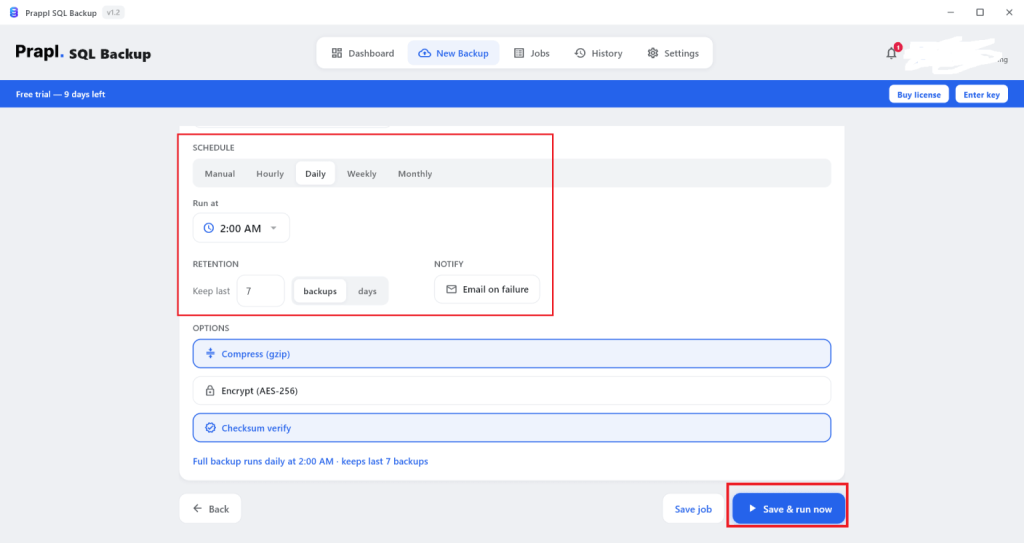
The Supabase backup tool will create backup based on configured settings.
How to Restore Supabase Backup?
Restore your Supabase database backup using the SQL backup utility.
- Run the tool and click on Restore.
- Choose backup that you want to back and click Continue.
- Pick a Point in Time backup and press Continue.
- Select Restore to same server or a different server.
- Review the restore settings and click on Restore Backup.
Which Method Should You Choose?
There is no one best method for all. The right solution depends on your Supabase database size and many other things. Before you begin the backup, compare your situation to the table below.
| Comparison Basis | Supabase Dashboard | pg_dump | pgAdmin | Prapl SQL Backup Tool |
|---|---|---|---|---|
| Technical Knowledge Required | Low | High | Medium | Low |
| Produces a Downloadable File | No | Yes | Yes | Yes |
| Full Database Backup | Yes | Yes | Yes | Yes |
| Automated Scheduling | Yes but with limitations (within the Paid Plan) | Limited | No | Yes |
| Backup Encryption | Managed by Supabase | No | No | Yes |
| Multiple Storage Options | No | No | No | Yes |
| Backup Retention | Yes but depends on your Plan | No | No | Yes |
| Backup Monitoring | No | No | No | Yes |
| Email Notification | No | No | No | Yes |
| Suitable for Large Environments | No | Moderate | No | Yes |
Where Should You Store Supabase Backup?
Creating a backup is only half of the process. The other half is deciding where those backups should be stored. A backup that is stored at the wrong location may become unavailable when you need it most.
If your production database and backup files are stored on the same server, a hardware failure, ransomware attack or accidental deletion colud affect both copies simultaneously. This defeats the purpose of having a backup.
A good backup strategy store copies in multiple locations so that if one location becomes unavailable, then another copy remains accessible.
- Local storage refers to saving backup files directly on a computer, workstation or dedicated backup server.
- Network Attached Storage device is a dedicated storage system connected to your network. Multiple users and systems can access it simultaneously.
- Cloud storage services provide an offsite location for storing backup files.
Summary
Backing up Supabase database involves much more than simply exporting data. A successful backup strategy includes choosing the right backup method, storing backup in multiple locations, defining appropriate backup schedules and maintaining backup history.
If you are managing a personal project or a large scale SaaS platform, the goal remains the same that critical data can be recovered quicky when needed. Here, we have mentioned four different ways to backup Supabase database. You can use any method to create supabase backup and reduce the impact of data loss to keep your application running smoothly.
Questions & Answers
Ques 1. Why can’t I download my Supabase backup from the dashboard?
Ans. Supabase’s native backups are physical volume snapshots tied to your project’s infrastructure, not downloadable files. They restore in place to the same project only.
Ques 2. What data is included in Supabase database backup?
Ans. Backup contains database tables, records, schema, indexes, functions and other PostgreSQL objects.
Ques 3. How often should I backup my Supabase database?
Ans. Daily for most production projects and always before schema migrations. For fast changing data, combine daily logical dumps with Supabase PITR for point-in-time granularity plus a portable off-site copy you control.
Ques 4. Can I schedule backups from the Supabase Dashboard?
Ans. Supabase automatically creates database backups on paid plan but the Dashboard does not currently provide options to configure custom backup schedules.
Ques 5. Is it possible to backup Supabase database to cloud storage?
Ans. Yes, the backup Supabse software supports uploads to cloud storage platforms after backup creation.