 Abeer Arora
Every application depends on its database. If you run an eCommerce store, SaaS platform, CRM system or internal business application, if it is powered by MySQL, PostgreSQL or MariaDB on Amazon RDS, that database stores information that keeps your business running. If you have not set up a way to backup MySQL database or its counterparts yet, now is the time to start.

Many users assume that because Amazon RDS is a managed database service so data loss is impossible. But in reality accidental deletion, application bugs, failed updates, ransomware attacks and human mistakes can lose your data. AWS provides some built-in backup features but relying only on them is not always sufficient. Therefore, you should create independent copies of your database. This guide explains how to backup Amazon RDS database automatically to single storage locations or multiple storage locations.
Table of Contents
- Why Is It Important to Backup Amazon RDS?
- How to Create Amazon RDS Database Backup?
- Method 1. Use Amazon RDS Automated Backups
- Method 2. Prapl Database Backup Tool
- Which AWS RDS Backup method Should You Choose?
- Concluding Words
- FAQs
Why Is It Important to Backup Amazon RDS?
Many businesses don’t realize how important backups are until an incident happens. Think about the following scenarios:
1. A Developer Removes Important Information
By mistake, a developer runs a DELETE query without the correct WHERE clause.
2. Data corruption caused by application bugs
A coding error in the software update causes customer information to be wrongly modified. Although the database is still accessible, the data is no longer useful.
3. Networked Systems Are Infiltrated by Ransomware
Corporate data can still be vulnerable by hacked credentials or malicious apps, even with Amazon’s infrastructure security protections. A point of recovery is provided by backup.
4. Unsuccessful Database Migrations
Database upgrades and schema changes can occasionally go wrong. If rollback procedures do not work as expected, then backup becomes the fastest recovery option.
5. Compliance Requirements
Industries such as healthcare, finance and legal services often require historical copies of business data for regulatory compliance.
Method 1. Automate AWS RDS Database Using Default Settings
Automated backups are the easiest way to protect RDS database. They are turned on by default when you create a new DB instance. This method will store database backup only on Amazon Web server.
- Launch the AWS Management Console.
- Go to the RDS Dashboard.
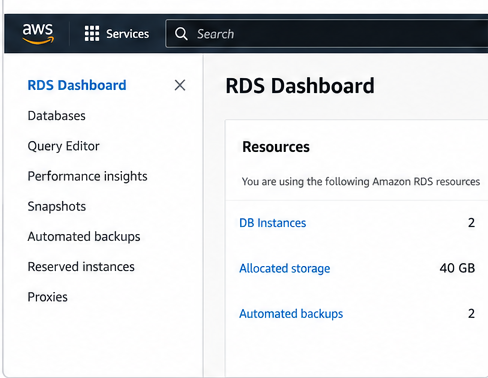
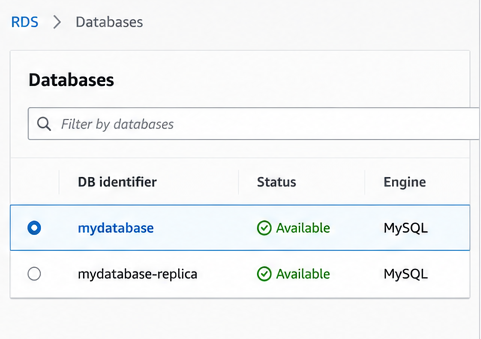
- Select the instance of your database.
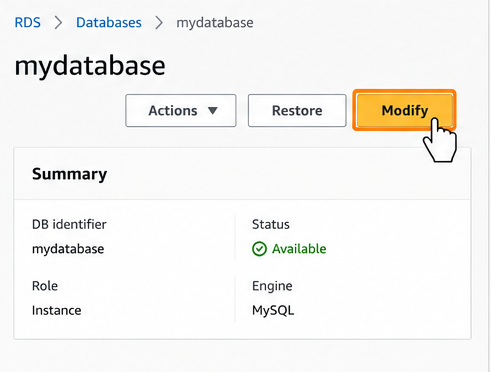
- Click Modify.
- Find the Backup Settings.
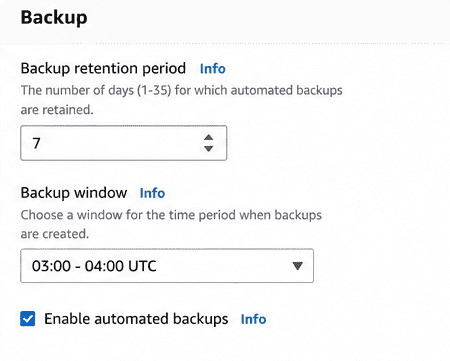
- Click Save Changes after setting the backup retention period.
This is the simple way to protect your Amazon RDS database. It provides point-in-time recovery and is completely handled by AWS. But this method keeps backups in AWS and is not appropriate for long-term archival needs.
Drawbacks:
- Backups will be stored on AWS Server only. Multiple storage locations are not available.
- The default retention period is 1 day if you create the instance via the RDS API or AWS CLI and 7 days if you create it through the console.
- You can set retention anywhere from 1 to 35 days. Setting it to 0 disables automated backups.
- 35 days is the maximum. To keep a backup longer than that, you must copy the automated snapshot into a manual one.
Method 2. How to Automate AWS RDS Database Backup into Multiple Storage Locations?
Though the capabilities of RDS’ automated backups & snapshots on Amazon provide an excellent solution for retrieving data from within the AWS ecosystem, many businesses want to keep their extra backup copies outside the AWS environment for improved security and save cloud storage bills.
In those cases, Prapl SQL Backup Tool is often the best way backup amazon RDS database backup to local pc or to another server. This software is designed for Windows users, who can simply download, install and run on your local system. This is one of the safest database backup services. Where yoour database never went through any middleman like some online backup services.
This tool will generate backup files by making a direct connection with your Amazon RDS database, then compress, encrypt, and transfer it to whatever kind of storage you choose.
Download and try for Free.
Steps to Backup Amazon RDS Database Automatically
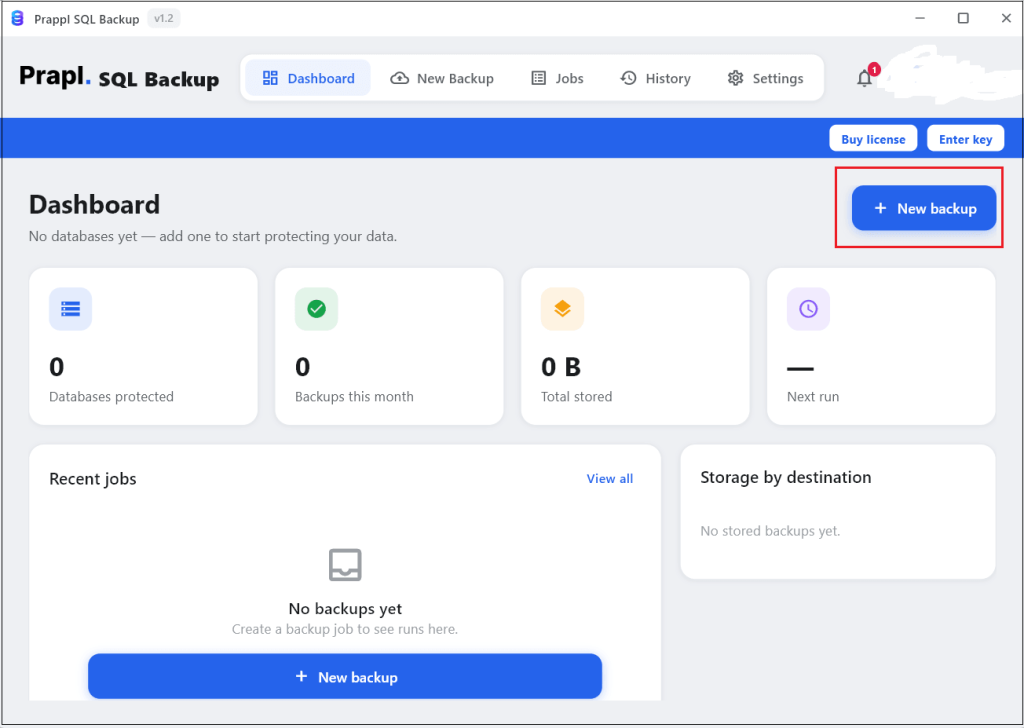
Step 1. Run SQL Backup tool on your PC and click + New Backup.
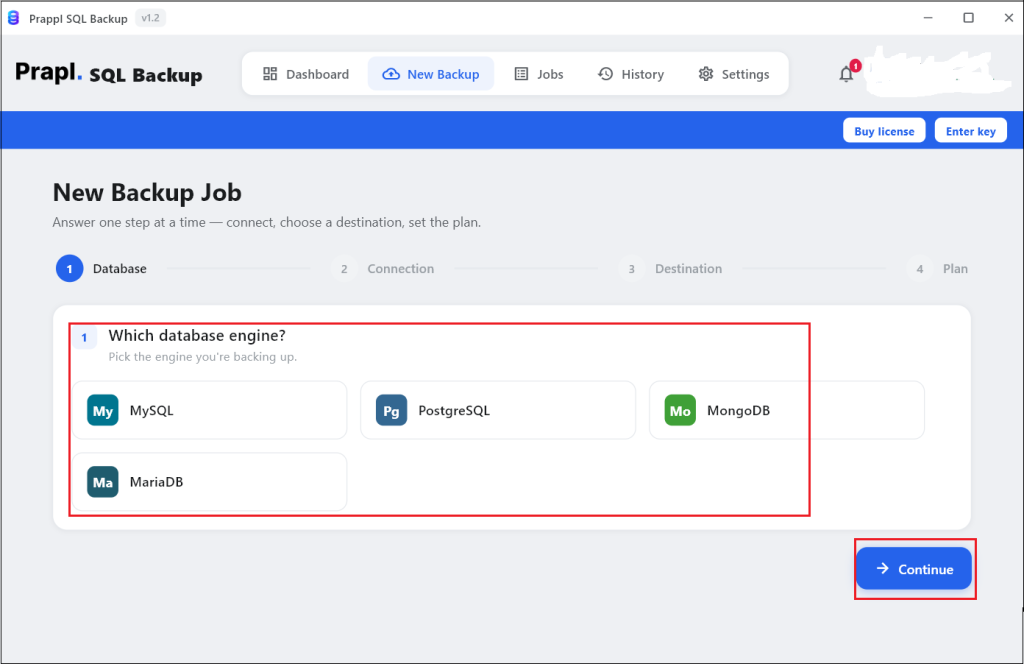
Step 2. Select the relevant database type for your Amazon RDS instance and click Continue.
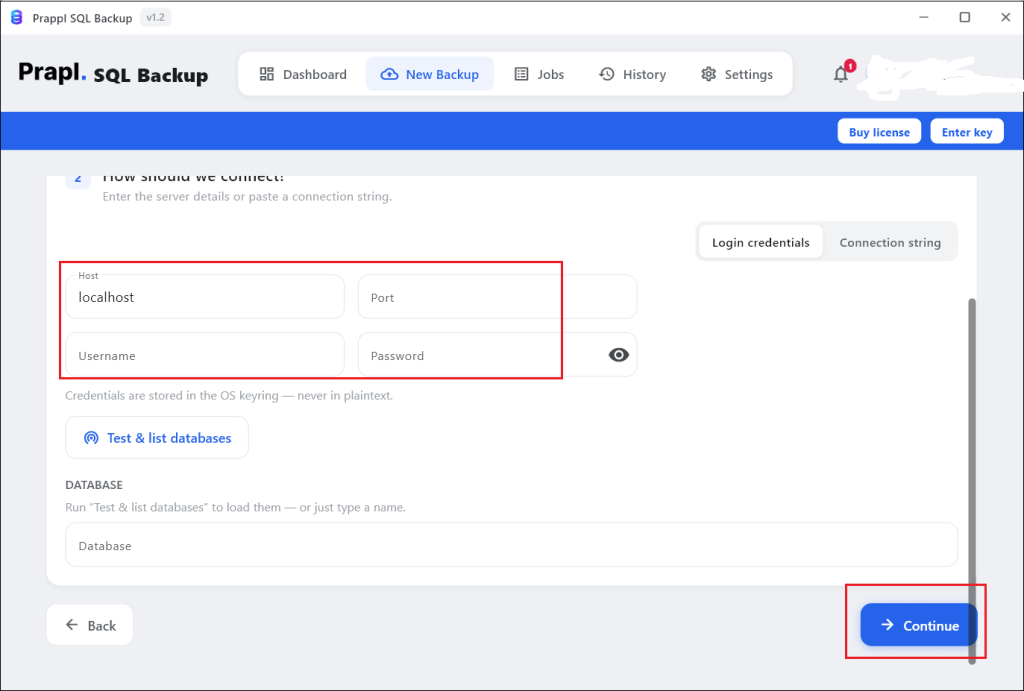
Step 3. Enter Host name, Port, Username, Password and Database name of your AWS RDS server and then click on Test Connection to verify.
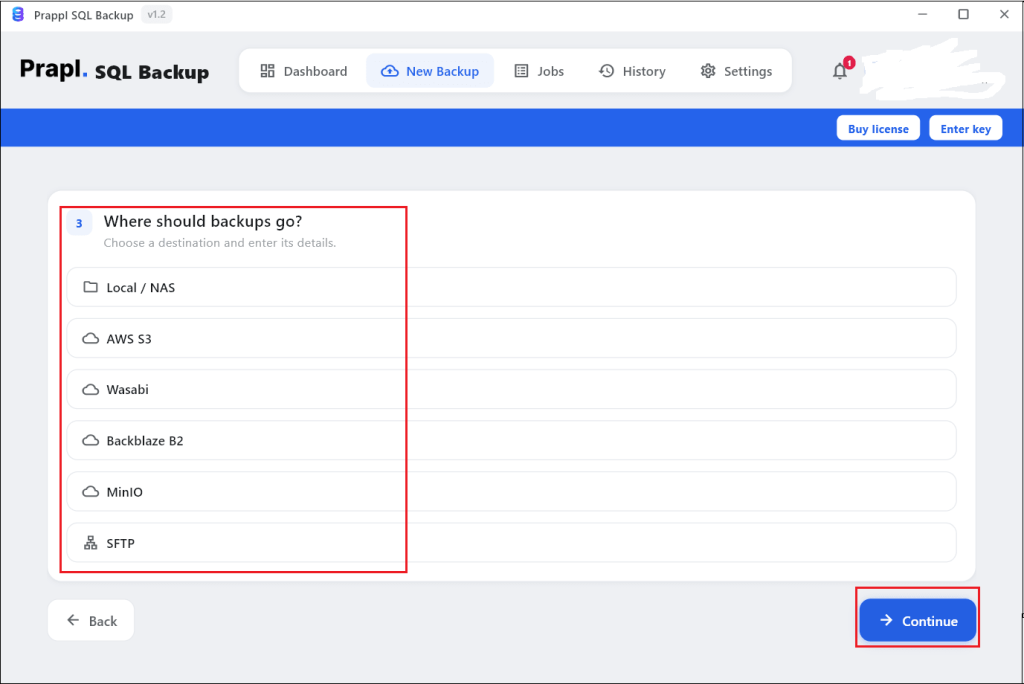
Step 4. Choose destination location to store Amazon RDS backup.
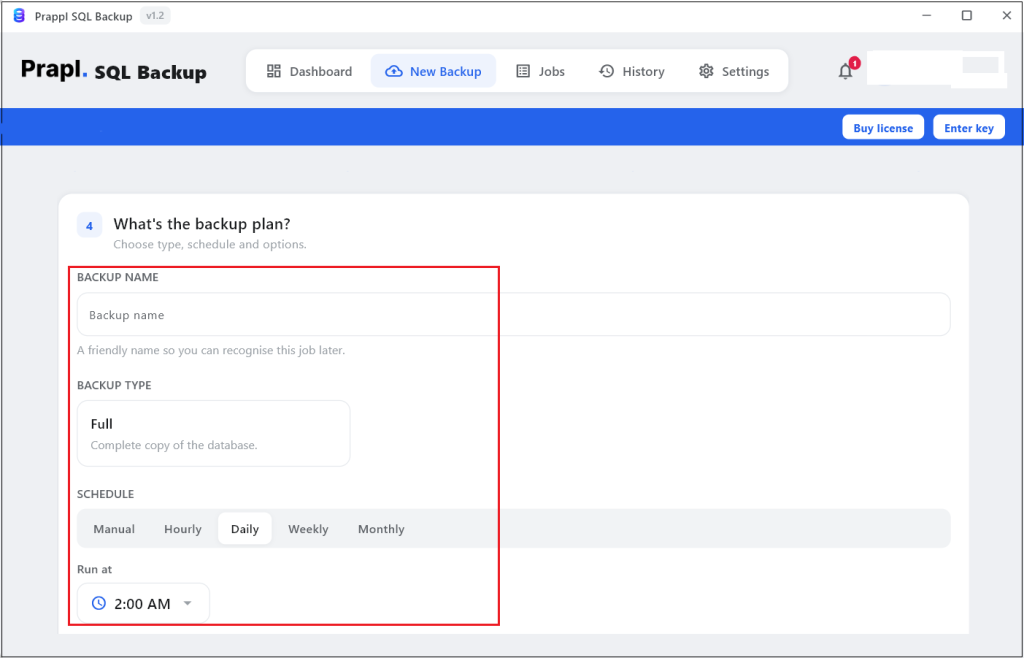
Step 5. Set Backup type, Schedule and Retention as per your needs.
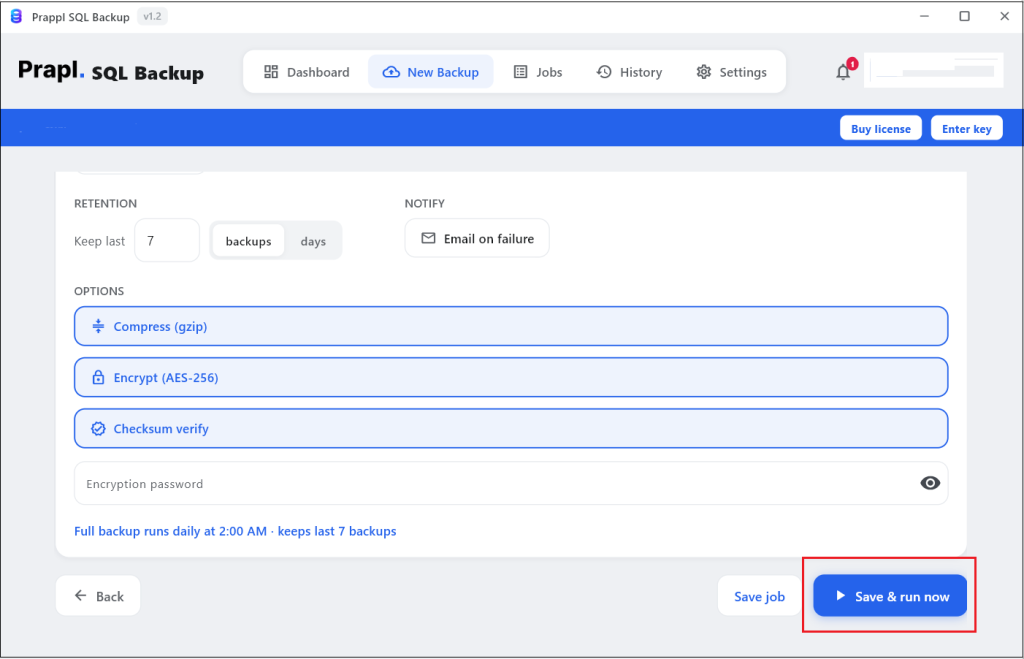
Step 6. After these configurations, click Save and Run Now to begin the backup process.
Which AWS RDS Backup method Should You Choose?
The best backup strategy depends on your recovery requirements.
| Requirement | Recommended Method |
|---|---|
| Everyday Protection | Automated Backups |
| Before Major Changes | Manual Snapshots |
| Independent Backup Copy | Native Database Export |
| Disaster Recovery | Professional Backup Tool |
Conclusion
Amazon RDS provides several methods for protecting database including automated backups, snapshots and native exports. Each method solves a different problem. Automated backups help with daily recovery, snapshots protect major changes and exported backups provide independence from AWS environment. On the other hand, professional backup software is the best way for maximum protection and backup scheduling. In this post, we have mentioned all these methods. Now, selection of the right method depends on user preferences.
Frequently Asked Questions
Ques 1. Does Amazon RDS create backup automatically?
Ans. Yes. Automated backups are turned on by default when you create DB instance, with configurable retention period of up to 35 days. Setting the retention period to 0 disables them.
Ques 2. What is the difference between snapshots and backup in AWS RDS?
Ans. Automated backups are managed by AWS and support point-in-time recovery while snapshots are manually created and retained until deleted.
Ques 3. Can I store Amazon RDS database backup outside AWS?
Ans. Yes. Native database tools and backup software can store backups on local drives, NAS devices, Amazon S3, FTP, and SFTP servers.
Ques 4. Does AWS RDS backup include the entire database?
Ans. Yes, depending on the method used, backups can include schemas, tables, indexes, stored procedures, and database data.