 Abeer Arora
Neon is a managed serverless PostgreSQL platform. It is not the same as having your own independent backup Neon database, even if it offers instant point-in-time restore and keeps a reliable copy of your data. This article describes how to create and restore independent backups using pg_dump, pgAdmin, GitHub Actions, and an automatic backup application.
Nowadays, almost every modern web application relies on database. If the data stored in the database is deleted, corrupted and becomes inaccessible due to technical issues then the entire application can be affected. Therefore, simply setting up a database is not enough, taking regular backups is equally crucial. Whether you need to backup PostgreSQL database for disaster recovery or compliance requirements, maintaining backup is an essential part of database management.
What is Neon?
Neon is cloud-based platform built on the PostgreSQL database engine. Because it is not a distinct database engine, PostgreSQL features, syntax, drivers, and tools are still used in your applications. Without having to deal about the underlying infrastructure, it allows developers to design and administer databases. Developers can just establish databases and begin developing apps while Neon takes care of the infrastructure in the background. It saves them the trouble of setting up servers, controlling storage and doing maintenance.
Why Automate Neon Database Backup Important?
Many beginners believe that Neon is a managed cloud database, they never need backups but this is one of the biggest misconceptions. Cloud providers protect infrastructure but they cannot always recover data lost due to user mistakes or application-level issues. Here are the most common reasons why creating Neon backup is important:
- Protect Against Accidental Deletion: Sometimes developers or data administrators may unintentionally execute Delete or Drop Table commands. Valuable production data can disappear within seconds. Without an independent backup, recovering deleted records are impossible.
- Application Bugs: Programming errors can occasionally be found in newly released software. Instead of adding correct data, the application replaces thousands of items. Although the database is working perfectly but the stored information incorrect. A backup allows you to restore the database before the faulty deployment.
- Cybersecurity Attacks: Although cloud platforms implement strong security measures but ransomware and malicious attacks can modify or delete data. Keeping encrypted backups at another location provides additional recovery option.
- Migrating to Another Platform: Sometimes organizations need to migrate databases to another platform such as Amazon RDS, Azure Database for PostgreSQL, local PostgreSQL servers etc. Having a backup simplifies this migration process.
- Compliance Requirements: Many industries require historical backups for legal or regulatory purposes. By keeping backup copies, organizations can follow the requirements.
Does Neon Backup Your Database Automatically?
Yes but partly. Neon keeps a change history and offers built-in recovery but it is not a substitute for an independent, off-platform backup.
- Instant Restore (Point-in-Time Restore/PITR): Neon automatically retains a history of changes that you can restore to any moment inside your own history window.
- Snapshots: Neon lets you create point-in-time snapshots of a branch from the Console, API or CLI. The snapshots feature is available to all users (limits differ by plan) and automated snapshots schedules are available on paid plans. Snapshot storage is billed separately per GB-month.
Method 1. How to Automated Neon Backup with GitHub Actions?
If you want scheduled off-platform backups without paying for software, GitHub Actions is the standard free route. In this method, you will need a GitHub repository, S3 bucket and AWS credentials with write access to it.
Step 1. Store your secrets in Settings → Secrets and variables → Actions:
DATABASE_URL, AWS_ACCESS_KEY_ID, AWS_SECRET_ACCESS_KEY.
Step 2. Create .github/workflows/neon-backup.yml:
name: neon-nightly-backup

on:
  schedule:
    - cron: '0 3 * * *'   # 03:00 UTC daily
  workflow_dispatch:       # allows manual runs

jobs:
  backup:
    runs-on: ubuntu-latest
    env:
      RETENTION_DAYS: 30
      S3_BUCKET: my-neon-backups
    steps:
      - name: Install matching Postgres client
        run: |
          sudo sh -c 'echo "deb http://apt.postgresql.org/pub/repos/apt $(lsb_release -cs)-pgdg main" > /etc/apt/sources.list.d/pgdg.list'
          curl -fsSL https://www.postgresql.org/media/keys/ACCC4CF8.asc | sudo gpg --dearmor -o /etc/apt/trusted.gpg.d/pgdg.gpg
          sudo apt-get update && sudo apt-get install -y postgresql-client-17

      - name: Run pg_dump
        run: |
          FILE="neondb-$(date +%Y-%m-%d).dump"
          pg_dump -Fc -d "${{ secrets.DATABASE_URL }}" -f "$FILE"
          echo "FILE=$FILE" >> $GITHUB_ENV

      - name: Upload to S3
        env:
          AWS_ACCESS_KEY_ID: ${{ secrets.AWS_ACCESS_KEY_ID }}
          AWS_SECRET_ACCESS_KEY: ${{ secrets.AWS_SECRET_ACCESS_KEY }}
          AWS_DEFAULT_REGION: us-east-1
        run: aws s3 cp "$FILE" "s3://$S3_BUCKET/neondb/$FILE"
Step 3. Trigger it manually once via workflow_dispatch to confirm it runs before relying on the schedule.
Add a retention step to delete objects older than RETENTION_DAYS or configure S3 lifecycle rule to do it for you.
Advantages:
- It is free method.
- Scheduled backup
- Off platform
- Fully transparent
Disadvantages:
- You need to build and maintain
- Scheduled Actions can be delayed
- No built-in encryption
Method 2. Automate Neon Database Backup to Multiple Storage Locations
For businesses, developers, database administrators, and managed service providers, using a customized backup solution simplifies the procedure. Rather than requiring the user to manually export the database every time.
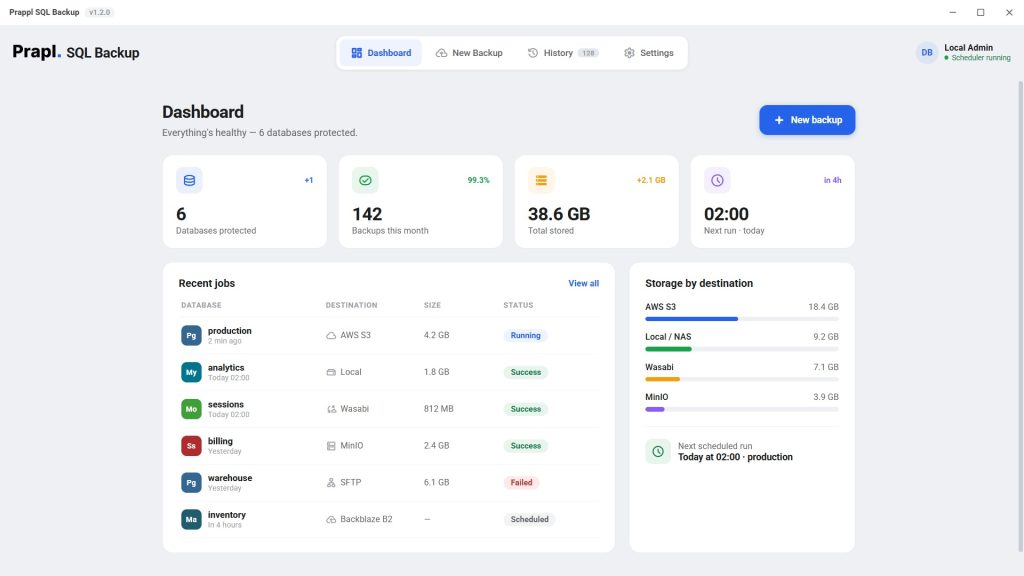
Download Prapl SQL Backup Tool to automates backup generation, encryption, storage management and monitoring. By connecting your Neon database just once, you may configure your backup settings to schedule backups automatically such as hourly, daily, weekly or monthly. This reduces the chance of human error and ensures that recent backups are always available when you need them. The software also enables you to restore Neon database.

Step to Backup Neon Database to PC
1. Run the SQL Backup Tool on your PC and click on New Backup.
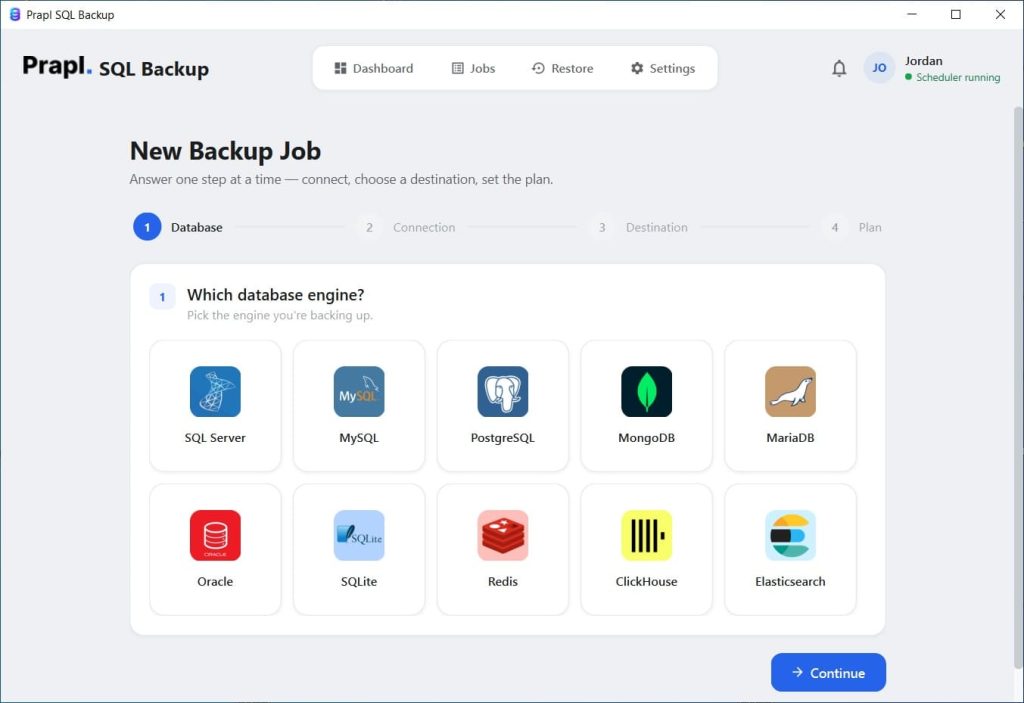
2. Choose PostgreSQL database engine and click on Continue.
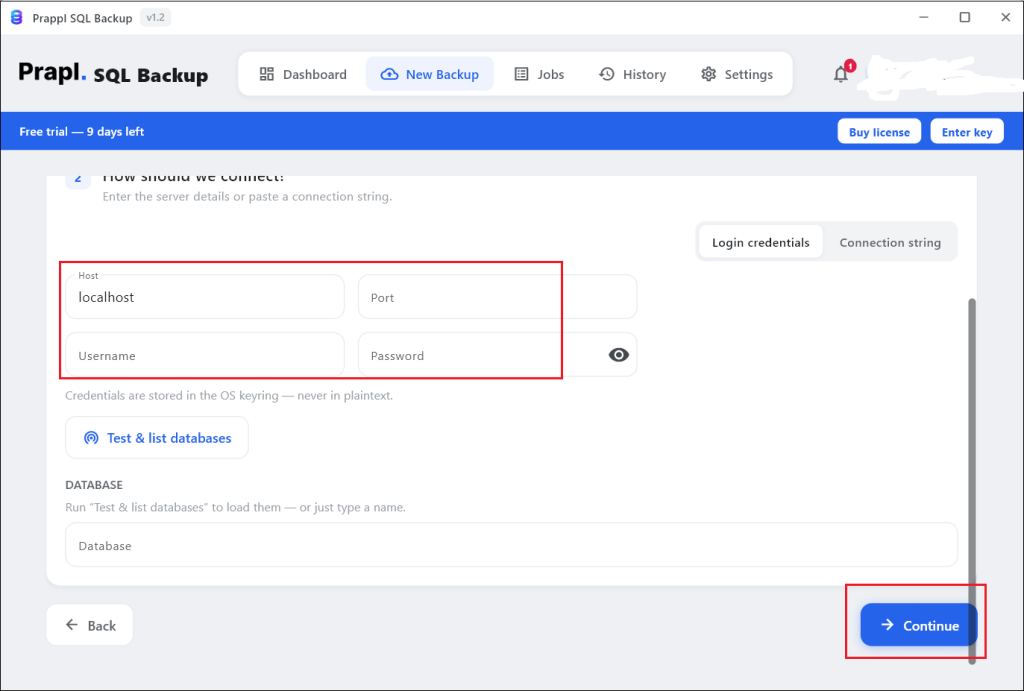
3. Enter your Neon connection details such as Host, Port, Username, password and Database Name. After that, click on Test Connection to verify it.
4. Choose destination location where you want to save backup and press Continue.
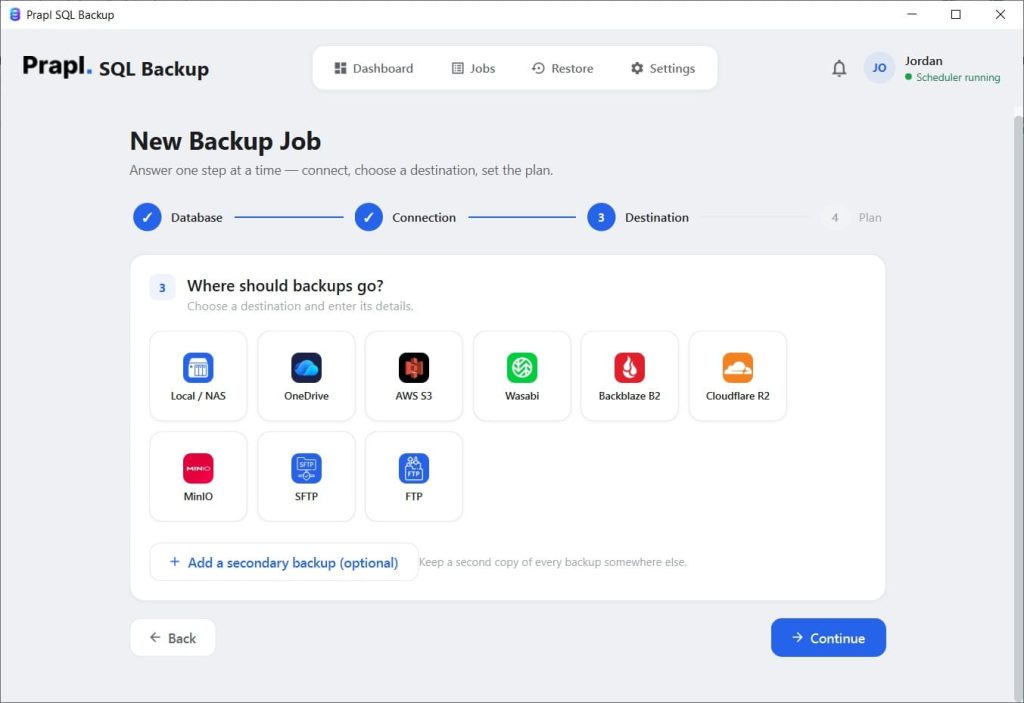
5. Set the backup schedule and click on Save & Run Now.
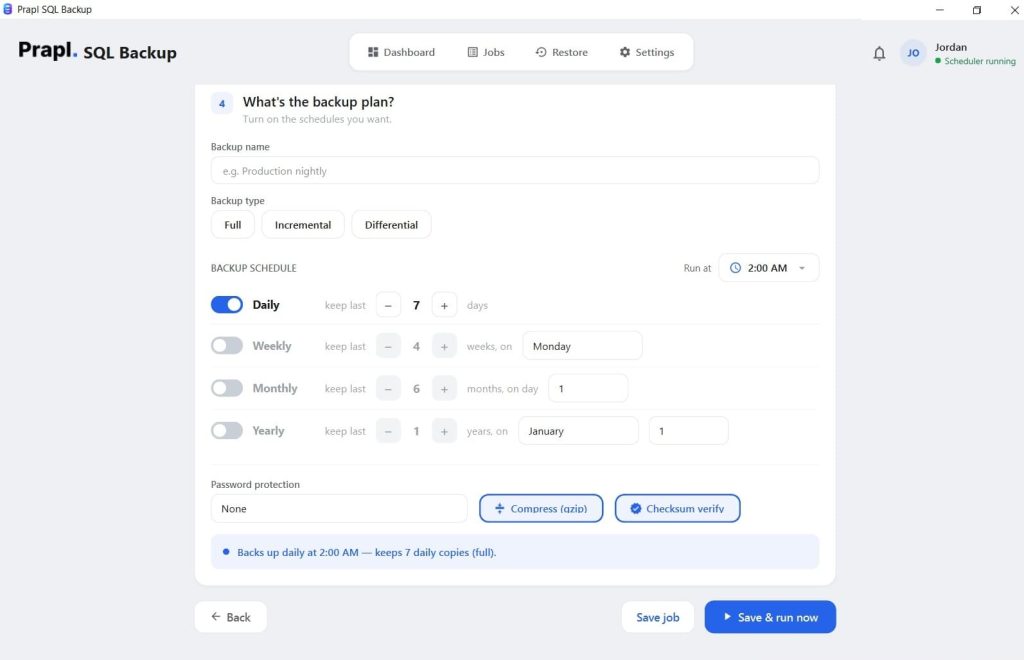
The software will start creating backup of your Neon database. It will notify with an email after completing the backup process.
If you need to restore your Neon backup then follow the below given steps:
- Open the tool and go to Restore option.
- Choose backup that you want to back.
- Pick a point in time to restore.
- Choose where you want restore to.
- Check the summary and click on Restore Backup.
Why Use Professional Neon Database Backup Software?
A dedicated backup tool offers advanced features that are not available in manual backup methods. Here are some explanations of them:
- Automated Backup Scheduling: You can specify schedule, such as hourly, daily, weekly, monthly or custom intervals, in place of remembering to make backups every day. The software creates backup Neon database automatically at the specified time.
- Secure AES-256 Encryption: Before the backup is saved, it can be encrypted using AES-256 encryption. In case someone gains access to the backup file but they cannot read contents without the right encryption key. It improves data security.
- Backup Compression: Database backup file contain lot of data. The backup wizard compresses files before storing them that reduce storage requirements and increase speed to upload cloud storage.
- Different Options for Backup Storage: While it offers multiple destinations, such as Local Drive, NAS, Amazon S3, FTP, SFTP, and cloud storage, manual techniques only store backups on your local computer. Keeping copies in multiple locations provides extra layer of security.
- Retention Policies: Storage can be easily filled by old backups. The retention policy automatically deletes old backup files based on predefined rules while preserving the latest backups.
- History of Backups: It keeps several backup versions instead than just the most recent one. Older versions may valuable when problems are discovered days after they occurred.
- Email Notifications: Neon backup tool send email alerts after each backup. It will help you to know immediately whether the backup is completed successfully, failed and encountered warnings. This allows you to resolve issues before they become critical.
Common Problems During Neon Database Backup
Even with proper planning but backup operations may occasionally encounter problems. Understanding these issues helps you to resolve them quickly.
Authentication Failed
Cause: Incorrect username, password and other details
Solution: Verify that your Neon database credentials are entered correctly
SSL Connection Error
Cause: Neon requires secure SSL connections
Solution: Configure the PostgreSQL client to use the appropriate SSL mode recommended by Neon.
Permission Denied
Cause: The database user lacks sufficient privileges
Solution: Use an account with backup permissions
Connection Timeout
Cause: Slow or unstable internet connection
Solution: Check your network connectivity
Insufficient Disk Space
Cause: Destination drive does not have enough free space
Solution: Free up storage or choose another backup location
Comparison Table: Which Method Should You Choose?
| Feature | Neon Instant Restore (PITR) | pg_dump | pgAdmin | GitHub Actions | Prapl SQL Backup Tool |
|---|---|---|---|---|---|
| Automation | Built-in | Manual | Manual | Scripted | Automated |
| Scheduling | N/A | No | No | Yes (Cron) | Yes |
| Off Platform | No | Yes | Yes | Yes | Yes |
| Encryption Key | Managed by Neon | No | No | No | Yes |
| Failure Notification | No | No | No | No | Yes |
| Automatic Unlimited Backup | No | No | No | No | Yes |
Final Words
Neon simplifies PostgreSQL database management by handling infrastructure, scaling and maintenance in cloud. Data security is an important task for every database owner. Here, we have explained four different ways to backup Neon database. Manual backup methods are fine for small tasks or occasional backups. But if you need features like daily, better security, backup scheduling, cloud storage, and backup management, a professional Prapl Neon Database Backup Tool is more suitable. No matter which method you choose, maintaining regular backup is one of the best ways to protect your data.
Frequently Asked Questions
Ques 1. Is Neon different from PostgreSQL?
Ans. No, Neon is built on PostgreSQL. It provides managed cloud infrastructure while using the PostgreSQL database engine.
Ques 2. Does Neon offer backups?
Ans. Although Neon has built-in data security safeguards, many businesses also keep separate backups for more management, compliance, and long-term storage.
Ques 3. How long does Neon keep backups?
Ans. Neon’s instant restore history windows ranges from 1 day up to 30 days depending on your plan. To keep data longer than your history window, create your own backups and store them externally.
Ques 4. How do I download Neon backup to my local machine?
Ans. You can download Neon database to local system using pg_dump or an automated backup software.
Ques 5. What format is Neon backup stored in?
Ans. Backups can be stored in .sql or .dump format depending on the method used.
Ques 6. Are my backup files encrypted?
Ans. It depends on the backup method you use. If you create backup manually then backup file is not encrypted by default. Whereas automated tool offers built-in encryption.
Ques 7. Can I automate Neon database backup process?
Ans. Yes. Professional software creates a Neon database backup automatically.