 Abeer Arora
Quick Answer: DreamHost only retains roughly five day’s worth of information and automatically backs up your database once a day. According to DreamHost, the availability of these backups is not guaranteed. You should save your own copy off DreamHost servers for true security. Three backup methods are covered in this guide. DreamHost database: a manual PHP backup and the integrated panel backupMyAdmin export and automated offsite backup program with encryption and long-term storage that operates on a schedule.
Everything that important is stored in the database of your website. Regular backups are necessary to preserve database integrity and stop data loss. Since databases are always changing as new content is added. If it ever gets corrupted or deleted, your whole site can go down. So learning how to backup MySQL database on DreamHost is one of the smartest habits any website owner can build.
In this article, we will discuss three different ways to backup DreamHost database:
- DreamHost built in automated backup – daily backups stored on DreamHost’s own server.
- Manual backup using phpMyAdmin – export your own .sql copy anytime.
- Automatic backup software. Schedules incremental or full backups with encryption, compression and offsite storage.
Table of Contents
- What is DreamHost Database?
- Why Backup DreamHost Database?
- Are DreamHost Built-in Backups Enough?
- How to Create DreamHost Database Backup?
- Method 1.DreamHost Built-in Automated backup
- Method 2. DreamHost Backup Using phpMyAdmin
- Method 3. Incremental Backup of DreamHost Database
- Why Use DreamHost Database Backup Tool?
- Comparison Table: Which Method Should You Choose?
- How to Restore DreamHost Backup?
- Final Words
- Frequently Asked Questions
What is a DreamHost Database?
DreamHost is a popular web hosting provider that offers database support for websites, web applications and eCommerce stores. A DreamHost Database is where your website stores all its dynamic content. It uses MySQL database to store website content, user information, product details and application data.
Why Backup DreamHost Database?
Regular database backups have a number of advantages:
- Prevent unintentional loss of data.
- Stops losses brought on by server malfunctions or website crashes.
- Helps recover from malware and ransomware attacks.
- Supports website migration to another server.
- Provides safe rollback point before major updates.
- Assist with compliance and data retention requirements.
Are DreamHost Built-in Backups Enough?
DreamHost automatic backups are genuinely convenient but relying on them alone is risky. Here’s why they should not be your only line of defense:
- They are Not Guaranteed: DreamHost own documentation states that it makes no guarantee your backups will be available and it recommended keeping your own offsite copies.
- Retention is Very Short: Only five days of database backups are kept. If you discover a problem two weeks later that backup is already gone.
- No Encryption: Because DreamHost does not offer database backup encryption, the copies are not as secure as they should be.
- Single Point of Failure: Your live database and backups are hosted by the same provider. Your site and its backups may be simultaneously impacted by a provider-wide problem.
- No Custom Scheduling: You are unable to specify the frequency of backups or the location of copies.
As a simple safety precaution, use DreamHost’s built-in backups, but always maintain an independent copy in a location outside of DreamHost’s control. You can do just that with the three techniques listed below.
How to Create DreamHost Database Backup?
Making a backup of your DreamHost database is easy. You do not need to be a technical expert to do it. There are three main approaches you can rely on: DreamHost’s built-in automated backup which works quietly in the background on DreamHost own server, DreamHost database backup using phpMyAdmin and professional backup solution that gives you more control. Here, we will discuss all methods step by step so you can choose the one that fits your needs.
Let’s start!
Method 1. DreamHost Built-in Automated Backup
DreamHost automatically backups all MySQL databases for you. No setup required and everything is stored on DreamHost’s own servers.
The automatic backups run daily, starting at midnight and DreamHost generally keeps five days of backups. These copies live on DreamHost’s servers, you do not have to download or manage anything yourself. You only need to open the panel when you want to check or restore backup.
Follow the below given steps to access it.
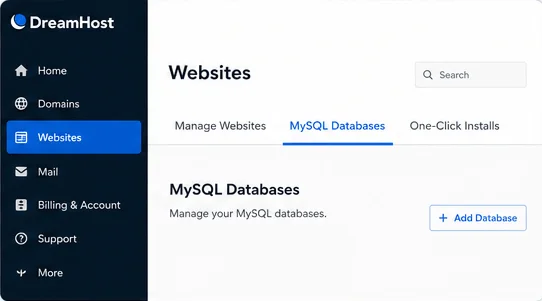
- Go to panel.dreamhost.com to access your DreamHost panel. Go to Websites and click on MySQL databases.
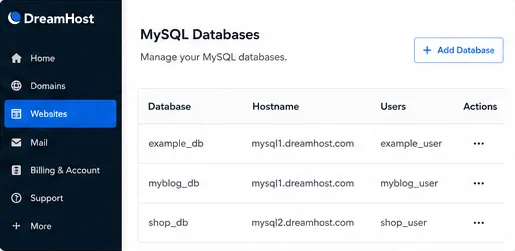
- Find the database you want in the list. Each one shows its name, hostname and users.
- Click the Restore DB button next to the database to open the backup page.
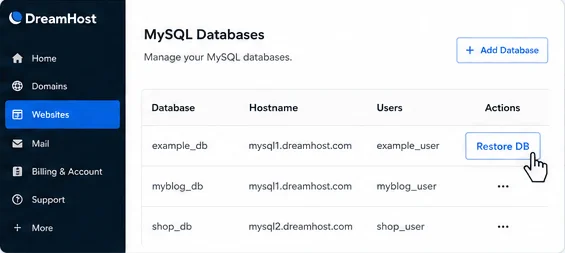
- Here, you will see a dropdown listing all the backup dates DreamHost currently has available (up to the last five days).
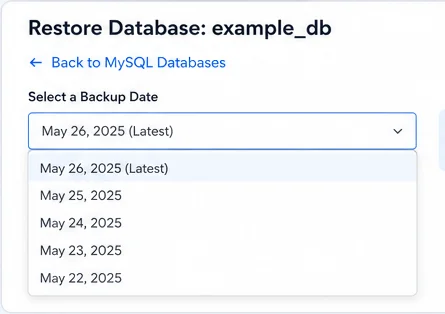
That’s how you can access your automated backups. Since the backup runs on its own but it does have some important limits:
- Backup stored in the same hosting environment
- Only five days of history is available
- Cannot set your own schedule
Method 2. DreamHost Backup Using phpMyAdmin
phpMyAdmin is web-based tool with a simple interface, making it the best choice for most people.
Follow the below given steps to download your DreamHost database to PC:
- Log in to your DreamHost panel.
- Click on Websites and go to MySQL Database page.
- Locate your database and click the phpMyAdmin link.
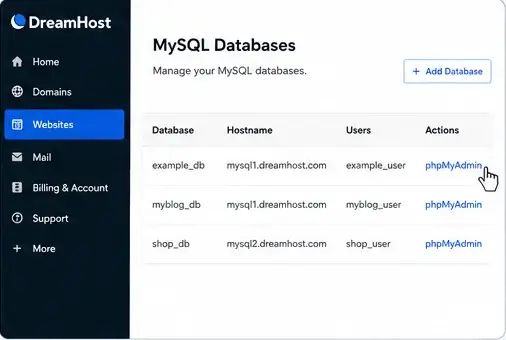
- Sign in to phpMyAdmin and select the database you want to backup.
- Click on Export tab and choose Quick export method.
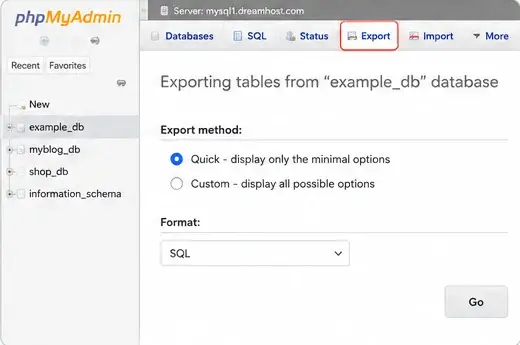
- Click Go to download the database backup file after choosing SQL as the format.
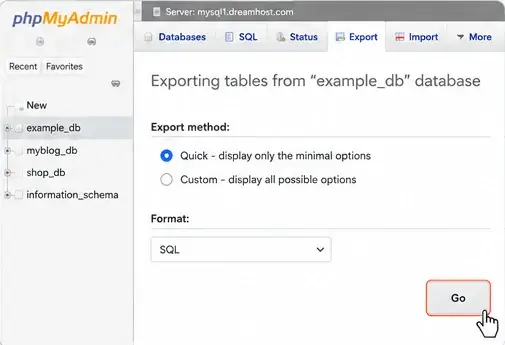
The .sql file is complete backup of your database. You can store it anywhere but there are no scheduling capabilities, you need to export your data regularly.
Method 3. Incremental Backup of DreamHost Database to PC/Server
Prapl SQL Backup Software removes every weakness of the manual methods by putting your backups on autopilot and store at anywhere. With this utility, you can set your backups to run automatically i.e. hourly, daily, weekly, monthly or custom schedule that fits your site. Once configured, you never have to think about it again. It gives you option to set backup type i.e. full or incremental. The software offers various saving options to store backup file away from your hosting account.

Steps to Backup DreamHost Database Automatically
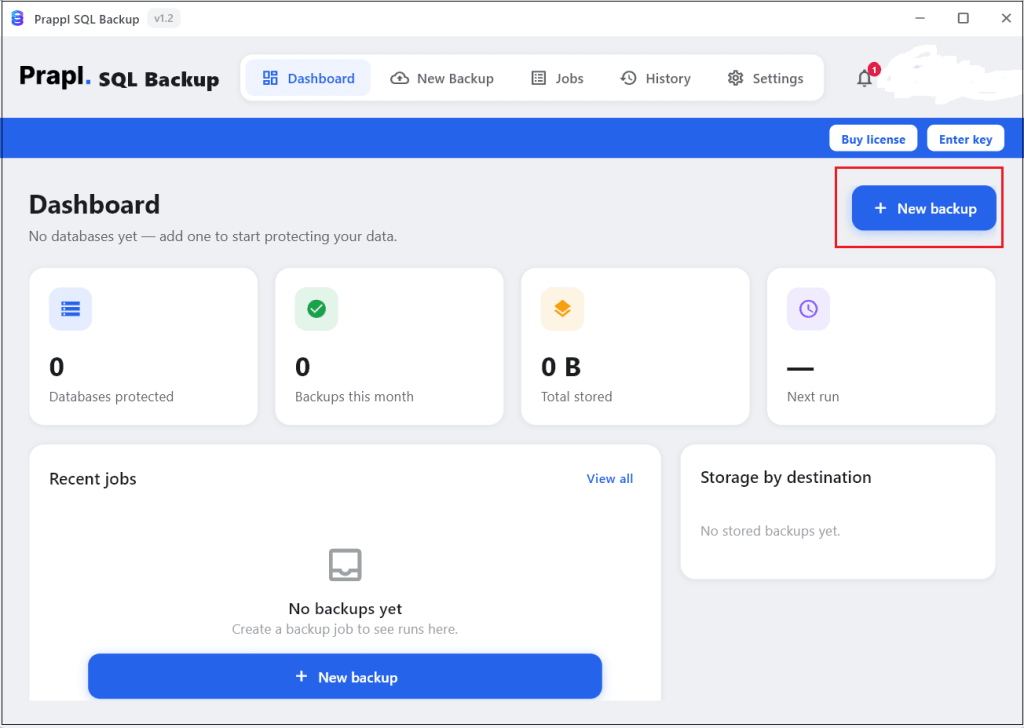
Step 1. Run the tool on your Windows PC and click on + New Backup.
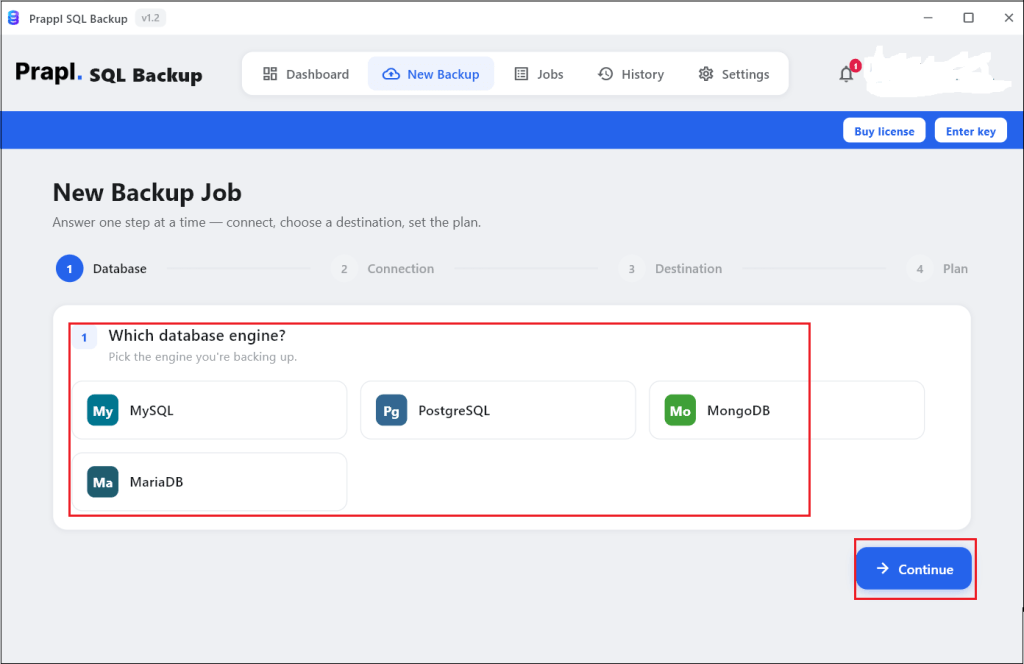
Step 2. Choose your MySQL database on DreamHost and click on Continue.
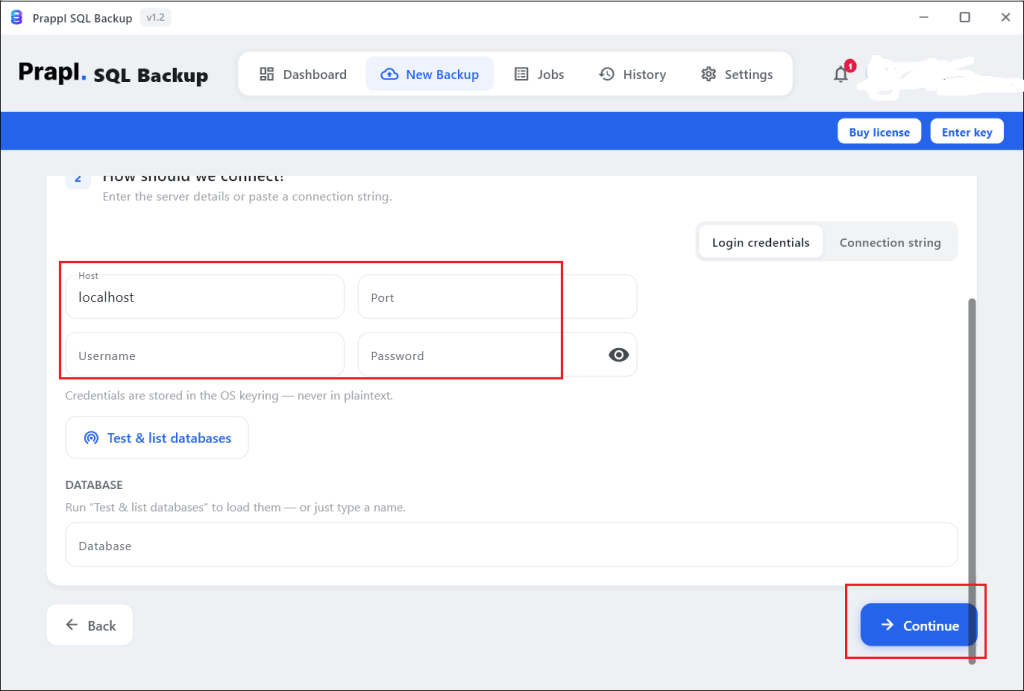
Step 3. Enter your DreamHost login credentials and tap on Test connection to verify it.
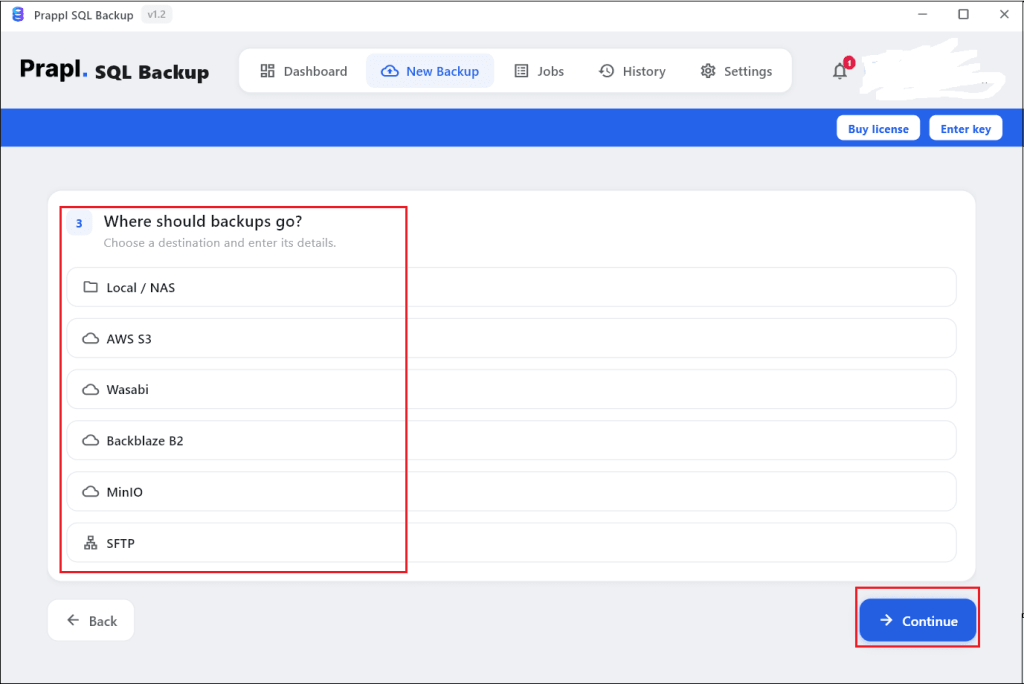
Step 4. Now, select location where you want to store backup file and press Continue.
Step 5. Set backup type, scheduling and retention policy.
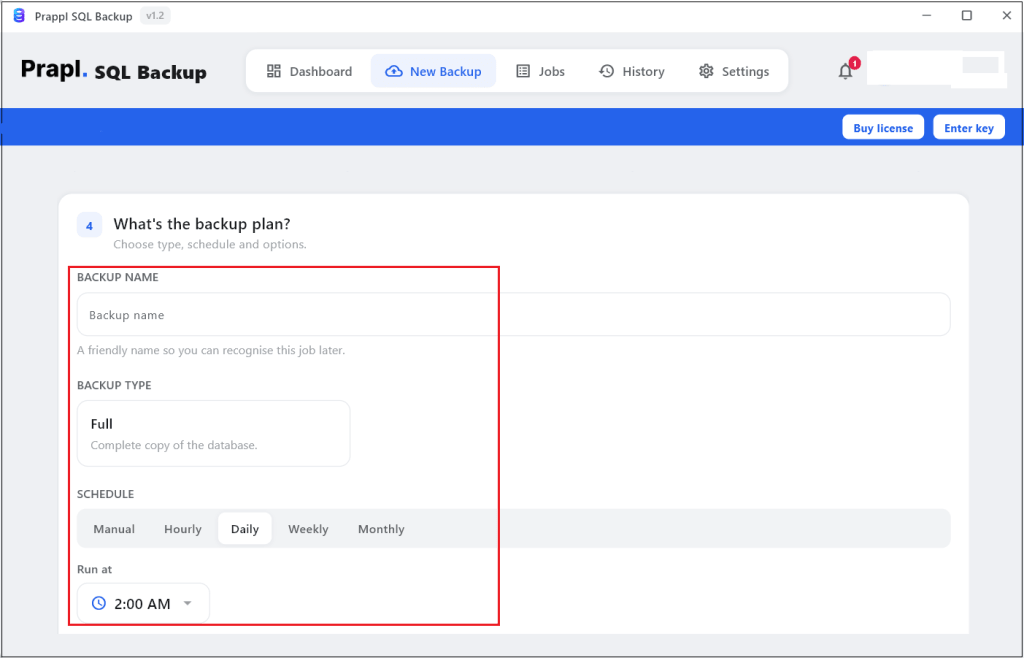
Step 6. After that, click on Save & Run Now button to begin the backup process.
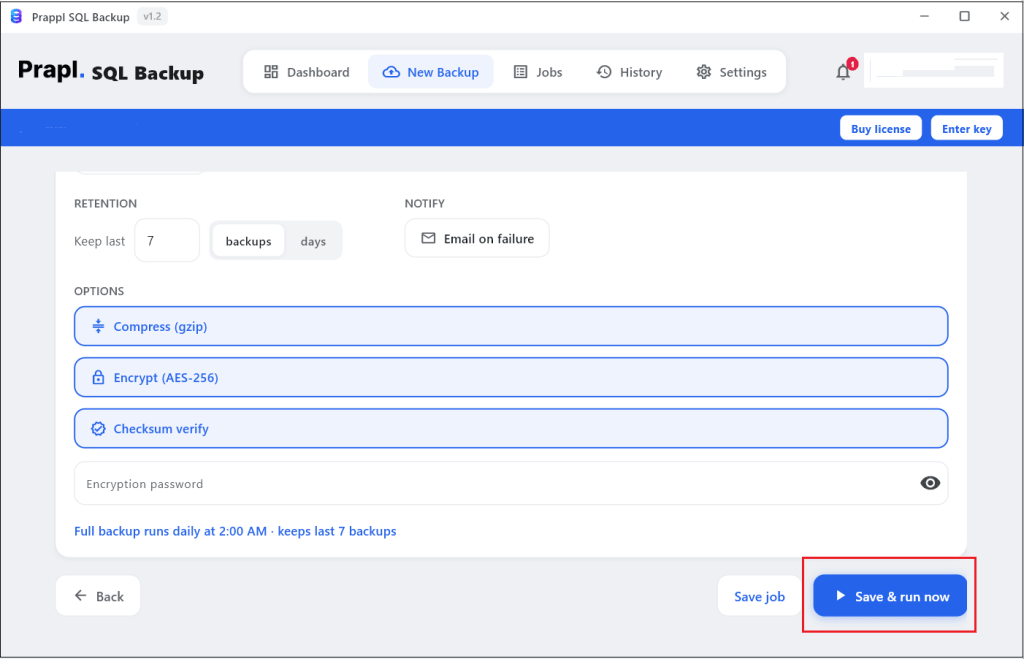
The software will create DreamHost database backup at your selected location as based on configure backup settings.
Why Use DreamHost Database Backup Tool
Prapl SQL backup utility offers advantages that DreamHost’s built-in backups simply cannot match:
- Automated Scheduled Backups: Set it once and it runs on schedule like hourly, daily, weekly and monthly to automatically create DreamHost database backup.
- Full & Incremental Backup: To maximise storage and backup time, create full database backups or store just the modifications made since the last backup.
- Offsite Storage: Offers multiple storage options to backup DreamHost database to local drive, cloud server, Amazon S3, FTP/SFTP server, etc.
- Backup Compression: Reduce storage usage by compressing backup files and improve transfer efficiency.
- AES-256 Encryption: To protect critical data in backup files, use AES-256 encryption method.
- Retention Management: Maintains and removes outdated backups automatically in compliance with predetermined retention policy.
- Email Notifications and Monitoring: Provides real-time email alerts for backup operations as well as monitoring reports.
Comparison Table: Which Method Should You Choose?
| Feature | Automatic Built-in Backup | phpMyAdmin | Prapl SQL Backup Tool |
|---|---|---|---|
| Runs Automatically | Yes | No | Yes |
| Setup Required | None | Low | Low |
| Custom Schedule | No | No | Yes |
| Offsite Storage | No | Yes | Yes |
| Backup Type | Full | Full | Full + Incremental |
| Encryption | No | No | Yes |
| Compression | No | No | Yes |
| Backup History | 5 days only | As long as you keep files | As long as you choose |
How to Restore DreamHost Database?
Here are detailed instructions for every data restoration technique.
#1. DreamHost Automatic Backup Restore
- Open the MySQL Database page after logging into your DreamHost panel.
- Choose your database in the list and click on Restore DB button next to it.
- Select the backup date you want to restore.
- Click Restore to confirm.
Wait some time. DreamHost will roll your database back to that date.
#2. Restore phpMyAdmin Admin Export
- Open your DreamHsot panel and go to MySQL Database page.
- Click on the phpMyAdmin link next to your database.
- Choose your database from the left-hand pane.
- Click the Import tab.
- Now, click Choose File and select the .sql backup file from your system.
- Thereafter, click Go button.
phpMyAdmin will load your data back into the database.
#3. Restore DreamHost Backup from Software
- Open the tool and click on Restore button.
- Choose the backup that you want to backup and click Continue.
- Select Point in time recovery, specific date and time.
- Restore to the original database.
- Click on Start Restore to begin the recovery process.
Final Words
Backing up your DreamHost database is not complicated but it is critical. In this post, we have explained three different ways to backup DreamHost database. DreamHost’s built-in automated backups are helpful for short-term safety yet with only five days of history and no guarantee they should not be your only line of defense. phpMyAdmin store your data outside the same hosting environment but in this you need to manually do it.
For real protection, combine DreamHost’s tools with your own regular backups. Professional backup Software provides encryption, compression, complete and incremental backups, automatic scheduling, and offsite storage. You can choose any method that is most suitable for you.
Frequently Asked Questions
Q1. What happens if DreamHost database becomes corrupted?
Ans. If backup is available, you can restore the database and recover most or all of the lost data.
Q2. Does DreamHost backup my database automatically?
Ans. Yes. DreamHost automatically creates backups of your database daily and keeps around five days of backups.
Q3. Where are my DreamHost automated backups stored?
Ans. They are stored on DreamHost’s own servers not on your comouter. You can access them through the Restore DB button on the MySQL Databases page.
Q4. Can I move my database to another host using backup?
Ans. Yes. You can migrate exported data from phpMyAdmin or downloaded DreamHost database using DreamHost backup software to another host.
Q5. Do I need technical skills to backup my database?
Ans. DreamHost’s automated backup needs no setup at all, phpMyAdmin is simple point-and-click export and backup software that automates everything after one-time setup. So, you can easily take backup of your DreamHost database without any technical skills.
Q 6. How long does DreamHost keep database backups?
Ans. Only about five days. DreamHost does not offer long-term database backups. So if you need older recovery points you must create and store your own backups using phpMyAdmin or backup software.