 Abeer Arora
If you run your database on Aiven, backups are something you can’t afford to ignore. A single accidental delete, a bad migration or a corrupted table can wipe out data you can never get back. The good news is that you do not need to be a database expert to protect your data. If you want to backup PostgreSQL database on Aiven, the process is simpler than most people think.
Aiven already runs automatic backups for you in the background and there are also easy ways to keep your own copies safely stored somewhere else. In this blog, we will discuss both automatic built-in backup and a professional solution to save backup copies to local system or cloud storage for better protection.
By the end, you will know exactly how Aiven’s built-in backups work, how to access and restore them, why relying only on them is risky and how a backup tool can give you full control.
Table of Contents
- What is Aiven?
- Why is Aiven Database Backup Important?
- How to Backup Aiven Database Automatically?
- Method 1. Aiven’s Built-In Automatic Backups
- Method 2. Automated Aiven Backup to Local Server/Cloud Storage
- Advantages of Using Aiven Backup Software
- Comparison Table: Which Method Should You Choose?
- Conclusion
- Frequently Asked Questions
What is Aiven?
Aiven is a managed cloud data platform. It hosts and manages databases for you so you do not have to worry about servers, updates, scaling or maintenance. You just create a service, connect your app and Aiven handles the heavy lifting behind the scenes.Aiven supports several popular databases including PostgreSQL, MySQL, Valkey, OpenSearch, Apache Kafka, ClickHouse and more. One of the biggest advantages of a managed platform like Aiven is that important tasks such as backups, high availability and failover are built in.
Why is Aiven Database Backup Important?
Aiven manages the underlying infrastructure and provides backup and recovery capabilities but organizations may still need their own backup copies for additional control and disaster recovery.
An independent backup can help you:
- Keep a copy outside the Aiven environment
- Restore data after accidental deletion or corruption
- Maintain backups for longer retention periods
- Move databases between cloud providers
- Create offline or local copies for testing
- Meet compliance requirements
How to Backup Aiven Database Automatically?
There is not just one way to create Aiven database backup. It depends on how much control and safety you want. In this blog, we will discuss two methods that can automatically back up your Aiven database.
- Aiven Built-in Automatic Backups: The backups Aiven already creates for you, which you can access and restore straight from the Aiven Console.
- Professional Backup Tool: Automated tool that gives you scheduled, portable, fully controlled backups stored wherever you choose.
Method 1. Aiven’s Built-In Automatic Backups
Every Aiven database service is backed up automatically, with no setup required from your side. It takes a full backup every day and continuously copies the write-ahead logs (WAL) every few minutes. Together these allow point-in-time recovery (PITR) which means you can restore your database to almost any exact moment within your retention window, not just to last night’s snapshot.
A few things to know about these automatic backups:
Retention depends on your plan. Backups are usually kept for around 2 to 30 days, depending on the service plan you choose. Bigger plans keep more history.
Backups are encrypted and compressed. Every backup is secured with service-specific keys before being stored.
They are stored in the same region as your database, inside cloud object storage.
How to Access Your Automatic Backups?
You can not download these backups as a file. Instead, you can view and use them directly from the Aiven Console:
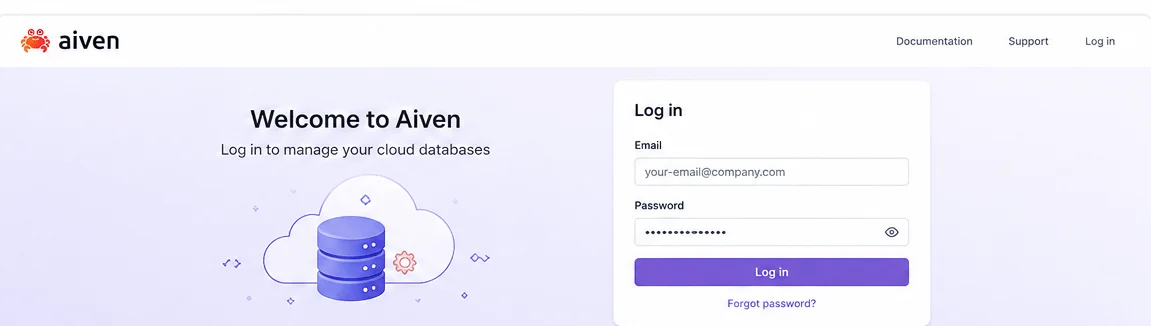
- Log in to the Aiven Console.
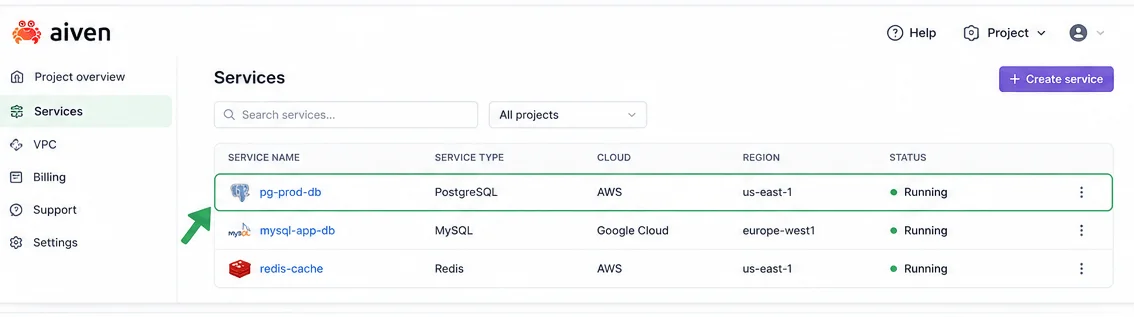
- Open your database service from the Services page.
- Go to the Backups section to see your available backups and the time ranges
you can restore from.
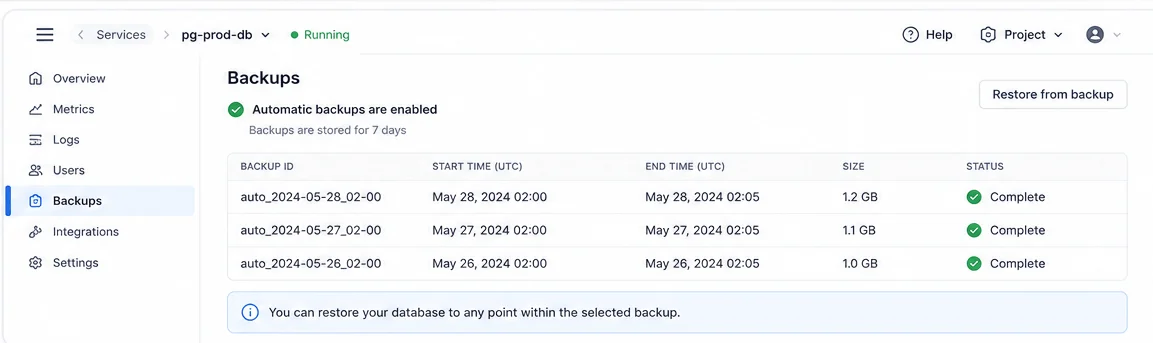
This gives you a clear picture of how far back you can recover at any moment.
How to Restore Automatic Backup?
Aiven doesn’t roll your database back in place. Instead, restoring creates a fork, a brand-new copy of your service built from the backup point you choose. This keeps your original service safe and avoids messy conflicts.
- In the Aiven Console, open your database service.
- Go to Service Settings from the sidebar.
- In the Service management section, click Fork database.
- Enter a name for the new service and choose the project, version, cloud region and plan.
- Select Point in time under Source service state and pick the exact date and time you want to recover to.
- Click Create Fork. Wait for the new service to start then update your app to connect to it.
Limitation of Manual Automatic Built-in Backup
Aiven’s automatic backups are excellent for quick recovery, so why bother doing more? Because those backups are designed for service recovery, not for full data ownership. There are a few important gaps:
- Limited Retention: If your plan only keeps backups for a few days, you can not go back further. For compliance or long-term records, that’s a problem.
- Same Region Storage: Your backups live in the same cloud region as your database. If that region has a major outage, both can be affected together.
- Tied to Aiven: You can not easily hand a backup file to another team, move it to a different provider or archive it in your own storage.
- No Independent Copy: If something goes wrong with your account, having your own copy elsewhere is a lifesaver.
Method 2. Automated Aiven Backup to Local Server/Cloud Storage
Automatic built-in backup is convenient but it has real limits. Your backups are locked inside Aiven, kept only for a few days, stored in the same region as your database and you can not download them. A dedicated backup solution like Prapl SQL Backup Tool is built to close every one of those gaps. Instead of being stuck with Aiven’s fixed rules, you get full control over how, when and where your backups are created and stored. With this utility, you can decide the automatic scheduling such as hourly, daily, weekly or monthly.
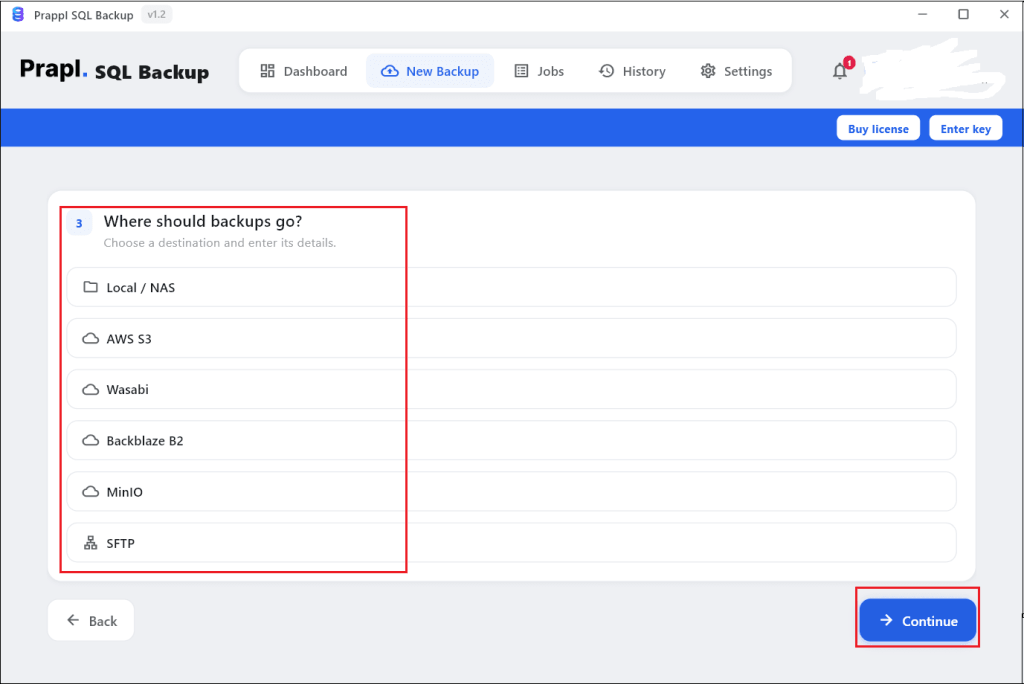
The software offers various storage options to automatically backup Aiven database on local/NAS, SFTP or cloud storage. Additionally, you can also set your own rules for how long backups are kept and how many copies to keep. When you need your data back, the tool allows you to restore backup in just a few clicks.

Steps to Backup Aiven Database Automatically
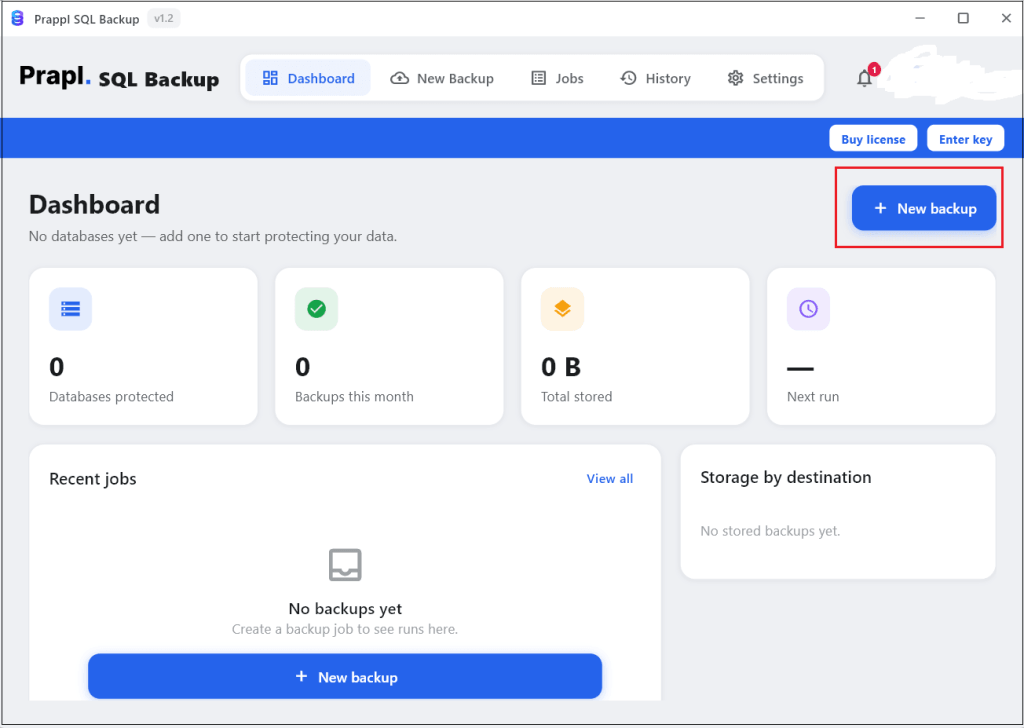
1. Run the tool and click on + New Backup.
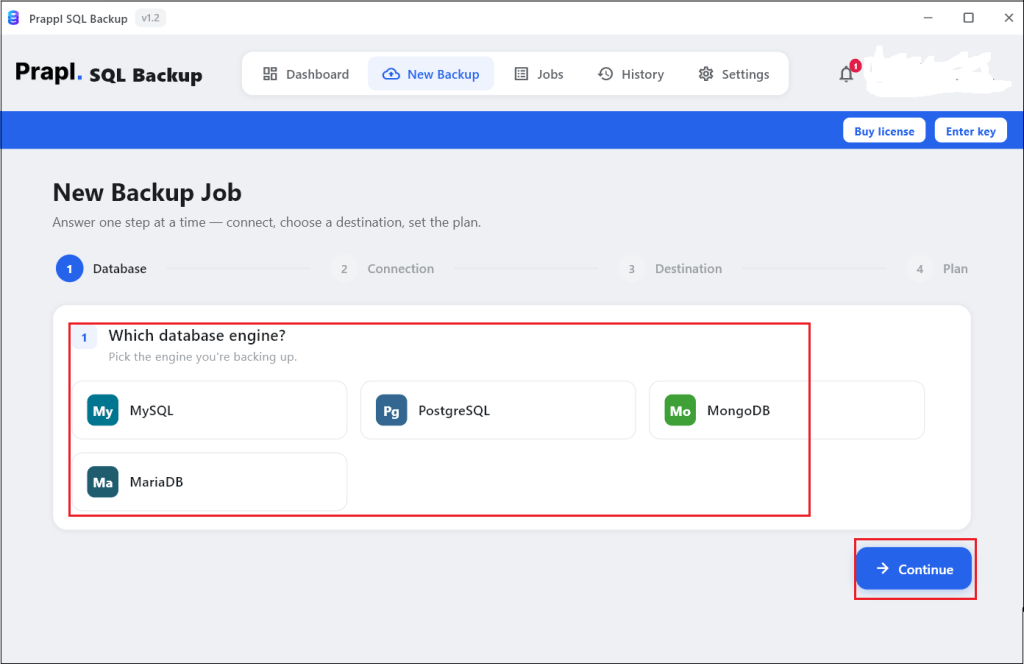
2. Choose your relevant database engine such as PostgreSQL or MySQL.
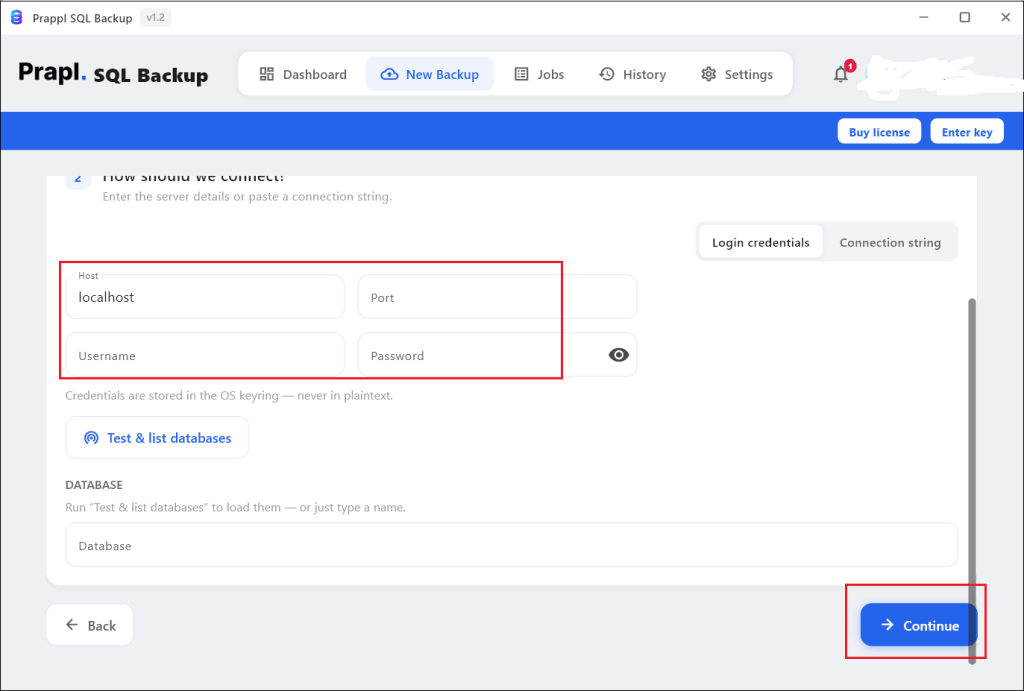
3. Enter your Aiven database login details and click on Test Connection to verify it.
4. Select a location where you want to store backup and click Continue.
5. Set backup type, schedule and retention. After that, click on Save and Run Now button.
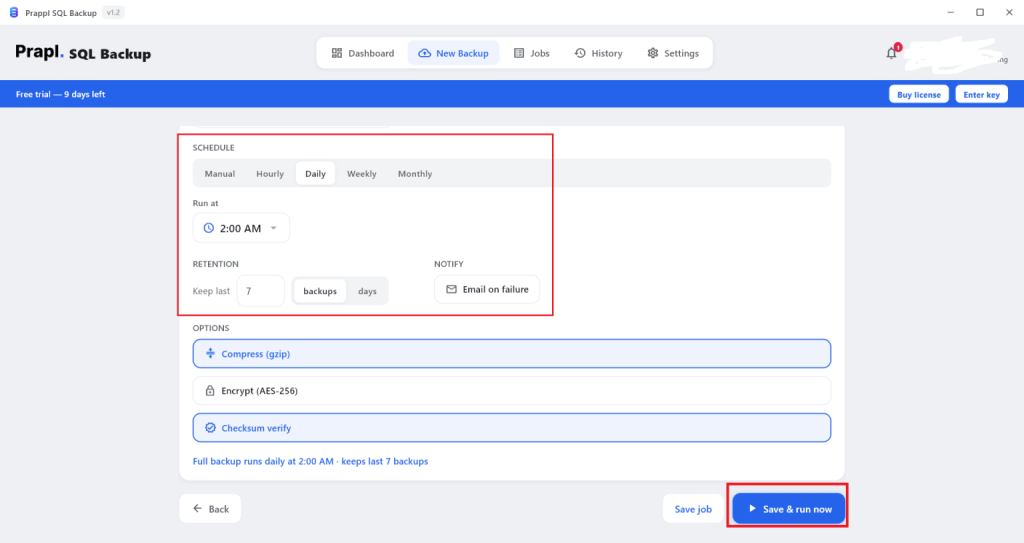
The software will start creating backup of your Aiven database based on configure schedule and stores the copies safely in your chosen location.
How to Restore Aiven Backup with the Tool?
1. Open the software and click on Restore option.
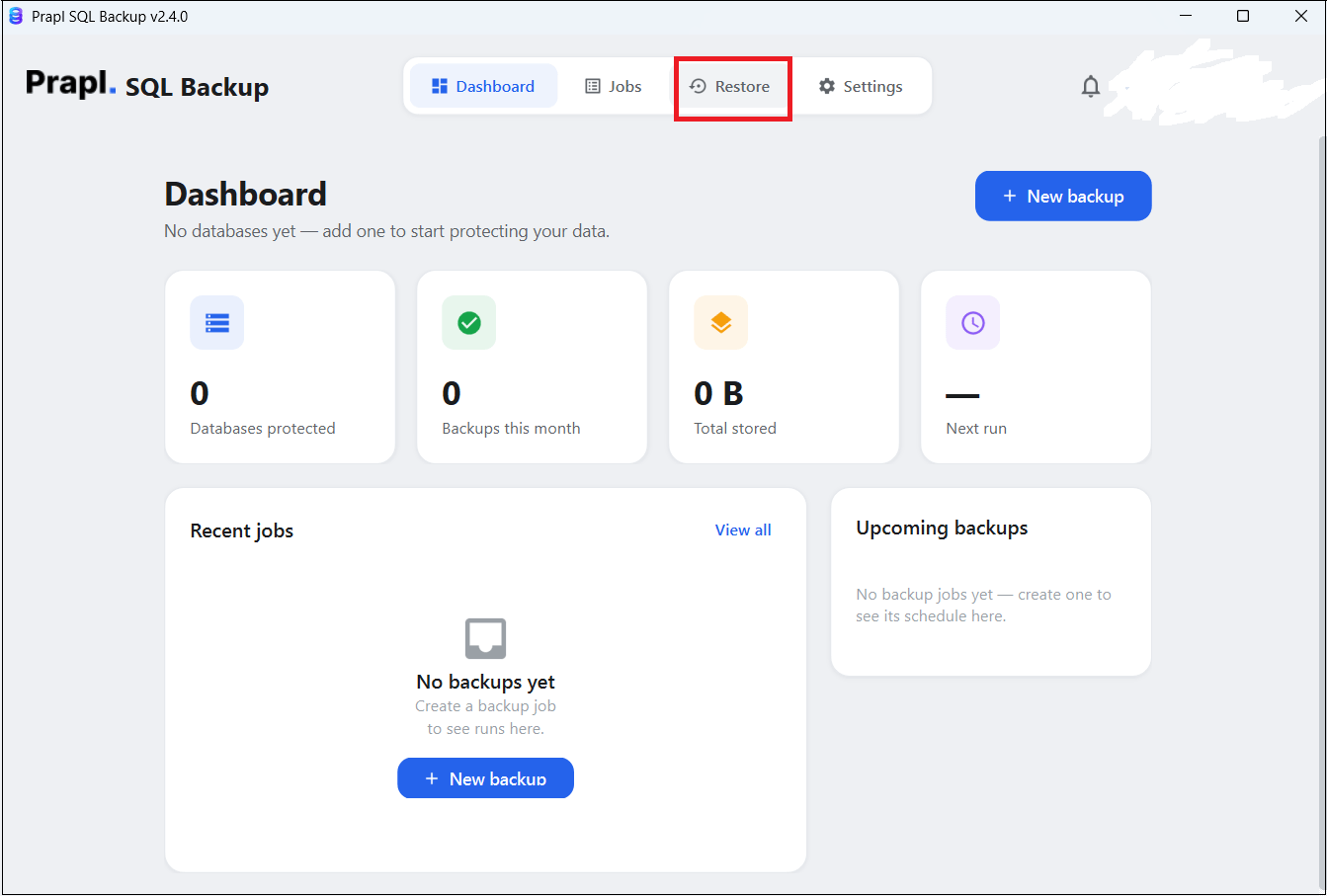
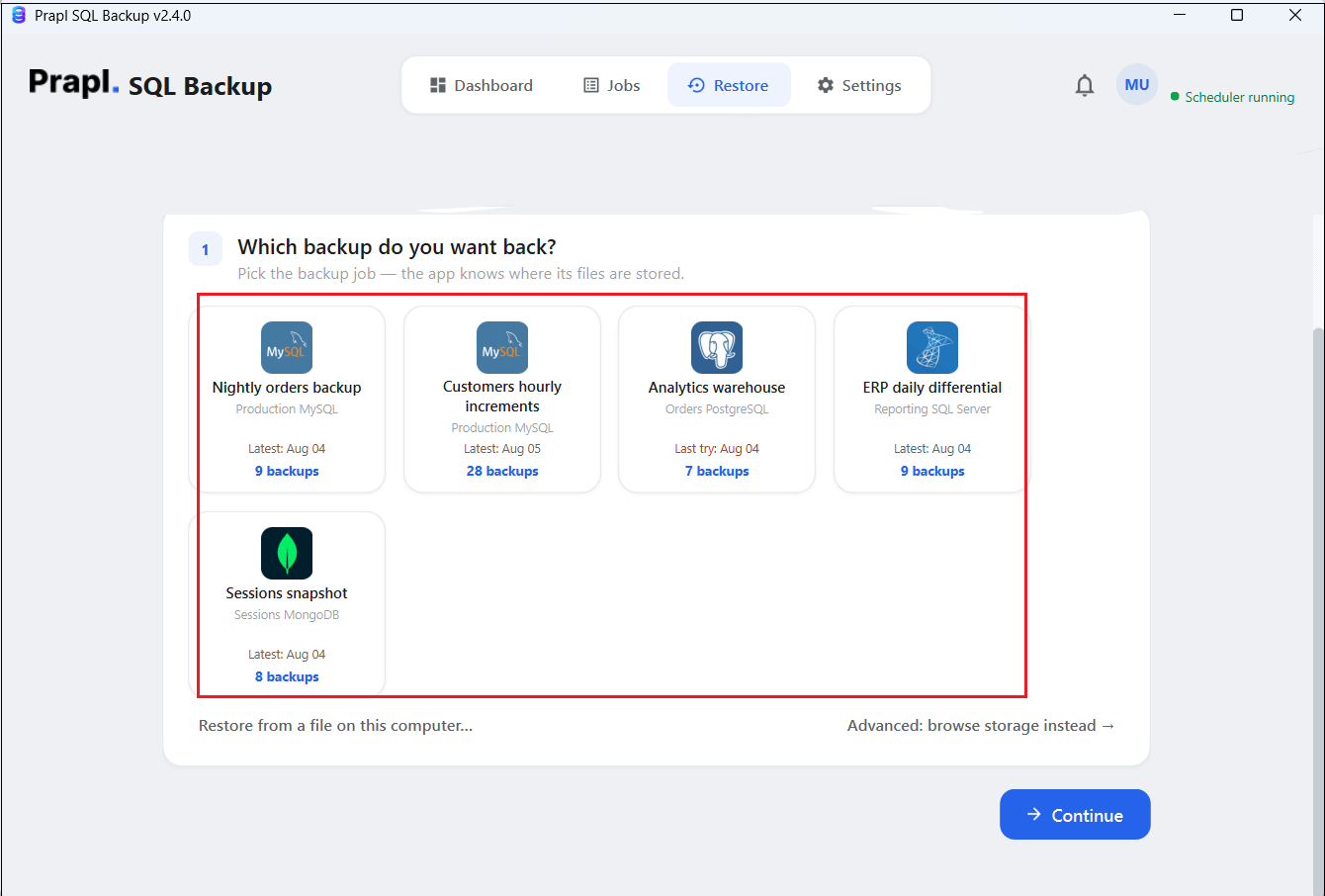
2. Choose backup that you want to restore and press Continue.
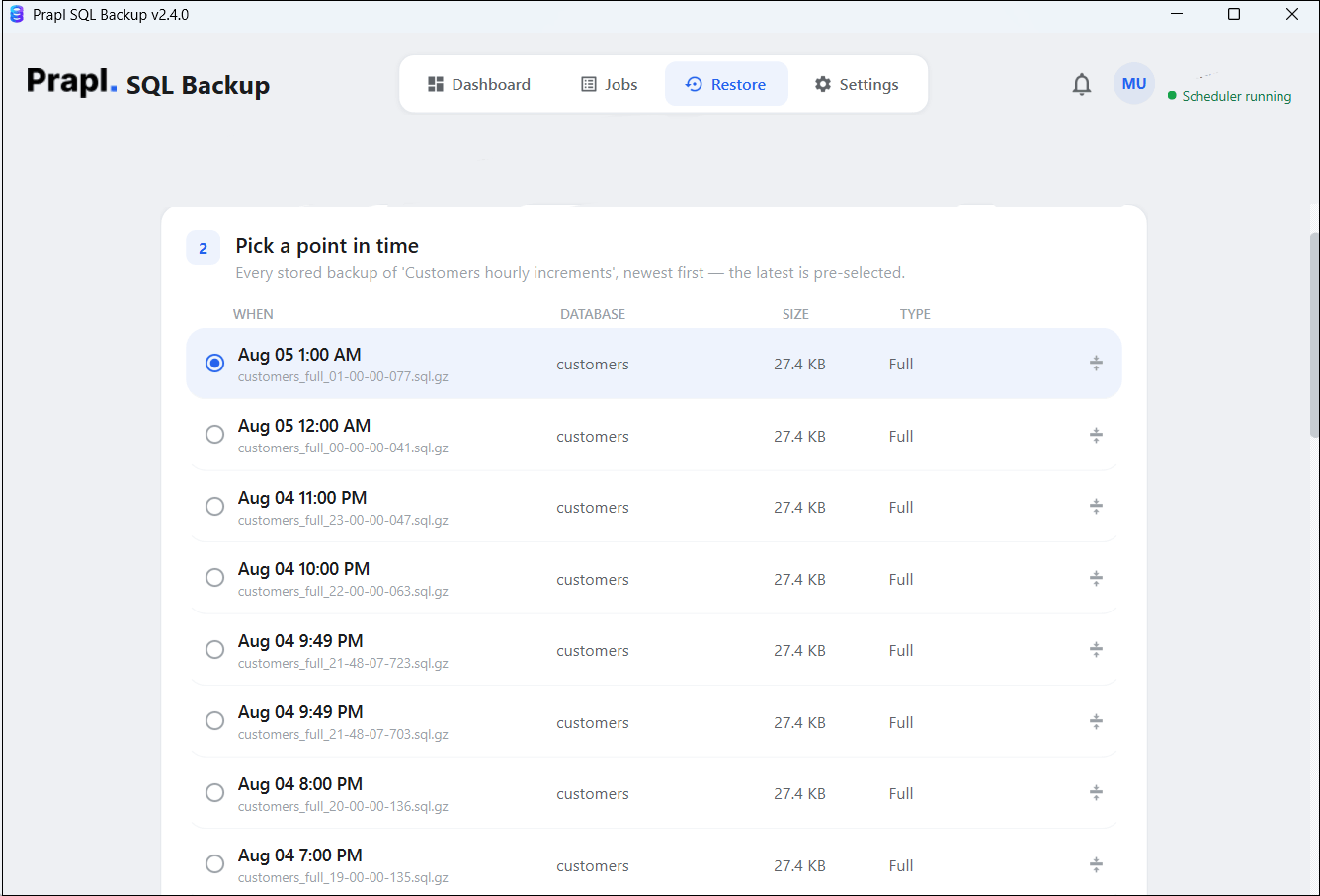
3. Select a Point in Time backup and hit on Continue.
4. Choose the server to where you want to restore.
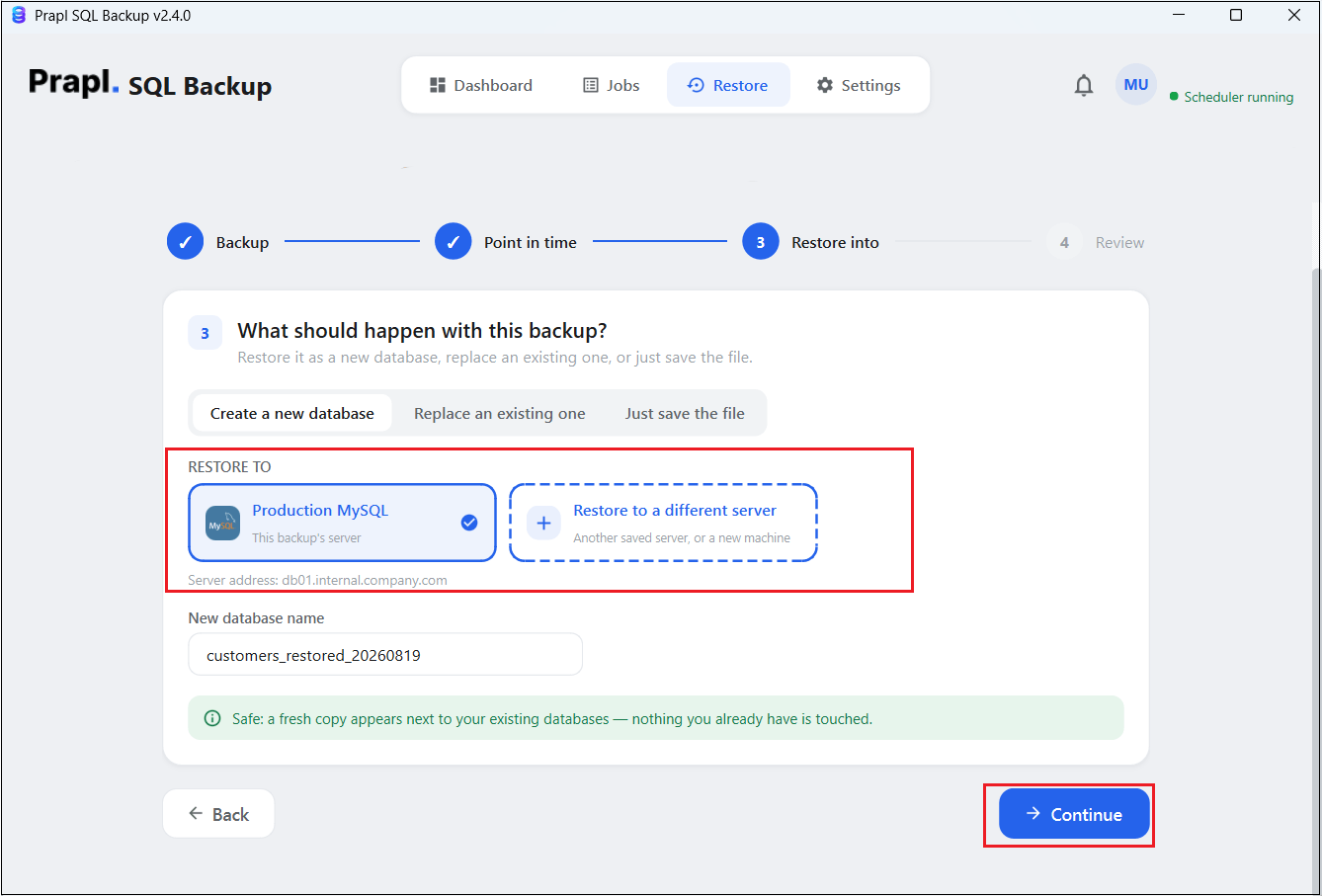
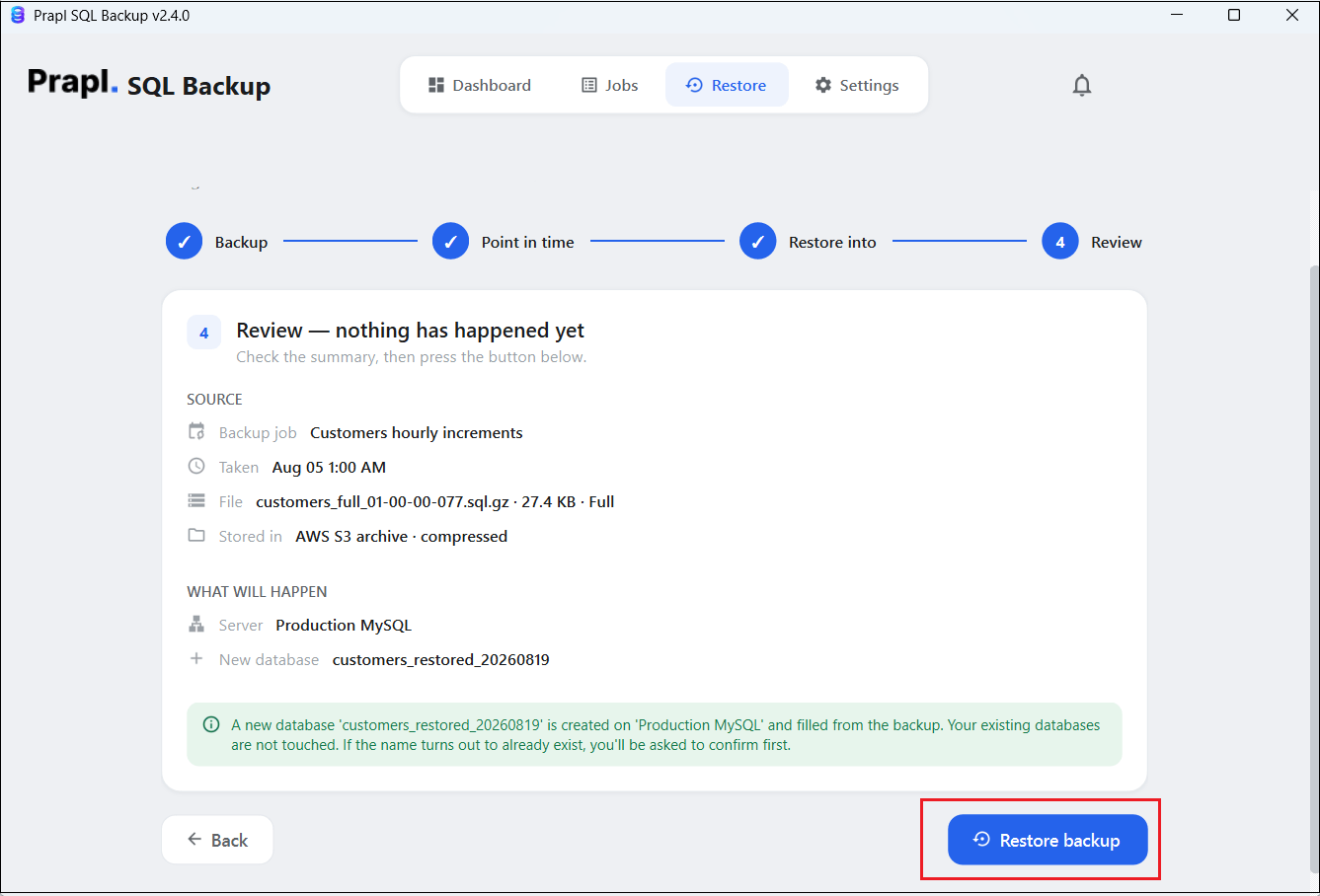
5. Check the restore settings and click on restore Backup button.
Advantages of using Aiven Backup Tool
- Full Control Over Scheduling: You can run backups hourly, daily, weekly, monthly or custom exactly when it suits your workload.
- Off-site and multi-storage options: Keep copies in the cloud storage, on local system or on a NAS. So a single outage can not wipe out both your database and its backups.
- Customizable Retention: Keep backups for weeks, months or years instead of just a few days.
- Portable Backups: Move your data to another provider, share it with another team, or restore it locally without being locked into Aiven.
- One-Click Restore: Recover your data quickly without touching the command line.
- Encryption & Compression: The software gives the option to encrypt your backup files for security purposes. It also compresses backup files to use less storage space.
Comparison Table: Which Method Should You Choose?
| Feature | Aiven Automatic Backups | Prapl SQL Backup Tool |
|---|---|---|
| Setup Needed | None (built-in) | Quick one-time setup |
| Where Backups are Stored | Same region as your database | Your own storage |
| Automated Scheduling | Yes but with limitations (within the Paid Plan) | Yes |
| Multiple Storage Options | No | Yes |
| Backup Retention | Fixed by plan (approx. 2-30 days) | Fully customizable |
| Backup Monitoring | No | Yes |
| Portability | Stays within Aiven | Fully portable |
Conclusion
Backing up your Aiven database does not have to be complicated. Aiven already protects you with automatic, encrypted backups and easy point-in-time restore through forking. But backup solution gives you longer retention, off-site storage and full ownership of your data. In this post, we have explained both methods to backup Aiven database. You can depend on built-in backups but if you want extra protection then choosing the backup utility is the best option which allows you to store backup copies to your PC or cloud storage.
Frequently Asked Questions
Q1. Does Aiven backup my database automatically?
Ans. Yes. Every Aiven database service is backed up automatically with daily full backups and frequent log copies that allow point-in-time recovery.
Q2. How long does Aiven keep my backups?
Ans. It depends on your service plan, usually somewhere between 2 and 30 days.
Q3. Can I download my Aiven backup as a file?
Ans. Aiven automatic backup does not allow you to download your backup as a file. On the other hand, with a professional Aiven backup tool, you can download your database.
Q4. How do I restore my Aiven database?
Ans. Open your service in the Aiven Console, go to Service settings, click Fork database, choose a point in time and create the fork. While with tool, you can restore Aiven backup by clicking on Restore option, choose backup you want to restore, select point in time backup, choosing where you want to restore like same or different server and click on restore backup.
Q5. Why should I use an external backup if Aiven already backups my data?
Ans. Aiven backups have limited retention and are stored in the same region as your database. An external backup gives you longer retention, off-site storage and portable copies you fully control.