 adminSBT
Overview: Data loss can be caused by unintentional deletion, failed updates, server issues, malware attacks and application errors. If your website relies on database, the recent backup is essential for business continuity and disaster recovery. That’s why knowing how to backup Hostinger database is not optional, it is insurance for your entire website.

On Hostinger, most websites use MySQL or MariaDB database and it also supports PostgreSQL for applications that need it. The good news is that backup MySQL database or any other supported database engine is easy. There are two different ways to backup Hostinger database. One is a manual solution using phpMyAdmin and another is using professional Hostinger backup tool. In this post, we will discuss both methods in detail to create Hostinger database backup.
Table of Contents
- What is Hostinger Database?
- Why Need to Backup Hostinger Database?
- Prerequisites for Backing up Hostinger Database
- How to Create Hostinger Database Backup Manually?
- Incremental Back up of Hostinger Database to PC/Server
- Why Use Prapl Hostinger Database Backup Software?
- How to Restore Hostinger Database?
- Concluding Words
- Frequently Asked Questions
What is Hostinger Database?
A Hostinger database is database instance hosted within Hostinger’s web hosting environment. Depending on your hosting plan, you can create and manage MySQL, MariaDB or PostgreSQL databases through Hostinger’s hPanel.
Hostinger handles server configuration, maintenance and security because these databases are managed. You can interact with them using tools like phpMyAdmin in hPanel.
Why Need to Backup Hostinger Database?
Neglecting backups is one of the most expensive mistakes website owner can make. The following factors make routine database backups crucial:
- Protection Against Malware and Hacks: If your website is compromised, backups allow you go back to safe state instead of having to start again.
- Recovery from Human Error: Incorrect SQL commands, deleted tables and improperly configured plugins can all instantly wipe data. The harm is reversed via a backup.
- Safe Updates and Migration: Having a backup allows you to try new things without worrying about changing your CMS theme or switching hosts.
- Business Continuity: Data loss results in lost income and client confidence for membership and e-commerce companies. Backups allow you to carry on.
Prerequisites for Backing up Hostinger Database
Before you start backup, make sure you have the following ready:
- An active Hostinger hosting account with access to hPanel.
- Login credentials for your Hostinger dashboard.
- Access to phpMyAdmin which is available from the hPanel dashboard under the Databases section.
- Enough local storage on your computer or cloud drive to save the exported .sql file.
- A stable internet connection especially for large databases, so the export does not get interrupted.
Once you have these, you are ready to take backup.
How to Create Hostinger Database Backup Manually?
Hostinger provides phpMyAdmin that is free tool built into hPanel that lets you download your Hostinger database in .sql file. This file is complete snapshot of your database that you can store on your computer and use to restore later.
Follow these steps:
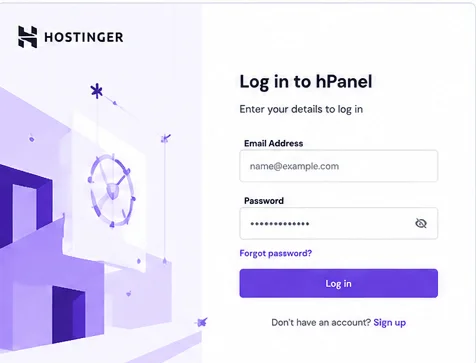
- Log in to hPanel using your Hostinger account credentials.
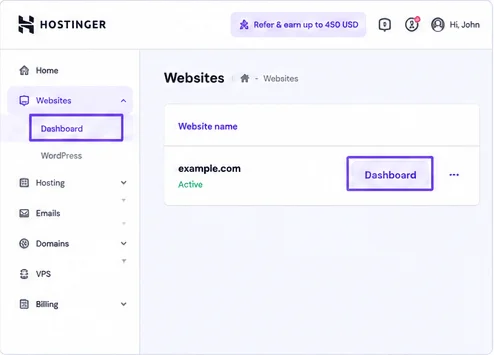
- On the dashboard, go to Websites > Dashboard next to your website.
- After that, open Databases > Management.
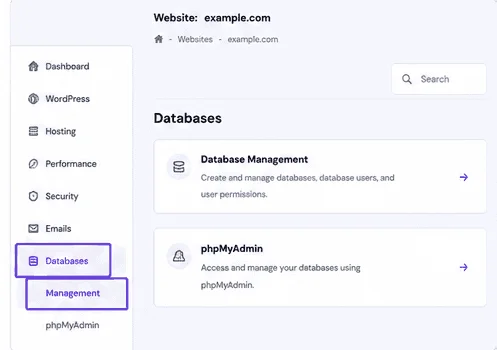
- Locate the database you want to backup and click Enter phpMyAdmin.
- Select your database inside phpMyAdmin.
- Click the Export tab in the top menu bar.
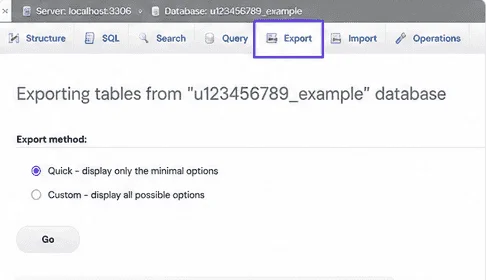
- Choose Quick export method for full backup or select Custom if you want to pick specific data.
Your browser will download .sql file containing your database. Save this file somewhere safe.
How Manual Backups Can Fail?
Small sites benefit greatly from manual backups, but they have serious drawbacks that many people are unaware of. This is where the manual approach is inadequate:
- Manual backups are totally up to you. If you miss a week or a month, you risk losing all of the data that was created during that time. You must thus remember to do it.
- php can time out in large databases. There are upload and execution limits in phpMyAdmin. The export or import may fail in the middle if your database is large.
- No automatic scheduling. There is no set it and forget it every backup is a manual task.
- There is no version history. Unless you carefully keep multiple dated files yourself, you only have whatever you last exported.
Incremental Back up of Hostinger Database to PC/Server
After going through the above method, we have understood that the manual method works well for small sites to download Hostinger database to PC, local drive and more but it has limitations such as no automatic backup, backup version history, compression and encryption features. This is where a professional solution like Prapl SQL Backup Software comes in.
Instead of manually logging in and clicking through phpMyAdmin, it creates automated scheduled backups hourly, daily, weekly or at custom intervals. The tool enables you to recover the database if something goes wrong. It also provides compression and encryption to keep backups small and secure.
You can download its free trial version to check how it creates automated Hostinger database backups.
Steps to Download Hostinger Database Automatically
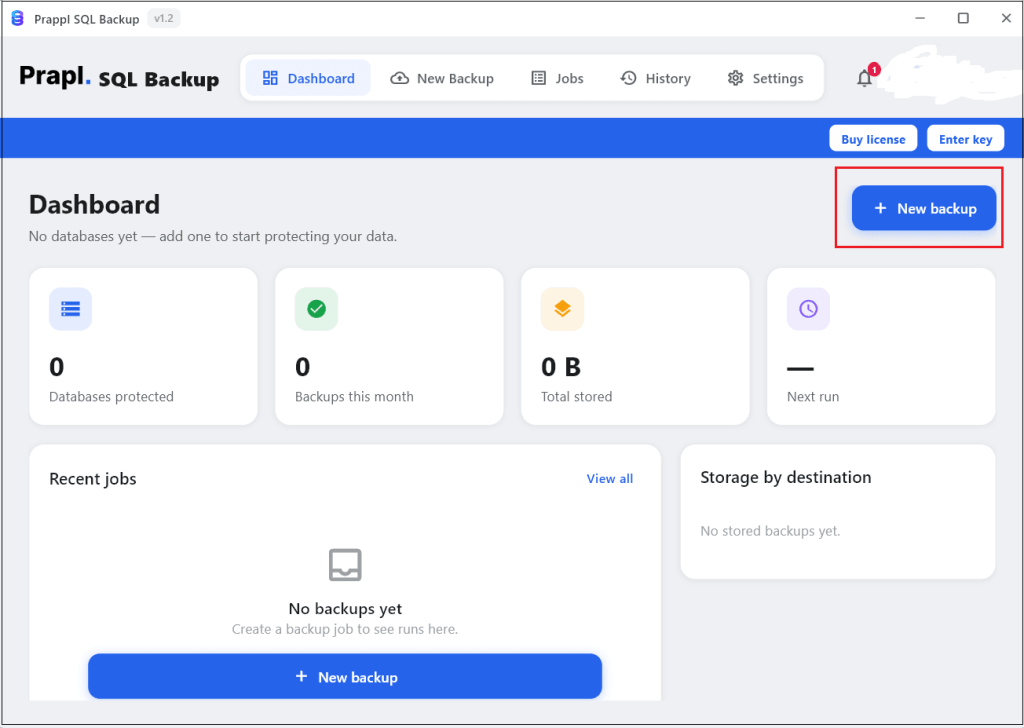
Step 1. Run the tool on your system and click on + New Backup option.
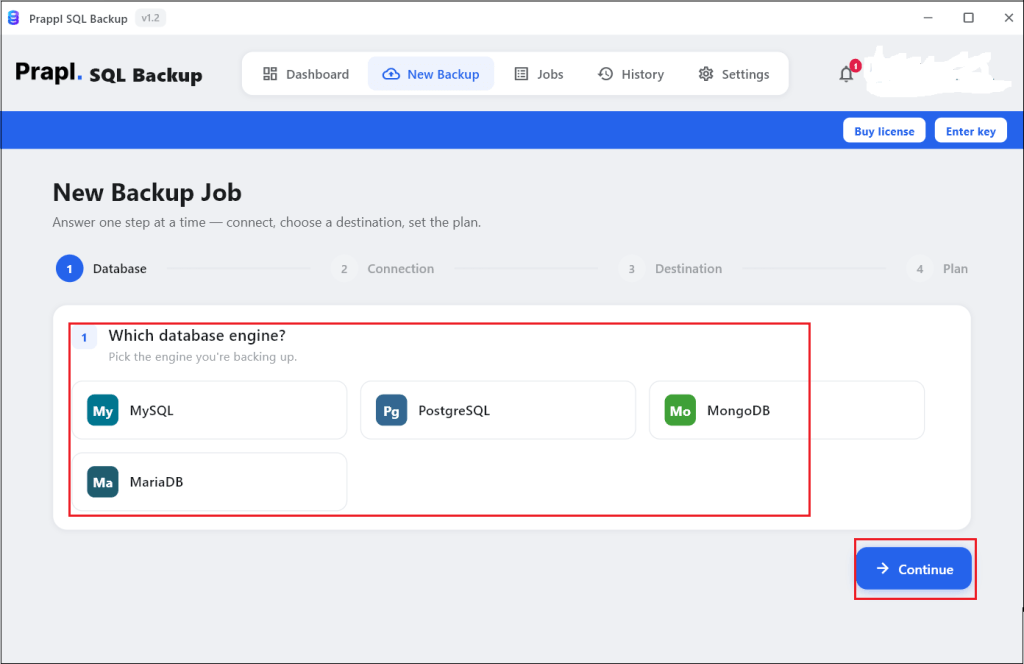
Step 2. Choose your relevant database engine and click on Continue.
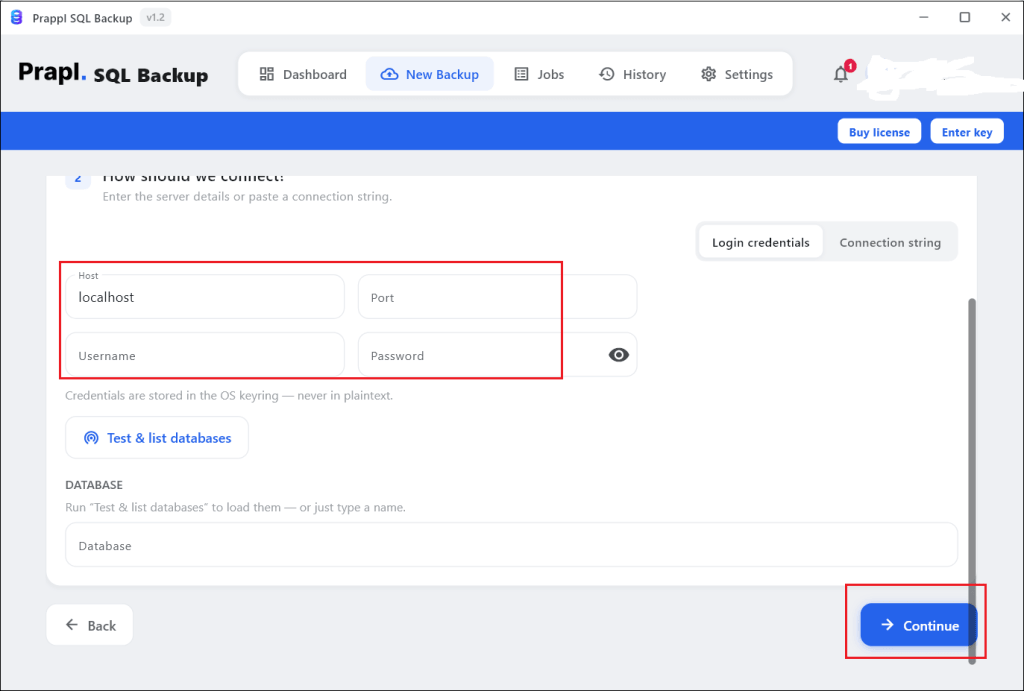
Step 3. Enter your Hostinger account credentials and click on Test Connection to verify it.
Step 4. Choose the location to save backup files.
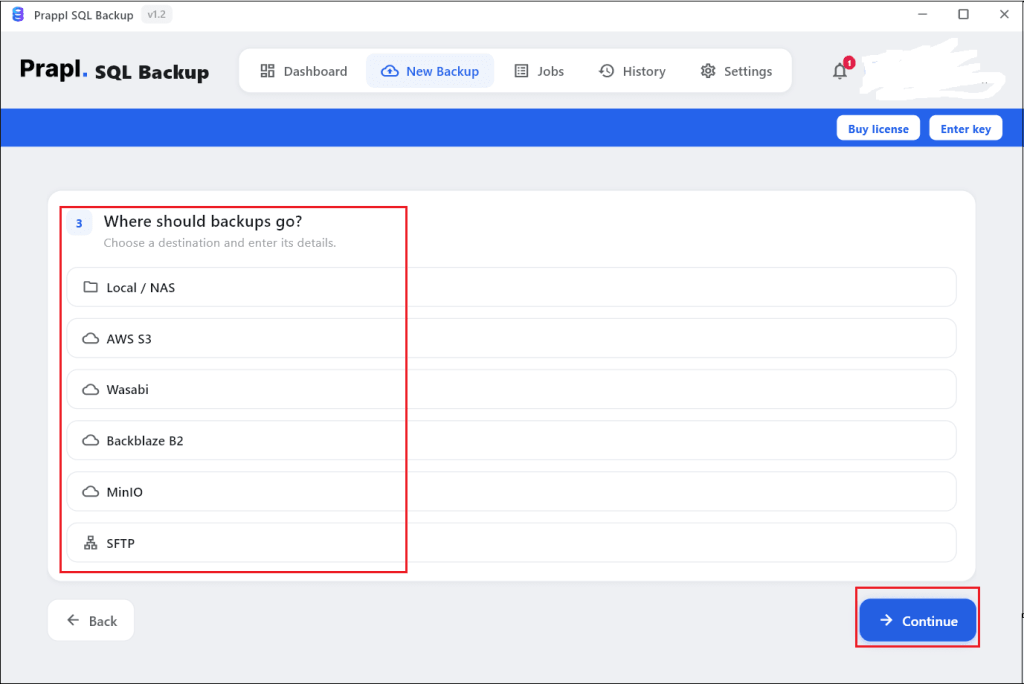
Step 5. Configure backup settings and click on Save & Run Now button.
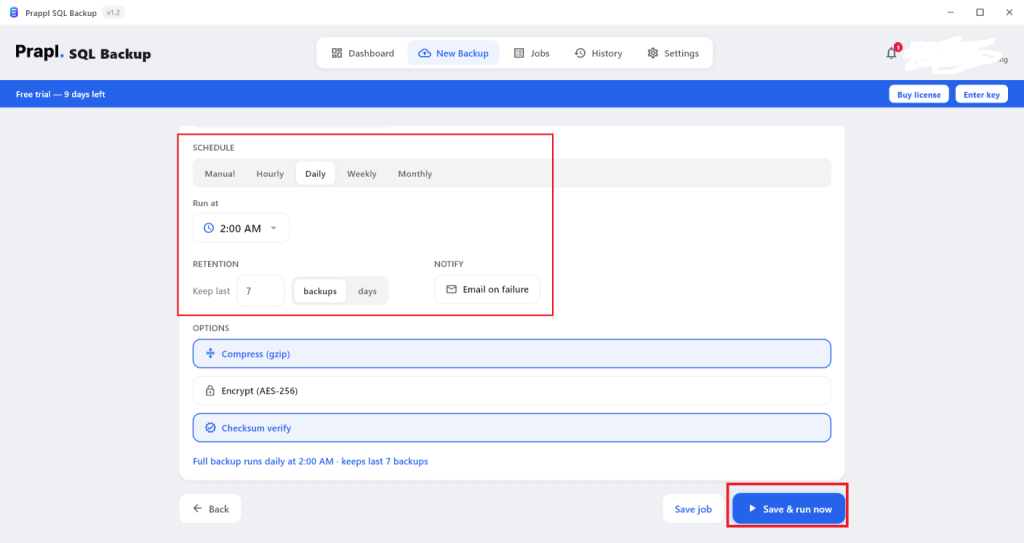
The software will start creating backup of your Hostinger database to local drive, PC or cloud storage as based on the selected location.
Why Use Prapl Hostinger Database Backup Software?
This is built to remove every week point of manual backups. Here’s what makes it a smart choice for protecting your Hostinger database:
- Automated Scheduled Backups: The software is able to download Hostinger database automatically. You just need to set schedule at once, it creates backups automatically on your chosen schedule. Once configured no logins, no clicking and no forgetting.
- Fast and Reliable Restore: You can create backups or restore database with a single utility. The simplified process reduces administrative effort and minimizes the risk of errors during backup and recovery tasks.
- Multiple Storage Options: Backups can be stored in various locations such as local drives, Network Attached Storage, Amazon S3, Wasabi, FTP/SFTP servers and many more.
- Incremental or Full Backup Options: The tool allows to to choose your backup type i.e. full or incremental. Using these options you can create a complete copy of entire database or download only the data that has changed since the last backup.
- Backup Compression: This SQL backup utility compresses backup files before storing them. So, they consume less disk space and are transferred more quickly.
- AES-256 Encryption: Backup files are protected using AES-256 encryption that prevent unauthorized access to sensitive database information during storage and transfer.
- Retention Management: Retention policy automatically control how long backup files are kept. You can configure the software to retain backups for specific number of days or keep only the most recent backup versions.
- Email Notifications and Monitoring: When backup process complete successfully or runs into problems, you will get email alerts.
- Support for Multiple Database Engines: It supports multiple database engines through single interface. It allows users to backup PostgreSQL database, MySQL, MariaDB, etc. without using separate backup solutions.
How to Restore Hostinger Database?
A backup is useful if you can restore it. Here, we will provide two ways that will help you to bring your Hostinger back.
Restore Backup File through phpMyAdmin
- Log in to hPanel and open phpMyAdin for your database.
- Choose the target database you want to restore.
- Click the Import tab.
- Select the File and choose your saved .sql backup file from your system.
- Leave the format set to SQL and then click Go.
Wait for phpMyAdin to process the file. Once it complete, you will get a successful message and your tables and data will be restored.
Restore from the Hostinger Database Backup Tool
- Open the tool and click on Restore tab.
- Go to its list of saved backups and choose the backup you want by its date.
- Choose the destination like the original database, a new one or different host.
- Start the restore and let it run.
Concluding Words
Creating backup of the database on your website is wise way to protect your data. Manually exporting using phpMyAdmin is great skill to have and works well for small sites.
By offering frequent backups, reliable recoveries, off-site storage and alarms in case something goes wrong, automated backup software reduces risk for any growing or significant corporate website. In this essay, we have covered both strategies to backup Hostinger database. Regardless of the approach you choose, you have to start backing up now before you really need it.
Frequently Asked Questions
Ques 1. Does Hostinger backup my database automatically?
Ans. Yes, Hostinger creates automatic weekly backups on all web and cloud hosting plans and daily backups on Business plans and above.
Ques 2. How long does Hostinger keep database backups?
Ans. Weekly backups are stored for 6 weeks and daily backups for 7 days. After that, older backups are permanently deleted, so keep your own off-site copy for anything you need long-term.
Ques 3. In what format is a Hostinger database backup saved?
Ans. Manual phpMyAdmin exports downloads as a .sql file. Hostinger’s native hPanel database backups download in compressed .sql.gz format.
Ques 4. Is manual or automated backup better?
Ans. Manual backups are fine for small or occasional use but automated software is far safer for important websites because it runs on schedule, has a retention policy and keep version history
Ques 5. Which format is Hostinger database backup saved?
Ans. Manual phpMyAdmin exports are saved as .sql files. Hostinger’s downloadable database backup come in compressed .sql.gz format.
Ques 6. How often should I backup my Hostinger database?
Ans. For frequently updated websites, daily backups are recommended. Less active websites may only require weekly backups.
Ques 7. Will restoring the database overwrite existing data?
Ans. In most cases, restoring backup can replace or modify existing database content. So, it is recommended to create fresh backup before performing restore operation.