 Abeer Arora
Summary: PlanetScale runs on standard database engines, backing up a deployment mostly comes down to knowing how to backup MySQL database or a PostgreSQL one depending on which engine your database uses.
You can backup PlanetScale database in three useful ways. The first is using the platform’s built-in backups, the second is using the PlanetScale CLI and the third is using specialised backup software that stores copies at locations under your control and runs on schedule.

This article places them side by side, runs through each technique, and shows how to restore when the time comes.
Table of Contents
-
- What is PlanetScale?
- Reasons to Backup PlanetScale Database
- How to Create PlanetScale Database Backup?
- Method 1. PlanetScale Built-in Backups
- Method 2. Export a Copy With the PlanetScale CLI
- Method 3. Backup PlanetScale Database Automatically Using Prapl
- Comparison Table: Which Method Should You Choose?
- How to Restore PlanetScale Backup?
- Conclusion
- FAQ
What is PlanetScale?
PlanetScale is a serverless and fully managed database platform for MySQL (built on Vitess) and PostgreSQL. You do not manage servers, set up replication or oversee failovers. The platform takes care of the plumbing while you deploy via the interface. Branching is the feature that distinguishes PlanetScale from a conventional database. Treat your database like code: create a branch, modify the schema, test it and then seamlessly integrate it into production. It also explains why it’s stress-free to restore a backup on PlanetScale. Recovery never takes place on top of your live data, but rather on a new branch.
Reasons to Backup PlanetScale Database
PlanetScale keeps automatic backups on its own infrastructure. So, it is reasonable to ask why you do anything extra. Here’s why an independent backups strategy still matters:
- The Backup Stay on the Platform: A built-in restore rebuilds into a new branch inside PlanetScale. It is not a file you can download or carry elsewhere.
- The Greatest Danger is Human Error: The majority of data loss is not brought on by hardware malfunctions but rather by someone executing an incorrect query, dumping the incorrect table, or inadvertently directing script to production. Backups are your way of undoing things that the platform is unable to stop.
- Retention Windows Expire: Automatic backups have time limit. The necessary snapshot can be lost if you find issue months later. Your choice to keep your personal copy will decide how long it lasts.
- Compliance and Audits: Many businesses are required by law or regulation to keep separate, offsite copies of their data.
- Account and Billing Risk: You may lose access to your data due to late payment, suspended account or plan change. Regardless of the status of your account, your data is protected by a copy kept off the site.
- Portability & Migration: A portable export makes it simple to transfer data to another team, change hosts or create local copy for offline development.
That’s why PlanetScale backups protect you from infrastructure failure while your own backups protect you from everything else.
How to Create PlanetScale Database Backup?
There are several ways to backup PlanetScale database, ranging from the built-in automatic system to manual exports and dedicated third party software. Let’s walk through each.
Method 1. PlanetScale Built-in Backups
PlanetScale takes automatic scheduled backups of your production & development branches and stores them in durable, off-cluster storage in the same region as your database at no extra cost. You do not need to configure anything for this, it runs by default.
To view and manage them:
- Open your database in the PlanetScale dashboard.
- Go to the Backup Page
- Review each backup branch, creation time and expiration date.
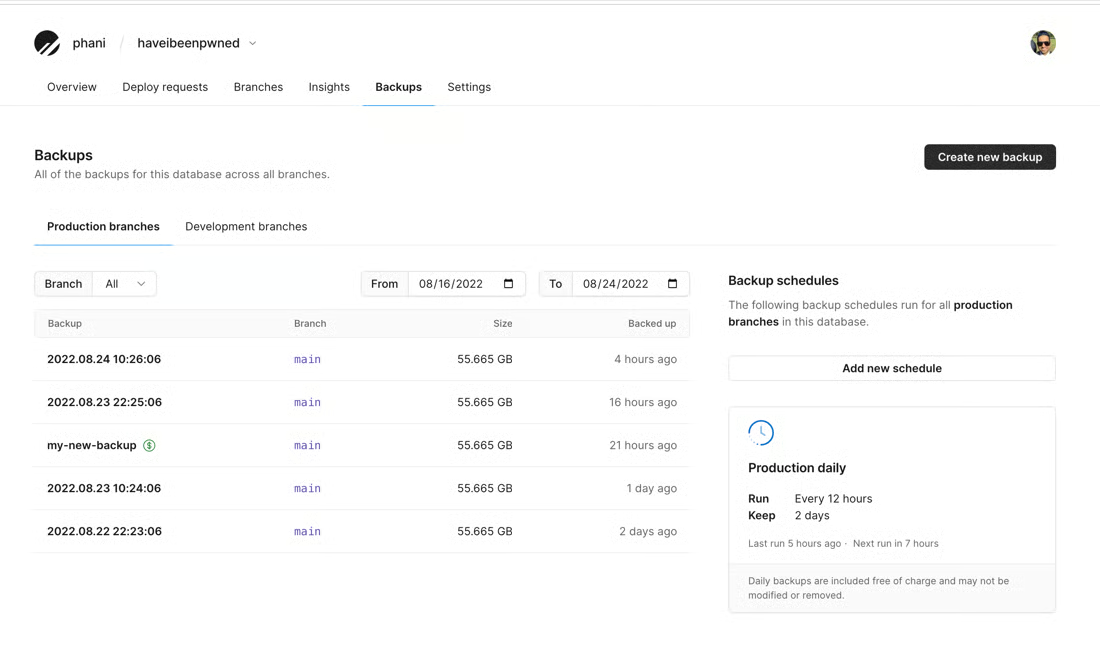
To create a manual on-demand backup:
- Go to your database backups page: app.planetscale.com/org/your-org/backups
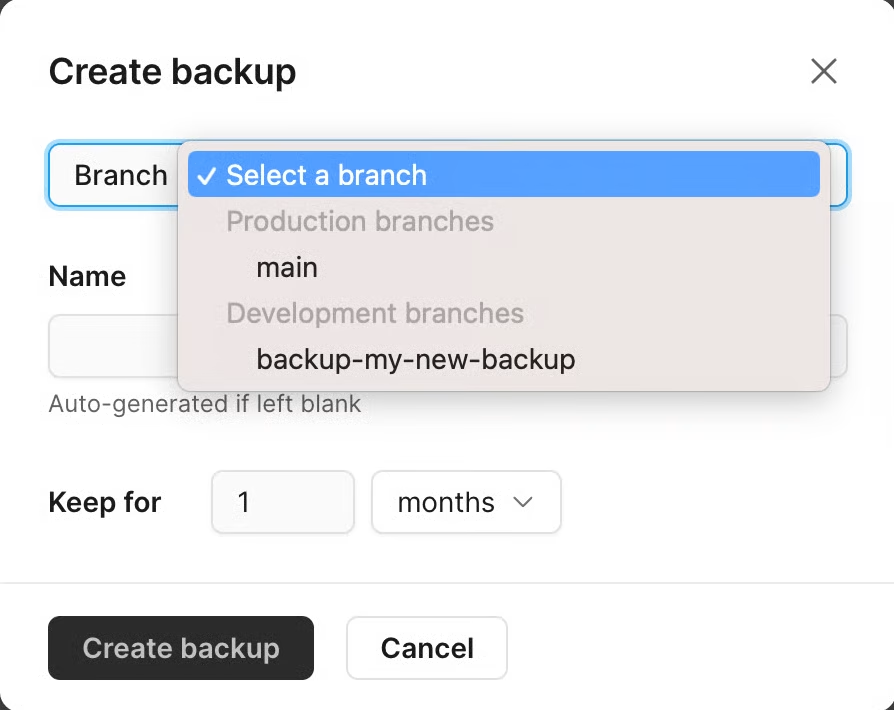
- Click the Create new backup button.
- Select the branch you want to capture and click Create backup.
- Review your backup schedule and retention settings on the same page and adjust them to fit your needs.
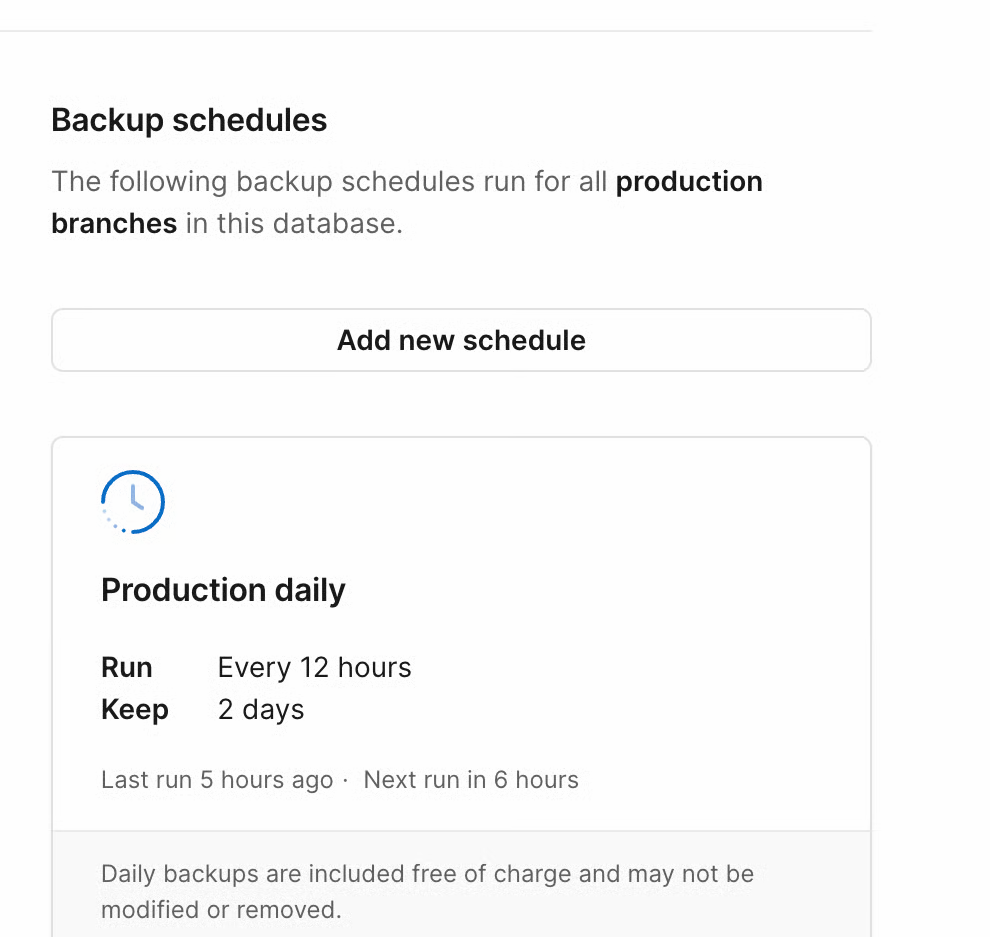
Once configured, PlanetScale automatically generates backups on the defined schedule and keeps them according to your retention policy. Each backup shows its branch, time and expiry. You can toggle an option to prevent specific backup from being deleted.
This is your fast and in-platform safety net. It is ideal for everyday recovery.
Limitations of PlanetScale Built-in Backups
While the built-in backups provide reliable protection but they are primarily meant for restoring databases within the PlanetScale environment. So teams needing long-term retention or external copies keep backups outside the platform too.
Method 2. Export a Copy With the PlanetScale CLI
This is how you get a file that genuinely belongs to you. For MySQL database, PlanetScale’s own CLI is the cleanest route and copes with large data.
Install the PlanetScale CLI (pscale), log in and export to a local folder.
pscale database dump your_database your_branch --output="./ps_backup"
You will get a folder of .sql files. Zip that folder and store it anywhere like S3, your system and another cloud.
If you do rather use the traditional utility, open a proxy first and run mysqldump:
pscale connect your_database your_branch
mysqldump -h 127.0.0.1 -P LOCAL_PORT -u root --single-transaction --set-gtid-purged=OFF your_database > ps_backup.sql
On a PostgreSQL database, pg_dump does the same job to backup PostgreSQL database:
pg_dump "postgresql://user:password@host:5432/dbname?sslmode=require" -F c -f ps_backup.dump
Your now own a portable copy. The trade-off is discipline, you have to run these yourself, nothing alerts you if a run fails.
Method 3. Backup PlanetScale Database Automatically
You never really receive a copy that you can hold because the dashboard stores all backups inside PlanetScale. That copy is provided via the command line, but only if you remember to execute it. One half of the problem is solved by each manual way, and the other half is left on your plate in silence. Something like the Prapl SQL Backup Tool can handle the remaining half, which is precisely what specialised backup software is designed to do.
PlanetScale gives you ordinary MySQL or PostgreSQL connection string, the tool connects to your database like any normal client would and from there it takes care of the parts you do otherwise do yourself.
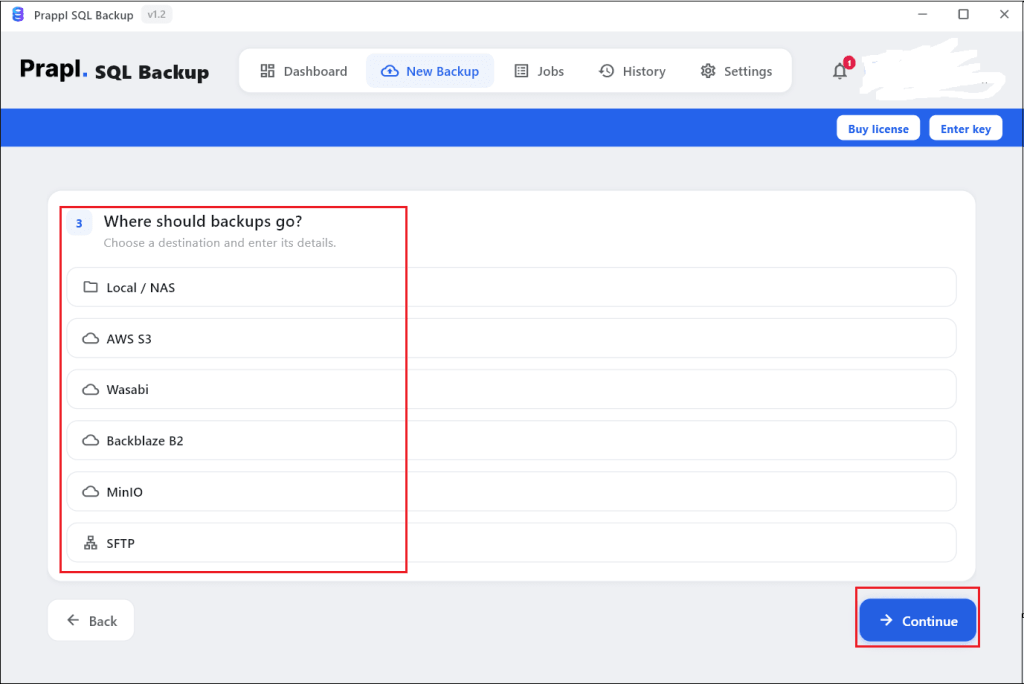
You can store the backup wherever you want. Send copies to local drive, Amazon S3, FTP/SFTP server and another cloud bucket. Somewhere outside PlanetScale which is the entire point of an independent copy. You need to set the schedule frequency once i.e. hourly, daily, weekly, monthly. Protection ceases to rely on anyone remembering because the backups operate independently. The software lets you choose the retention policy, which determines how long copies are retained. Old copies are automatically cleared out rather than accumulating. It enables you to compress and encrypt each file. With this utility, you can put the data back to the original database, a new one or a different host, so the backup is useful if something goes wrong.
Steps to Download PlanetScale Database to PC
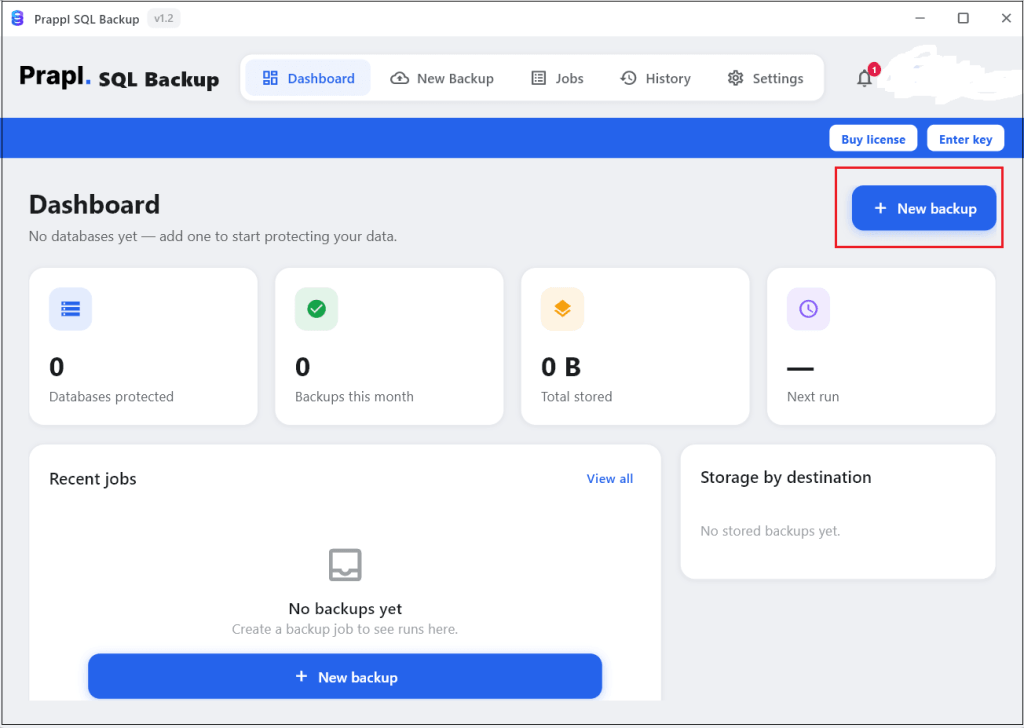
1. Run the SQL Backup Tool on your Windows PC and tap on + New Backup.
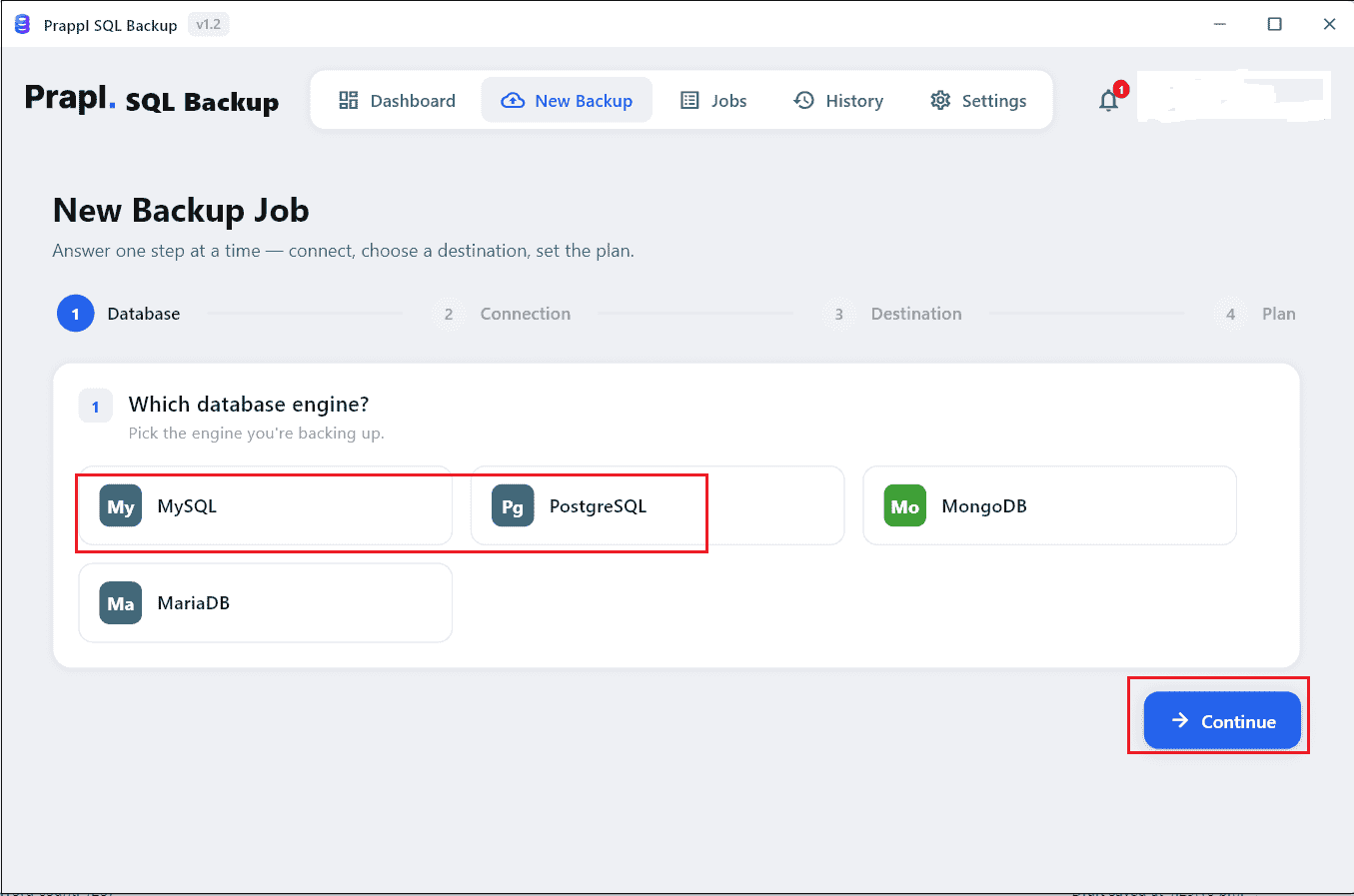
2. Choose your relevant database engine such as MySQL or PostgreSQL and click on Continue.
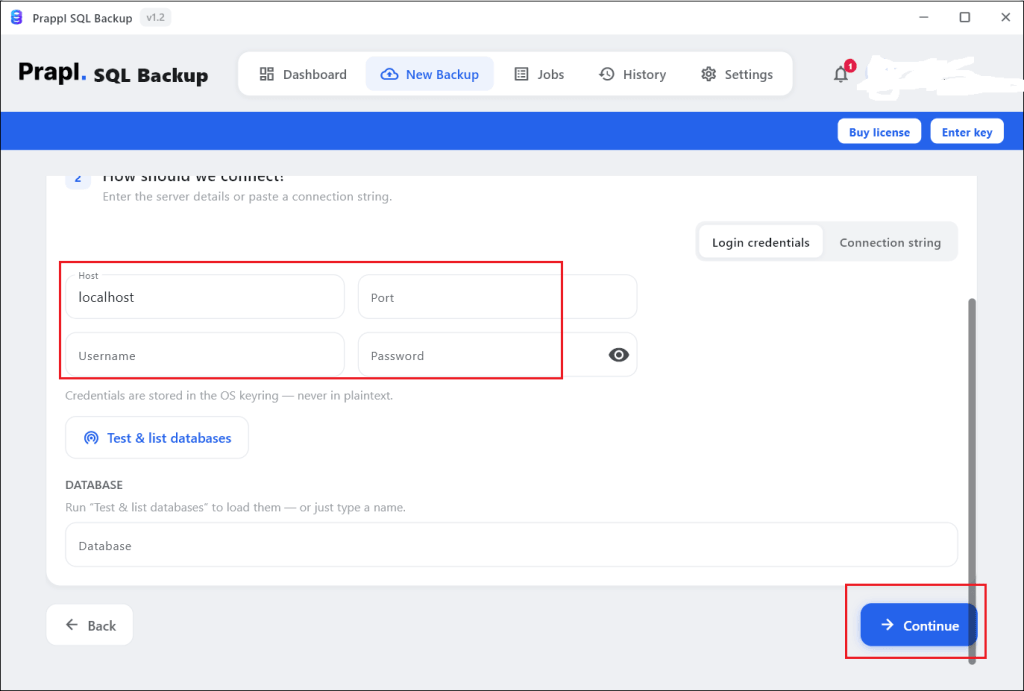
3. Enter your PlanetScale database credentials and verify test connection.
4. Choose destination location to store backup file and press Continue.
5. Configure Schedule, Retention, compression and Encryption.
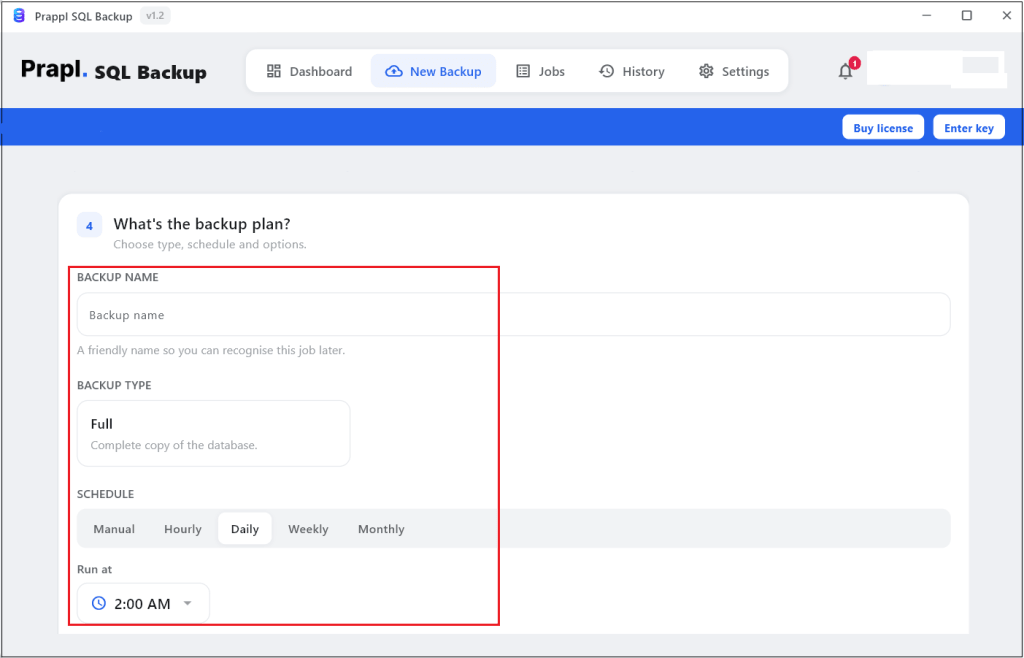
6. After that, click on Save and Run Now button to begin the backup process.
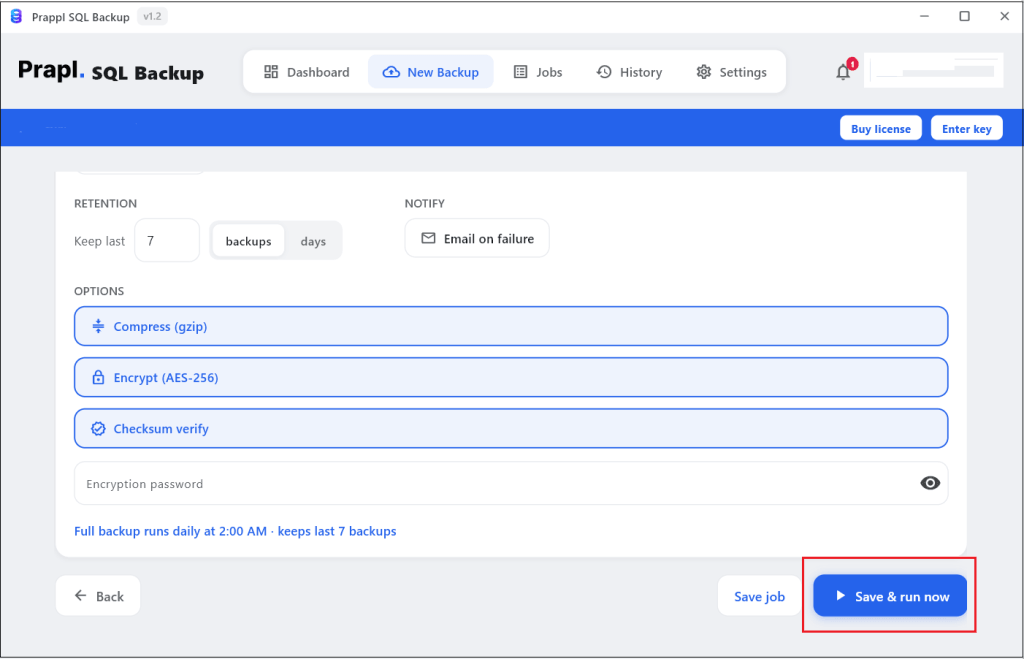
The software will create PlanetScale backup based on the configured schedule.
Comparison Table: Which Method Should You Choose?
| Feature | Automatic Built-in Backup | Command Line | Prapl SQL Backup Tool |
|---|---|---|---|
| Setup | None (built-in) | Some (Install the CLI) | Light (One Time Config) |
| Runs On its Own | Scheduled by PlanetScale | No | Yes |
| Portable File You Own | No | Yes | Yes |
| Stored Off Platform | No | Yes | Yes |
| You Hold the Encryption Key | No | If you encrypt it yourself | Yes |
| Restore Elsewhere | No (Branch Inside Platform) | Yes | Yes |
| Failure Notification | Console Only | No | Yes |
| Best for | Fast recovery from everyday mistakes | Migration, one-off exports | Automated independent copies |
How to Restore PlanetScale Backup
Recovery is the gentle part. PlanetScale restores onto a new branch instead of overwriting anything live. How you do it depends on where the backup came from.
Restore from the PlanetScale Dashboard
- Sign in to PlanetScale and open the database you want to recover.
- Go to the Backups page and find the backup you need by its date and branch.
- Click the Backup and choose the Restore option.
- PlanetScale builds a new branch from that backup.
- Test the branch to confirm the data is what you expect.
- Promote the branch to production only once you are satisfied. Your live database stays untouched until this final step.
Restore a Copy Exported from Command Line
1. Locate the backup you created.
2. For a PlanetScale CLI dump run:
pscale database restore-dump your_database your_branch --dir="./ps_backup"
3. For a plain .sql file, open a proxy with pscale connect, then import through the standard MySQL client:
mysql -h 127.0.0.1 -P LOCAL_PORT -u root your_database < ps_backup.sql
4. For a PostgreSQL archive, load it with pg_restore:
pg_restore -d "postgresql://user:password@host:5432/dbname?sslmode=require" --no-owner ps_backup.dump
5. Verify the tables and row counts once the import finishes.
Restore from the PlanetScale Database Backup Tool
- Open the tool and go to its list of saved backups.
- Pick the backup you want by its date.
- Choose the destination like the original database, a new one or different host.
- Start the restore and let it run.
- Check the restored data to confirm it’s complete.
Conclusion
Backing up PlanetScale database is easier than it first sounds. The platform already takes automatic backups for you, so you are covered against most everyday mistakes from day one. The only thing left to do is keep one copy of your data outside the platform either by exporting it yourself from the command line or using a backup tool handle it automatically on a schedule. Use the dashboard for quick recovery, the command line when you need a portable file and software when you want it all to run its own. Set this up once and you can stop worrying about losing your data. Here, we have explained all three methods to backup PlanetScale database with step-by-step instructions.
FAQs
Ques 1. Does PlanetScale backup my database on it own?
Ans. Yes. Scheduled backups run automatically and stored off-cluster at no extra charge.
Ques 2. Can I download PlanetScale database to my local drive?
Ans. Not the built-in ones, they restore into a branch on the platform. You can use the CLI or backup software to backup PlanetScale database to your PC.
Ques 3. If PlanetScale already protects data, why need I make separate backups?
Ans. Independent backups provide additional protection against accidental deletions, operational mistakes, compliance requirements and long-term archival needs.
Ques 4. Do PlanetScale backups require downtime?
Ans. Backups may be finished most of the time without taking the database offline, which reduces the amount of time that applications are interrupted.
Ques 5. Can I backup PlanetScale database using mysqldump?
Ans. Yes. Since PlanetScale is MySQL compatible, you can use the mysqldump utility to export database data into .sql file.